

Upload your model
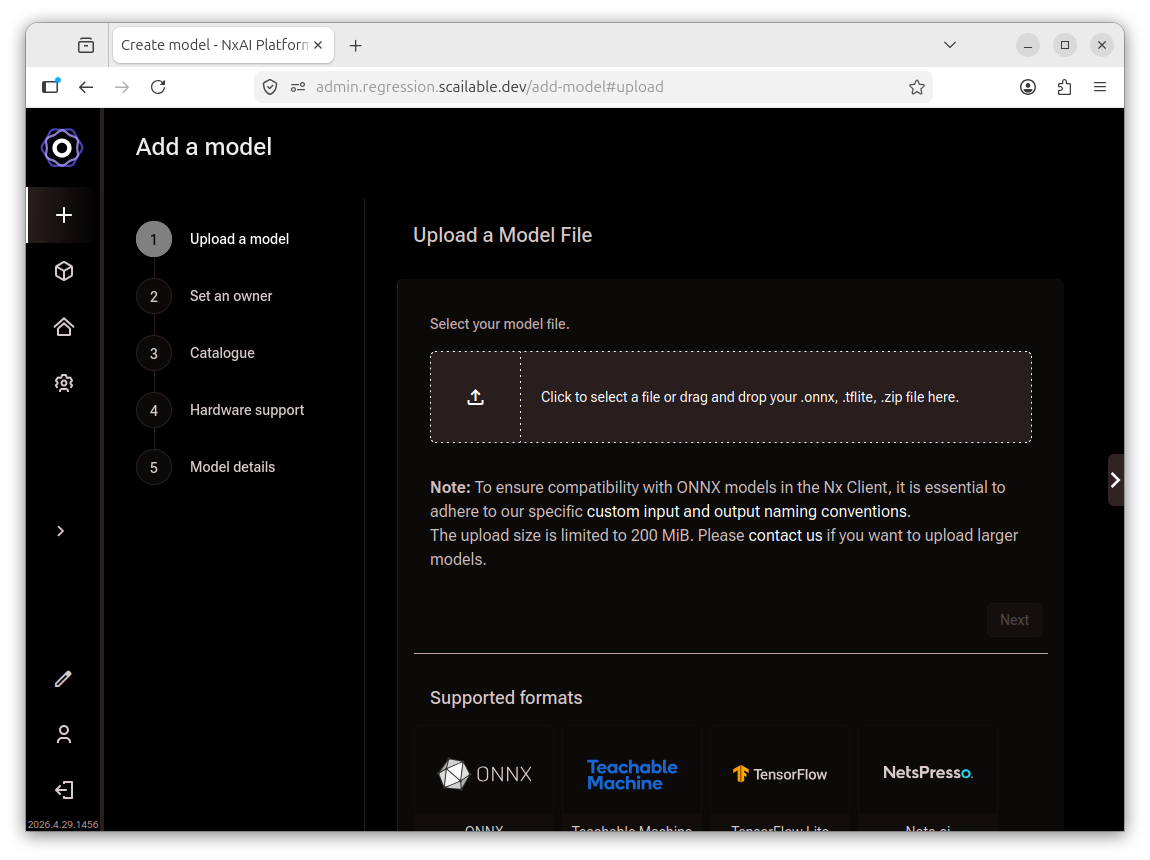
After you have created your model, you can upload it to AI Cloud to make it available on all your Nx Servers. Click the + icon in the sidebar to open the Add a model wizard.
The wizard walks you through five steps.
Step 1: Upload a model file
Drag and drop your model file into the upload area, or click the area to select a file from your file system. Supported formats include ONNX, TFLite, and ZIP (Teachable Machine, NetsPresso).
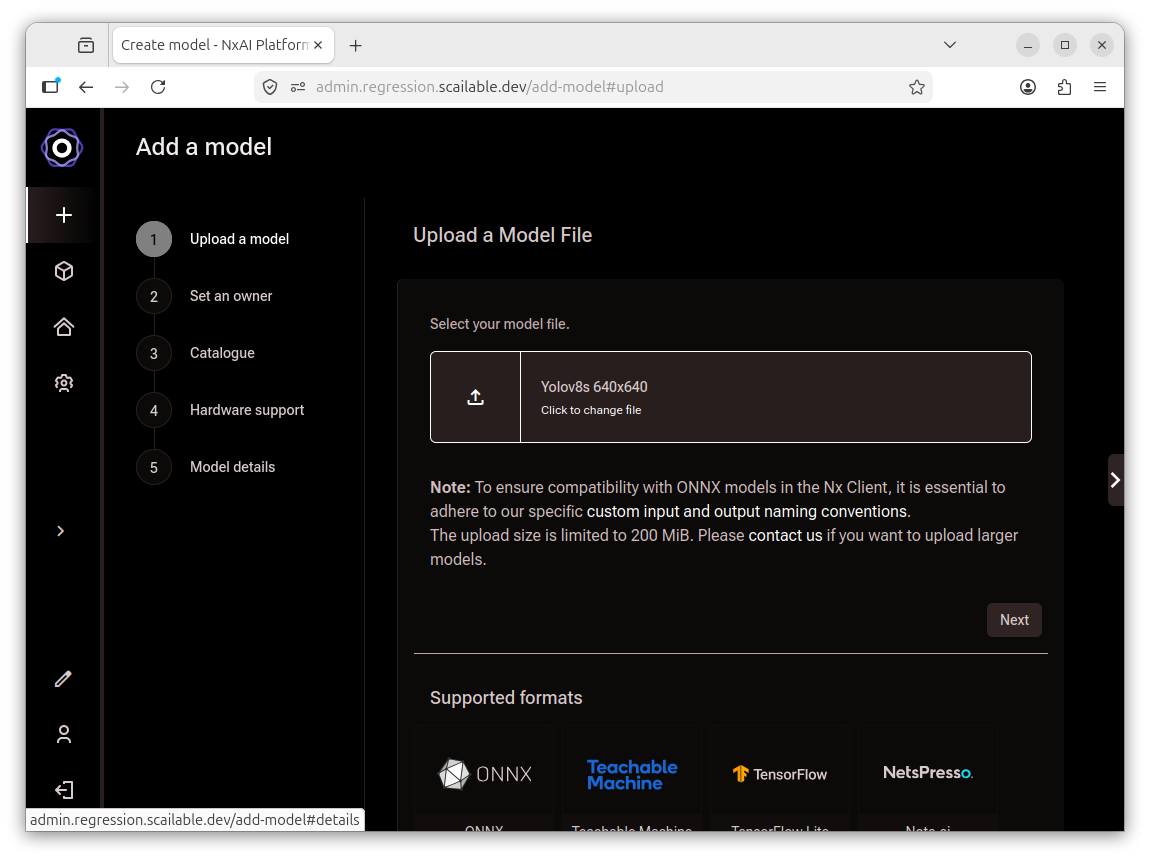
Once a file is selected, the filename appears in the upload area. Click Next to continue.
Step 2: Set an owner
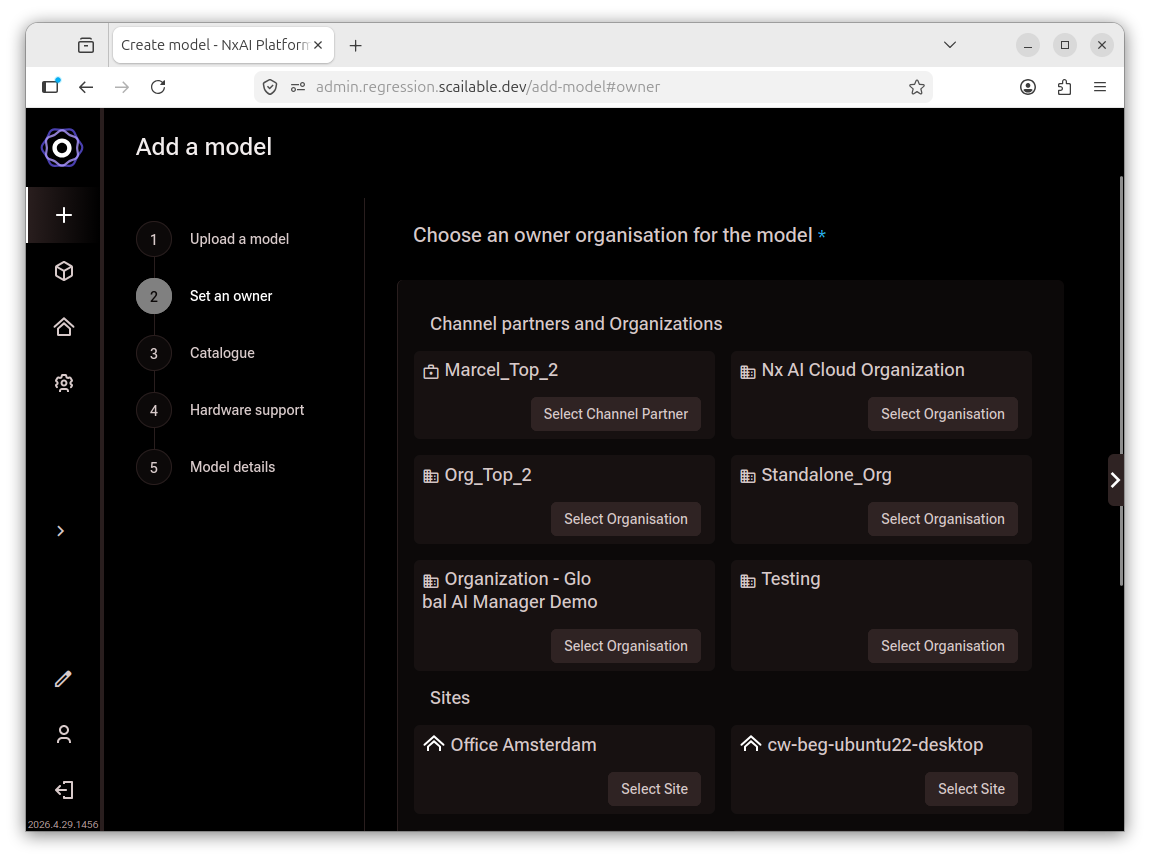
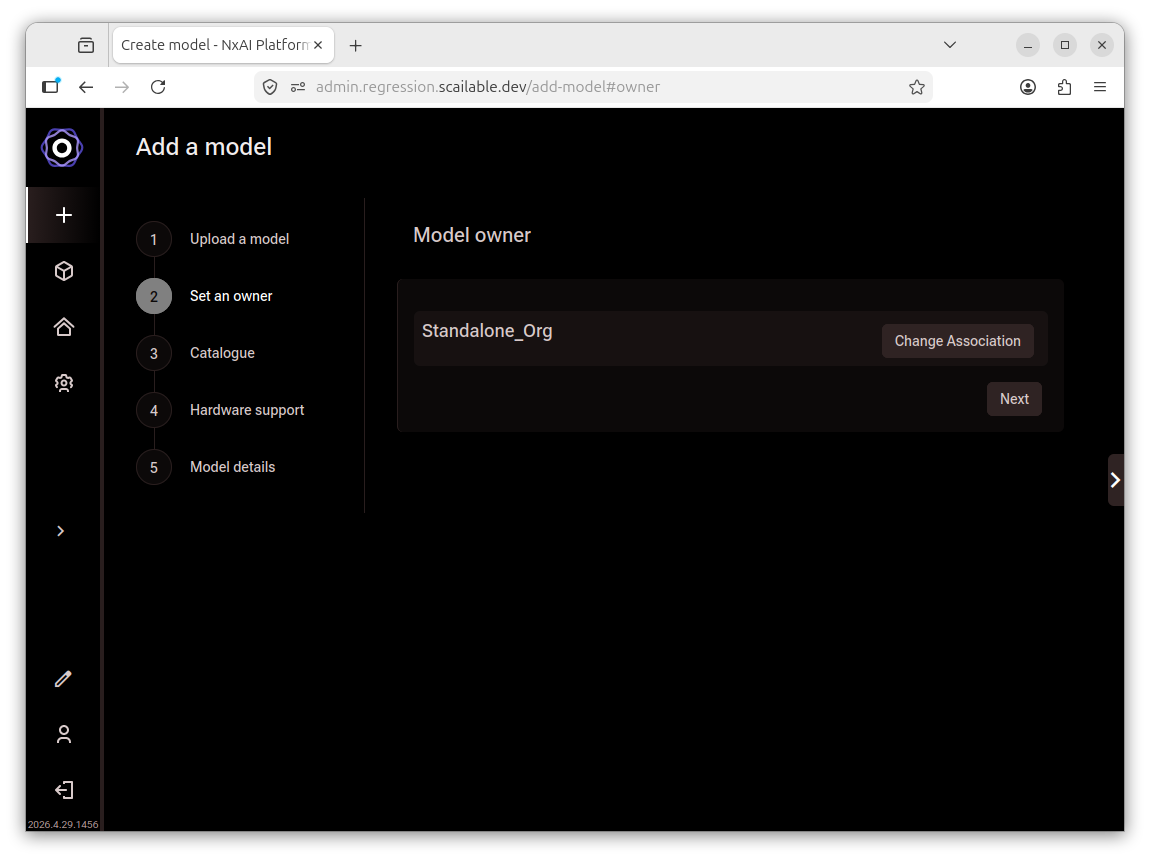
If your account belongs to multiple organisations or channel partners, choose which one will own the model. If your account has only one organisation, it is pre-selected and you can click Next straight away.
Step 3: Catalogue
Optionally assign the model to a catalogue so it is grouped with related models and visible to specific sites or organisations. Type to search for an existing catalogue, or leave the field empty to skip.
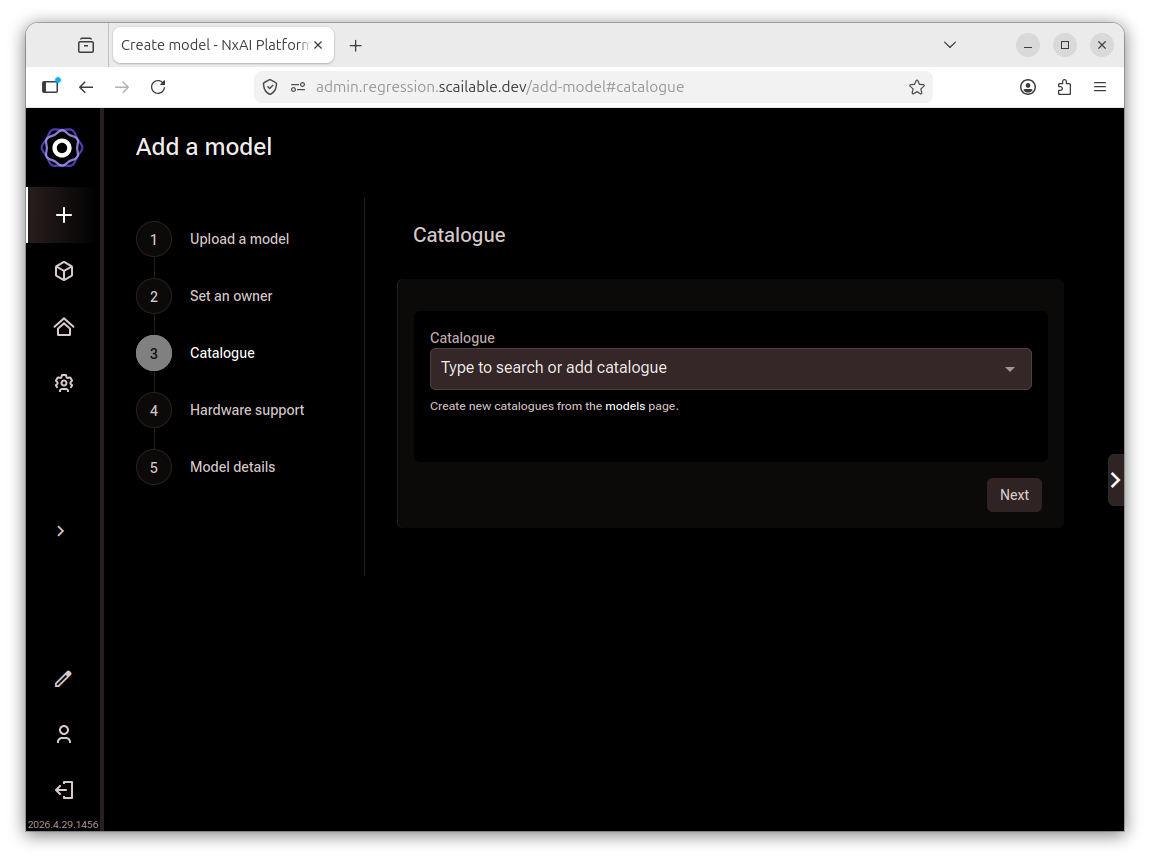
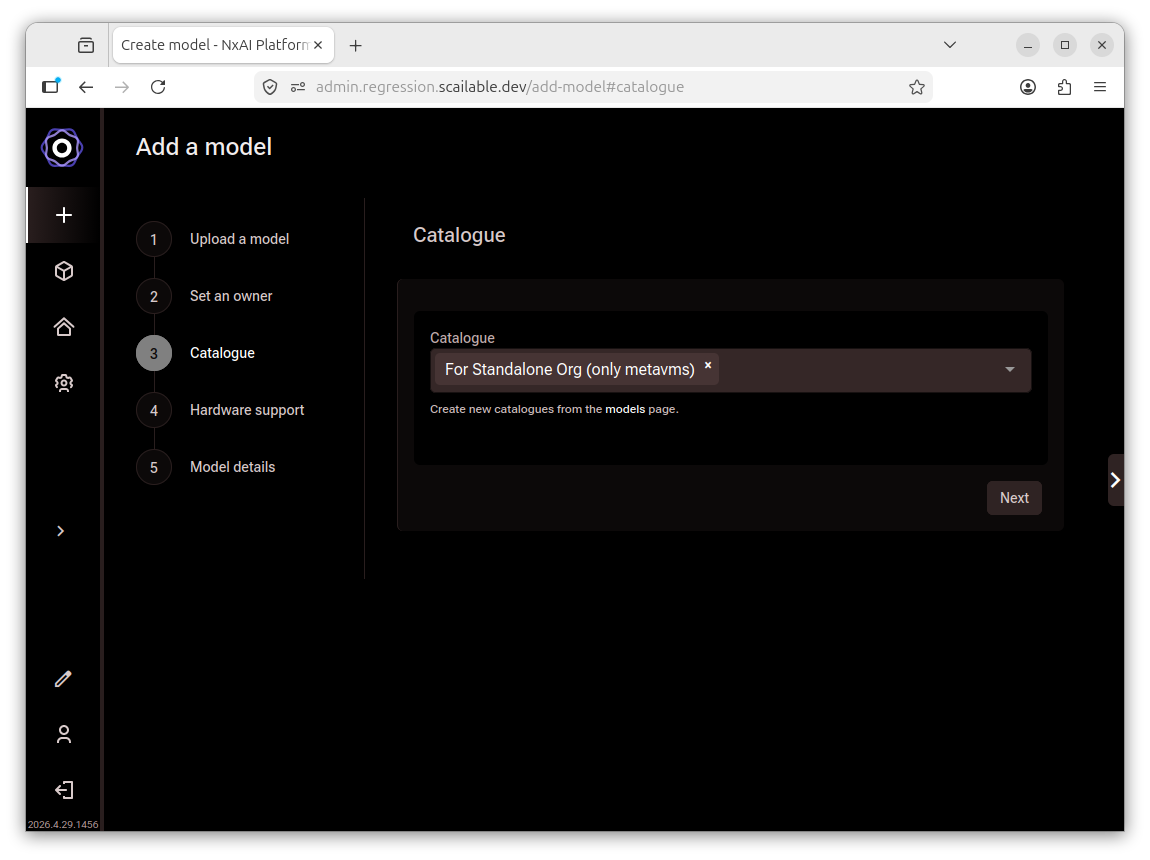
Click Next to continue.
Step 4: Hardware support
Choose which additional hardware conversions to enable. Each enabled conversion generates an optimized model artifact for a specific AI accelerator and consumes compute tokens from your account.
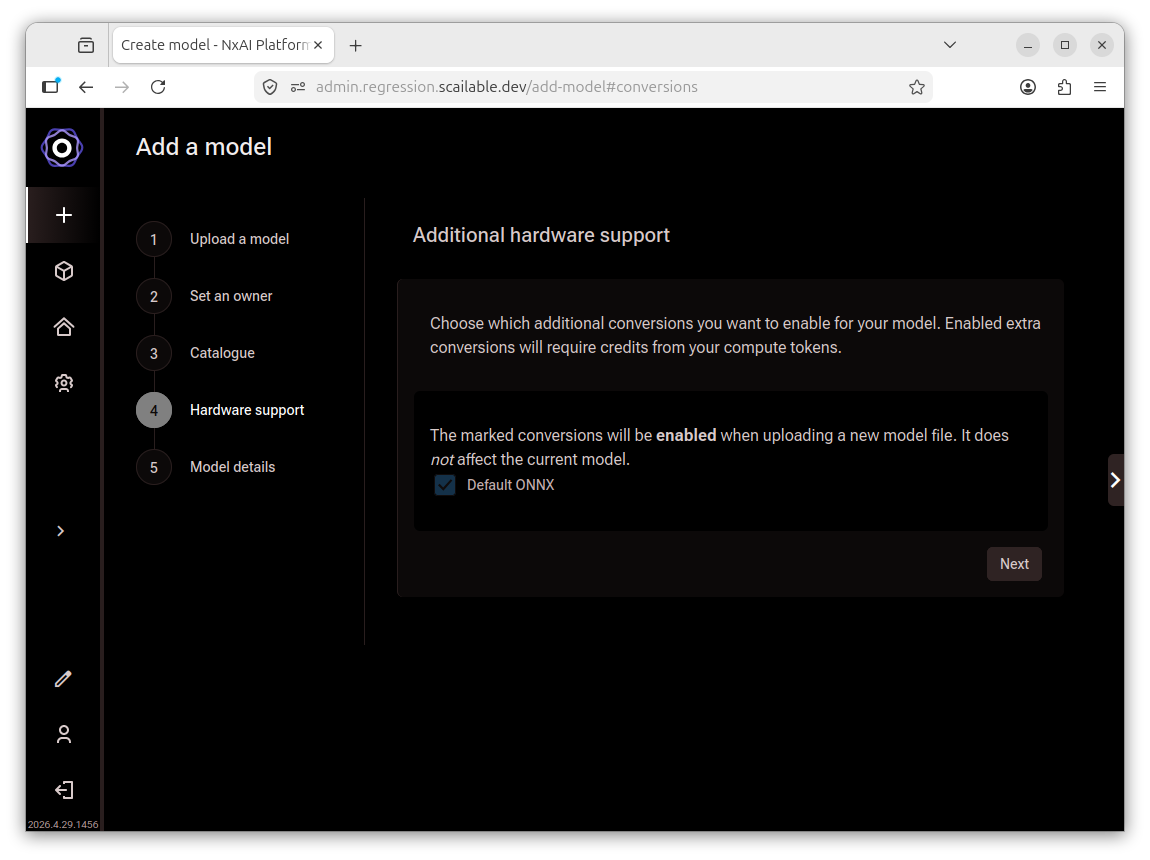
If your model needs to run on Hailo or other specialized accelerators, enable those conversions here. Click Next to continue.
Step 5: Model details
Give your model a name and add documentation describing what it does, its input requirements, and any relevant notes. Both fields are required. The name is pre-filled from the filename; edit it to something descriptive.
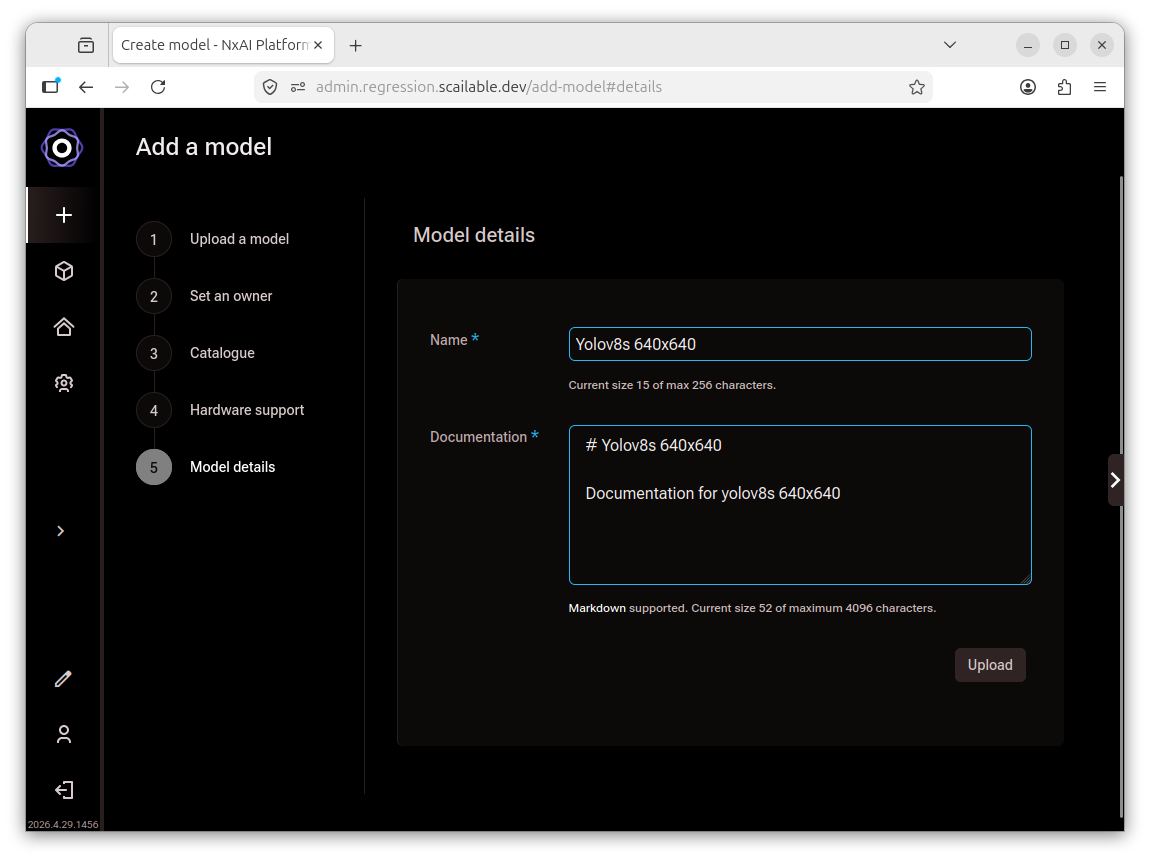
Click Upload to start the transfer.
Uploading and processing
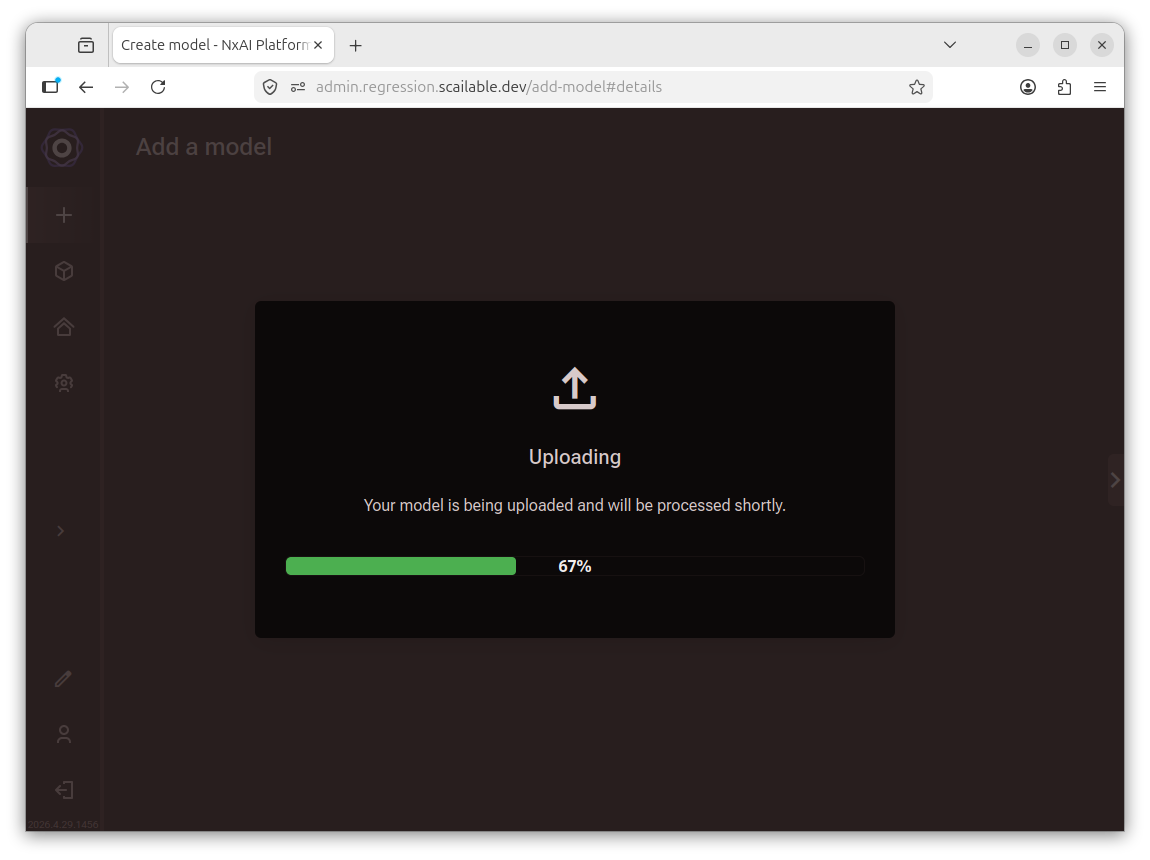
A progress bar shows the upload status. After the file is transferred, the cloud platform converts it for each selected hardware target. This can take several minutes depending on the model size and the number of enabled conversions.
When the upload completes you are taken to the model detail page. A notification confirms the upload. The status will be updated during the conversion process.
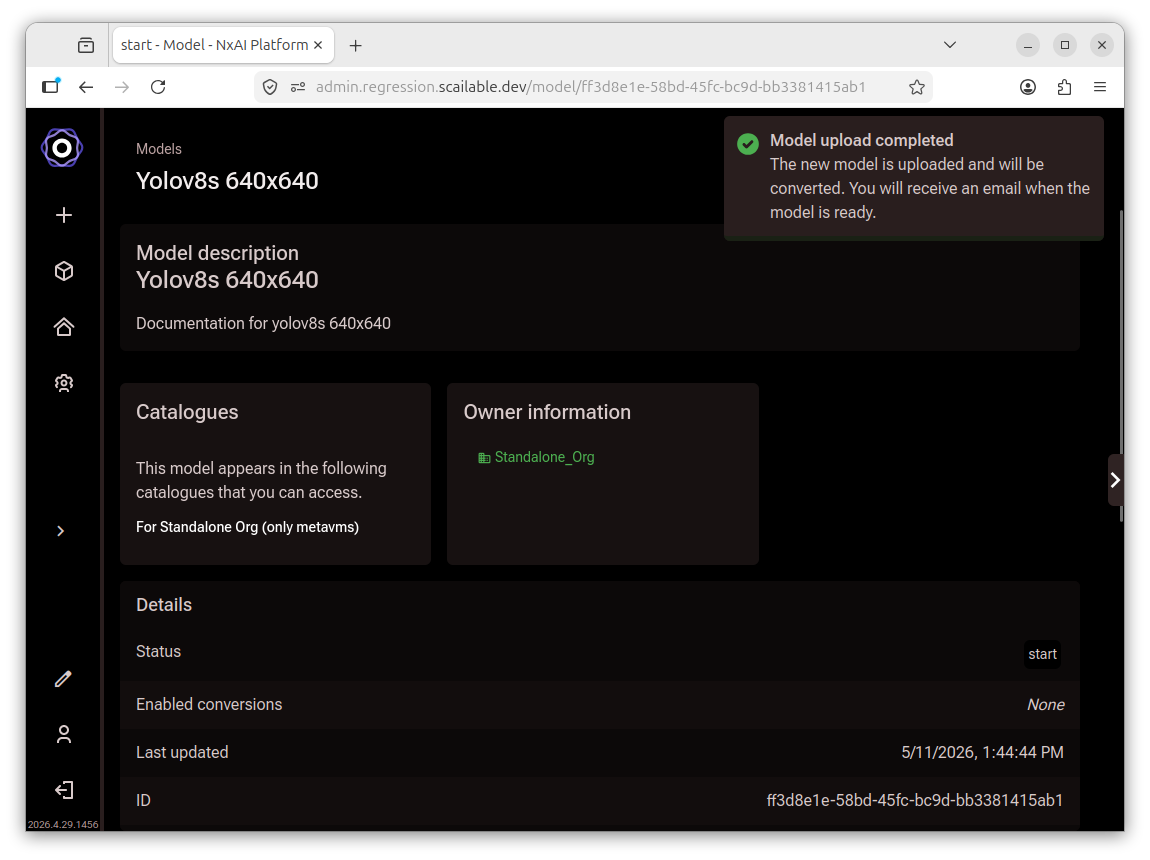
Once conversion is complete and the model status shows ok, the model is ready to be used on your devices.
Last updated