> For the complete documentation index, see [llms.txt](https://nx.docs.scailable.net/llms.txt). Markdown versions of documentation pages are available by appending `.md` to page URLs; this page is available as [Markdown](https://nx.docs.scailable.net/ai-manager-plugin/advanced-configuration/removing-the-plugin.md).
# Removing the Plugin
## Disabling the plugin
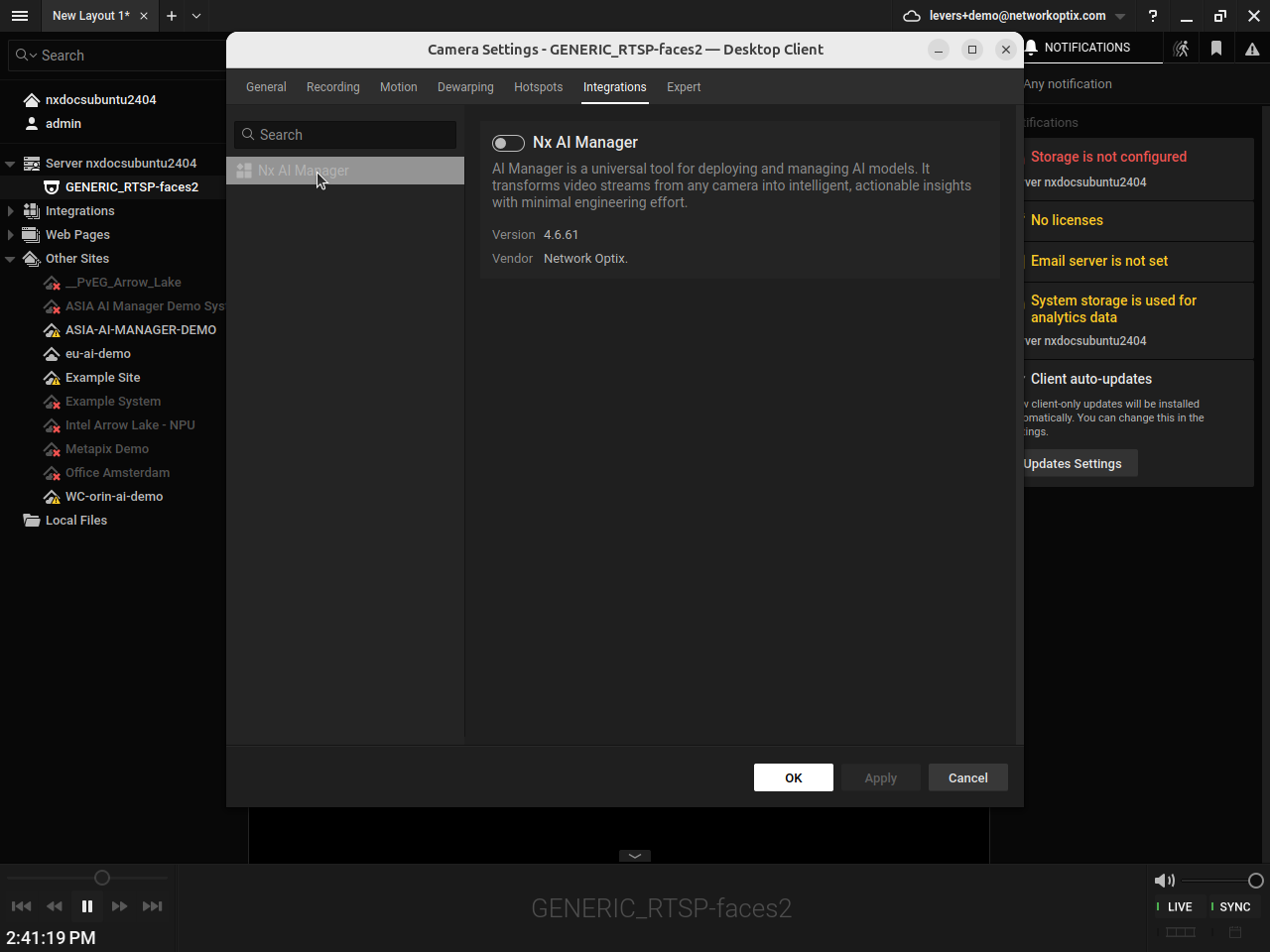
Disabling the plugin can be done by switching the plugin of with the toggle switch on the Integrations tab.
Disable the plugin by switching the toggle off — this frees resources without removing the plugin
Switching off the plugin is enough to free up the resources. If you really need to remove or reinstall the plugin, removing the plugin is also possible. Keep in mind that updating the Nx Server will restore the AI Manager
{% tabs %}
{% tab title="Nx Witness Linux" %}
**Uninstalling the AI Runtime**
{% hint style="warning" %}
Please note - the runtime is part of AI, to remove the whole AI Manager you will need to remove the Plugin
{% endhint %}
It might be desired to remove the AI Runtime installation, due to a corrupted install or if you want to reinstall the AI Runtime with a different acceleration library.
The AI Runtime can be removed by deleting the folder, assuming default installation:
```bash
sudo rm -r /opt/networkoptix/mediaserver/var/nx_ai_manager/nxai_manager
```
When the Nx Mediaserver is restarted, the plugin will reinstall the AI Runtime.
**Removing the AI Manager Plugin**
{% hint style="warning" %}
Removing the AI Manager Plugin can lead to the Nx Mediaserver crashing if it is in use.
{% endhint %}
For added safety, disable the plugin on all devices on the server before removing. This is not full-proof, however, and could still lead to crashes. The only fully safe method of removing the plugin would be to first stop the media server:
```bash
sudo systemctl stop networkoptix-mediaserver.service
```
To remove the AI plugin from your Nx Meta server, log in to the server console and execute the following command:
```bash
sudo rm -r /opt/networkoptix/mediaserver/var/nx_ai_manager
```
If you stopped the Nx media server, it is now safe to restart it:
```bash
sudo systemctl start networkoptix-mediaserver.service
```
{% endtab %}
{% tab title="Nx Go Linux" %}
**Uninstalling the AI Runtime**
{% hint style="warning" %}
Please note - the runtime is part of AI, to remove the whole AI Manager you will need to remove the Plugin
{% endhint %}
It might be desired to remove the AI Runtime installation, due to a corrupted install or if you want to reinstall the AI Runtime with a different acceleration library.
The AI Runtime can be removed by deleting the folder, assuming default installation:
```bash
sudo rm -r /opt/networkoptix/mediaserver/var/nx_ai_manager/nxai_manager
```
When the Nx Mediaserver is restarted, the plugin will reinstall the AI Runtime.
**Removing the AI Manager Plugin**
{% hint style="warning" %}
Removing the AI Manager Plugin can lead to the Nx Mediaserver crashing if it is in use.
{% endhint %}
For added safety, disable the plugin on all devices on the server before removing. This is not full-proof, however, and could still lead to crashes. The only fully safe method of removing the plugin would be to first stop the media server:
```bash
sudo systemctl stop networkoptix-mediaserver.service
```
To remove the AI plugin from your Nx Meta server, log in to the server console and execute the following command:
```bash
sudo rm -r /opt/networkoptix/mediaserver/var/nx_ai_manager
```
If you stopped the Nx media server, it is now safe to restart it:
```bash
sudo systemctl start networkoptix-mediaserver.service
```
{% endtab %}
{% tab title="Nx Meta Linux" %}
**Uninstalling the AI Runtime**
{% hint style="warning" %}
Please note - the runtime is part of AI, to remove the whole AI Manager you will need to remove the Plugin
{% endhint %}
It might be desired to remove the AI Runtime installation, due to a corrupted install or if you want to reinstall the AI Runtime with a different acceleration library.
The AI Runtime can be removed by deleting the folder, assuming default installation:
```bash
sudo rm -r /opt/networkoptix-metavms/mediaserver/var/nx_ai_manager/nxai_manager
```
When the Nx Mediaserver is restarted, the plugin will reinstall the AI Runtime.
**Removing the AI Manager Plugin**
{% hint style="warning" %}
Removing the AI Manager Plugin can lead to the Nx Mediaserver crashing if it is in use.
{% endhint %}
For added safety, disable the plugin on all devices on the server before removing. This is not full-proof, however, and could still lead to crashes. The only fully safe method of removing the plugin would be to first stop the media server:
```bash
sudo systemctl stop networkoptix-metavms-mediaserver.service
```
To remove the AI plugin from your Nx Meta server, log in to the server console and execute the following command:
```bash
sudo rm -r /opt/networkoptix-metavms/mediaserver/var/nx_ai_manager/nxai_manager
```
If you stopped the Nx media server, it is now safe to restart it:
```bash
sudo systemctl start networkoptix-metavms-mediaserver.service
```
{% endtab %}
{% tab title="Windows" %}
**Uninstalling the AI Manager Runtime**
{% hint style="warning" %}
Please note - the runtime is part of AI, to remove the whole AI Manager you will need to remove the Plugin
{% endhint %}
It might be desired to remove the AI Runtime installation, due to a corrupted install or if you want to reinstall the AI Runtime with a different acceleration library.
The AI Runtime can be removed by deleting the folder from your Mediaserver directory, assuming default installation.
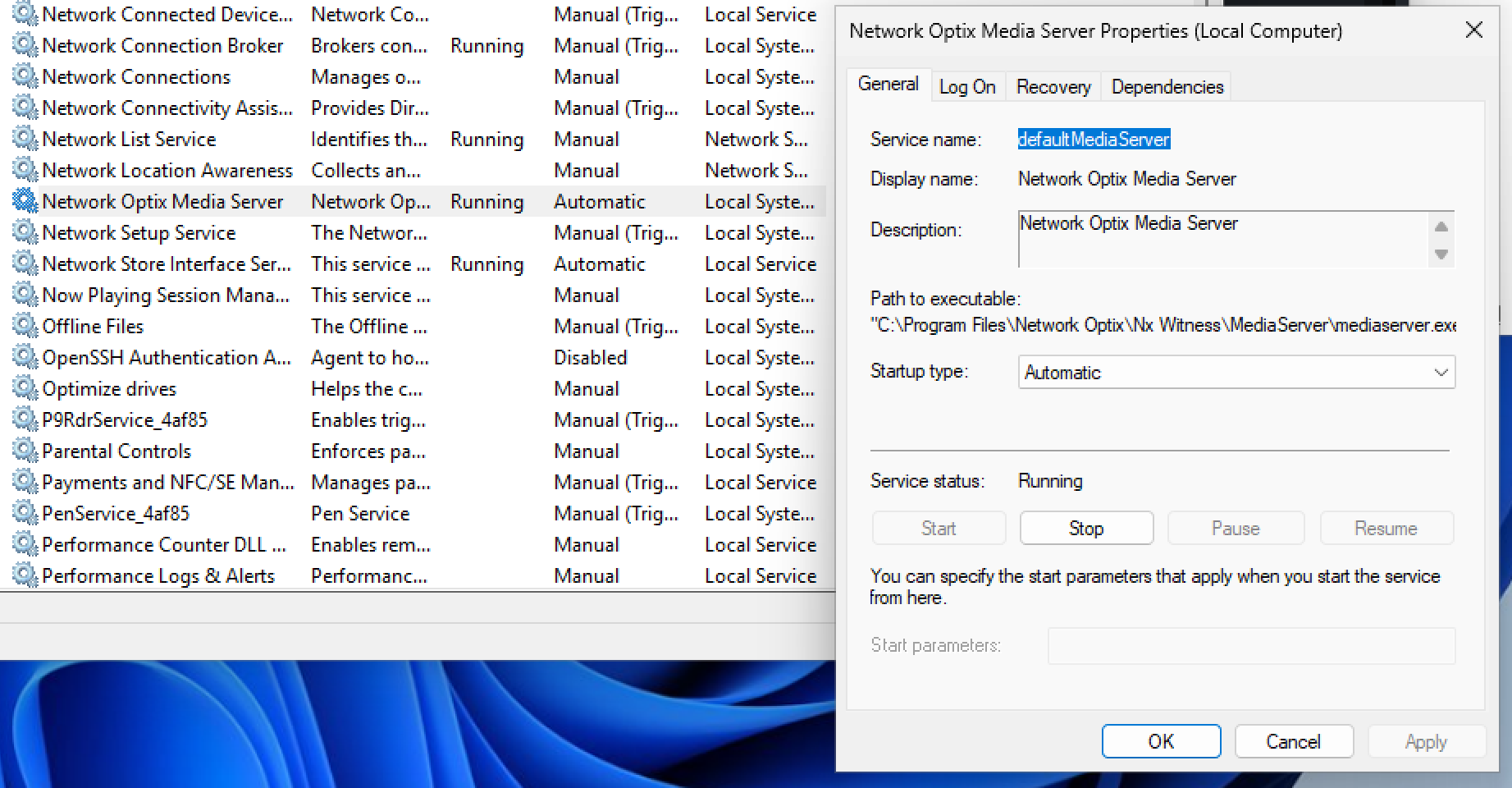
To delete the files you need to [stop the mediaserver](#restarting-the-mediaserver) first.
**NX Witness**
```
C:\Program Files\Network Optix\Nx Witness\MediaServer\plugins\nx_ai_manager_plugin\nxai_manager
```
**NX Meta**
```
C:\Program Files\Network Optix\Nx Meta\MediaServer\plugins\nx_ai_manager_plugin\nxai_manager
```
**NX Go**
```
C:\Program Files\Network Optix\Nx Go\MediaServer\plugins\nx_ai_manager_plugin\nxai_manager
```
When the Nx Mediaserver is restarted, the plugin will reinstall the AI Runtime.
**Removing the AI Manager Plugin**
{% hint style="warning" %}
Removing the AI Manager Plugin can lead to the Nx Mediaserver crashing if it is in use.
{% endhint %}
For added safety, disable the plugin on all devices on the server before removing. This is not full-proof, however, and could still lead to crashes.
The only fully safe method of removing the plugin would be to first stop the media server:
To remove the AI plugin from your Nx Meta server,opens the file explorer and remove the plugin directory for your installed Client:
**Nx Witness**
```
C:\Program Files\Network Optix\Nx Witness\MediaServer\plugins\nx_ai_manager_plugin
```
**NX Meta**
```
C:\Program Files\Network Optix\Nx Meta\MediaServer\plugins\nx_ai_manager_plugin
```
**Nx Go**
```
C:\Program Files\Network Optix\Nx Go\MediaServer\plugins\nx_ai_manager_plugin
```
If you stopped the Nx media server, it is now safe to restart it.
{% endtab %}
{% endtabs %}
## Restarting the Mediaserver
After uninstalling the AI Manager Plugin and AI Manager, [restart](/support-and-troubleshooting/troubleshooting/controlling-the-server-and-the-plugin.md) the Nx Mediaserver for these changes to take effect.