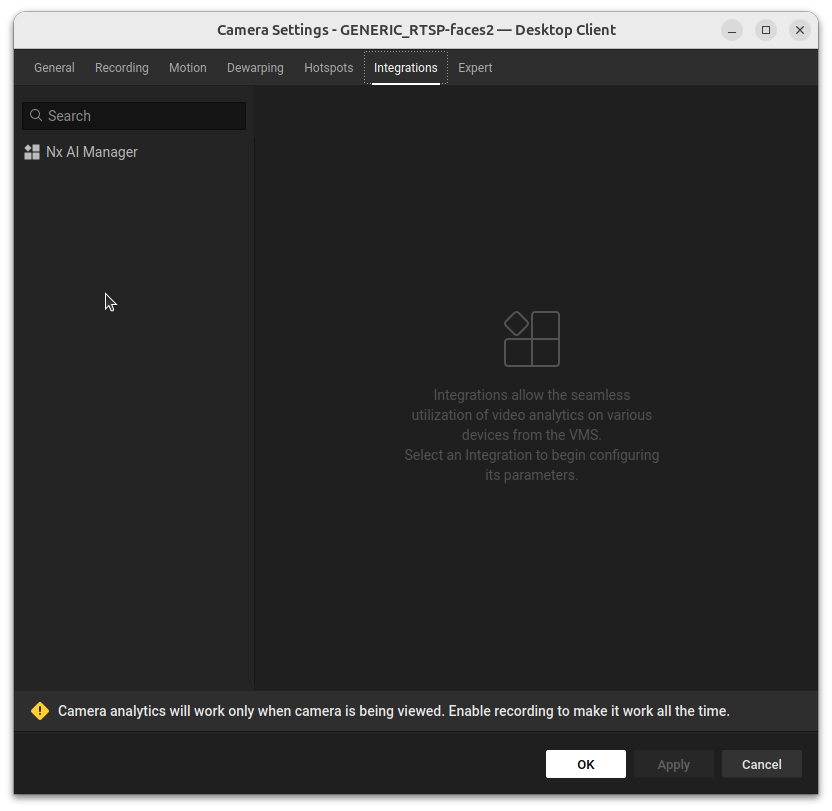
Camera Settings: Integrations tab
Camera Settings: Integrations tab
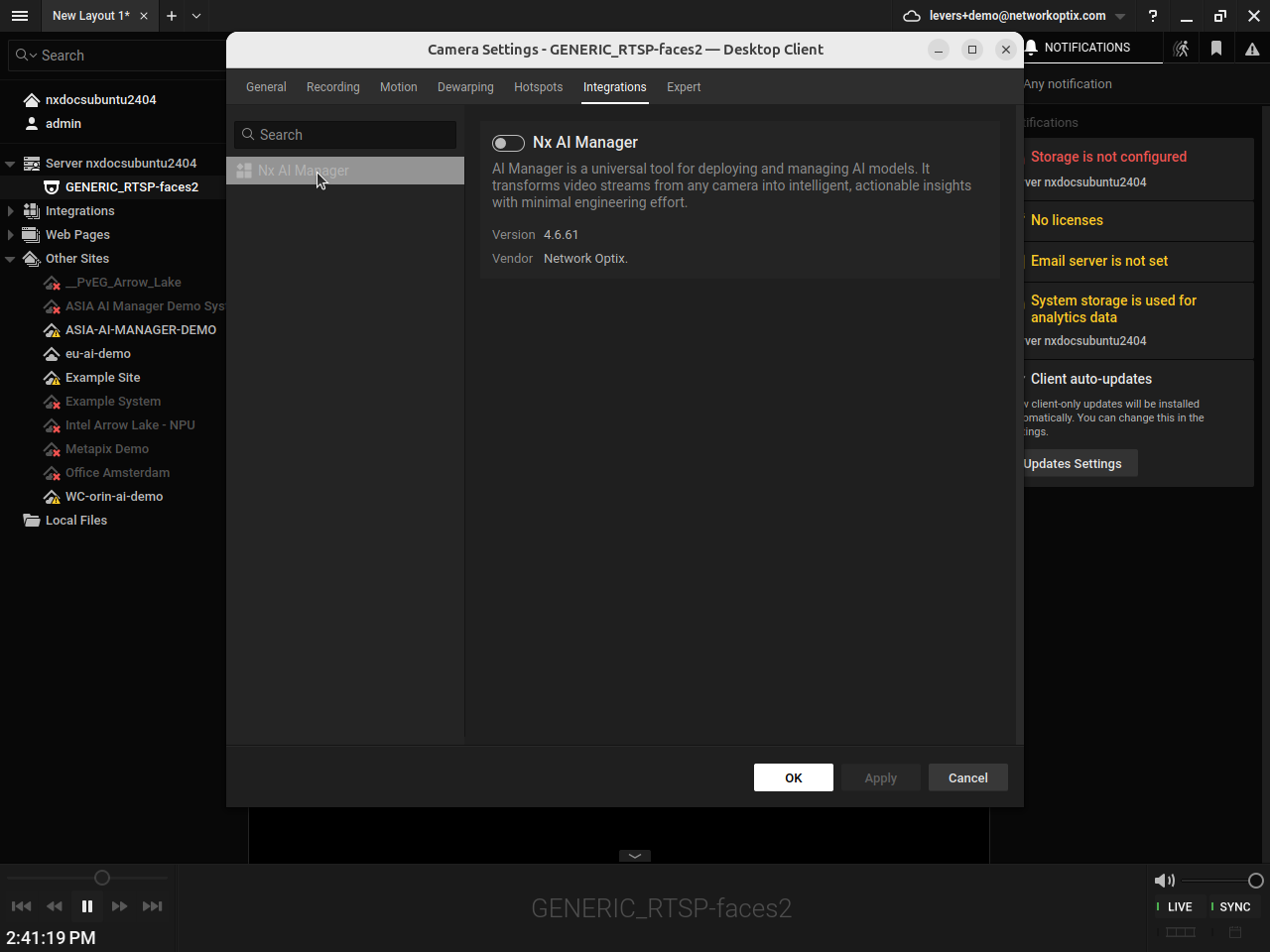
AI Manager Integration tab: plugin disabled
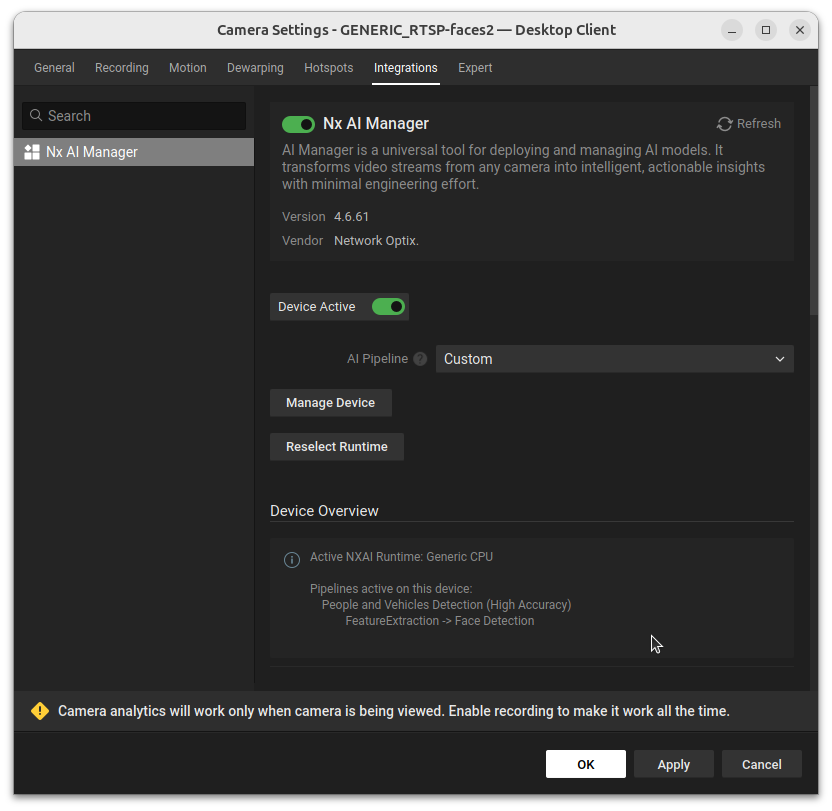
Plugin active: AI pipeline and model settings
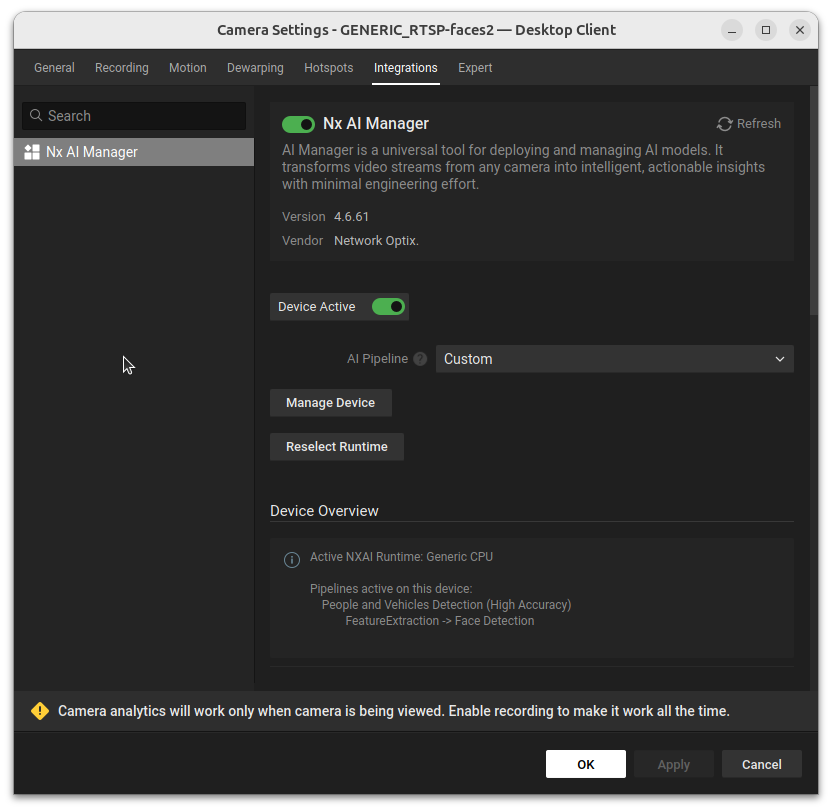
Manage Device button: available when using a custom cloud pipeline
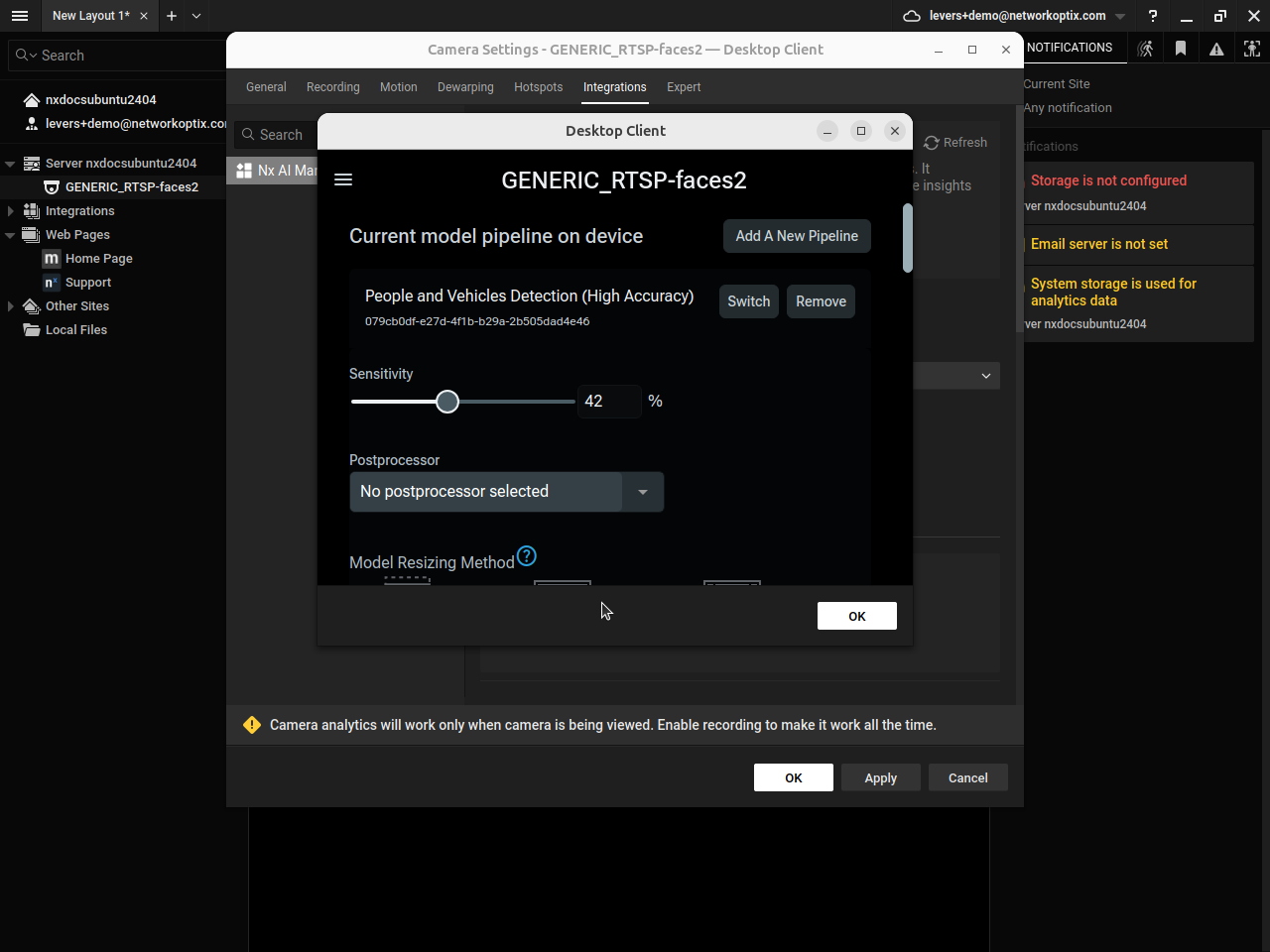
Device model pipeline management: opened via the Manage Device button
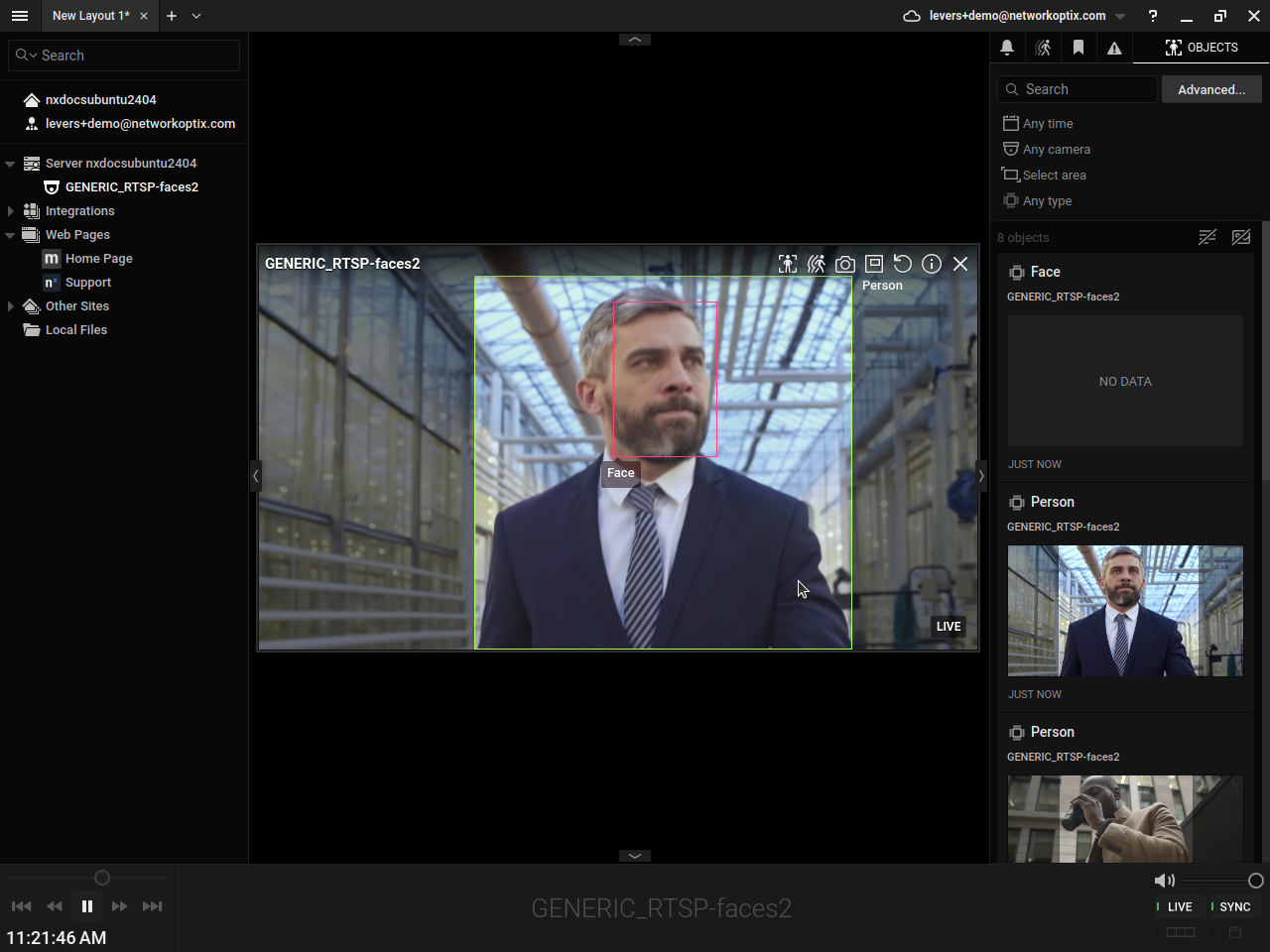
Visible Bounding Boxes in Nx Meta Client
 {% endhint %}
## Adding Event Rules
The AI Manager plugin can generate several different types of events. Network Optix gives the user control over what these events should do, from sending an email to showing a notification. In this example, we will show a text overlay on the video.
Rules can be added by navigating to the Camera Rules menu:
On the Event Rules window, click the **Add** button to add a new rule.
From here, several options are available. First, on the left side, select **Analytics Event** from the **When** context menu. This is the type of event the AI Manager plugin generates.
Select any, or multiple, camera(s) in the **At** context menu.
Under the **Event Type** context menu, you will find a number of event types the AI Manager plugin can generate, from alarms to counting objects. In this example, we will select the *Objects Counted* type.
On the right side, it can be configured what should be done when one of these events is triggered. Here you could set up an email or notification trigger. In this example, we will select the Show text overlay option in the **Do** context menu **at** the source camera
If set up correctly, and a model generating counts is selected and running, we should see an overlay on the camera feed showing us the object counts:
{% endhint %}
## Adding Event Rules
The AI Manager plugin can generate several different types of events. Network Optix gives the user control over what these events should do, from sending an email to showing a notification. In this example, we will show a text overlay on the video.
Rules can be added by navigating to the Camera Rules menu:
On the Event Rules window, click the **Add** button to add a new rule.
From here, several options are available. First, on the left side, select **Analytics Event** from the **When** context menu. This is the type of event the AI Manager plugin generates.
Select any, or multiple, camera(s) in the **At** context menu.
Under the **Event Type** context menu, you will find a number of event types the AI Manager plugin can generate, from alarms to counting objects. In this example, we will select the *Objects Counted* type.
On the right side, it can be configured what should be done when one of these events is triggered. Here you could set up an email or notification trigger. In this example, we will select the Show text overlay option in the **Do** context menu **at** the source camera
If set up correctly, and a model generating counts is selected and running, we should see an overlay on the camera feed showing us the object counts:
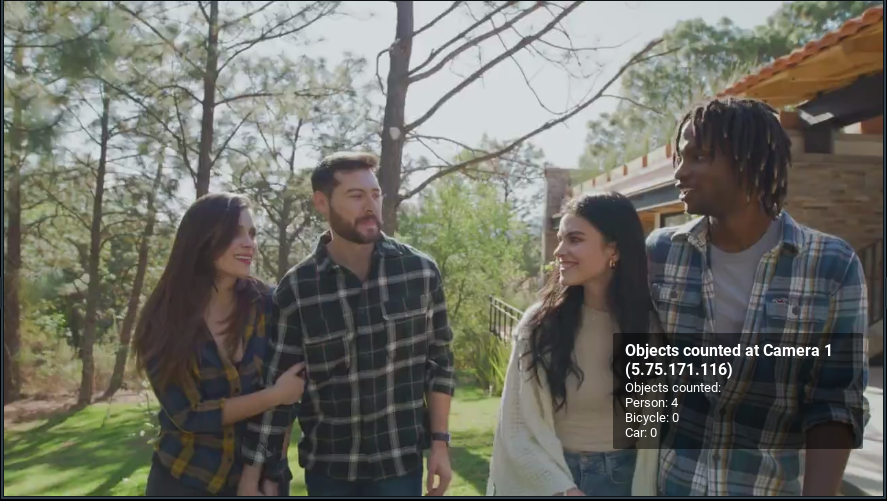
Example of Objects Counted text overlay
Objects tab active: bounding boxes are visible on the camera feed