> For the complete documentation index, see [llms.txt](https://nx.docs.scailable.net/llms.txt). Markdown versions of documentation pages are available by appending `.md` to page URLs; this page is available as [Markdown](https://nx.docs.scailable.net/ai-manager-plugin/configure-the-plugin/multiple-model-pipelines.md).

# Model pipelines on multiple devices

{% hint style="info" %}
Nx Witness, Nx Go and Nx Meta will work in the same way for the configuration.
{% endhint %}

Configure a pipeline on one device first, then clone it to other devices on the same site. You can fine-tune pipeline settings on each device individually after cloning.

## Clone a pipeline to multiple devices

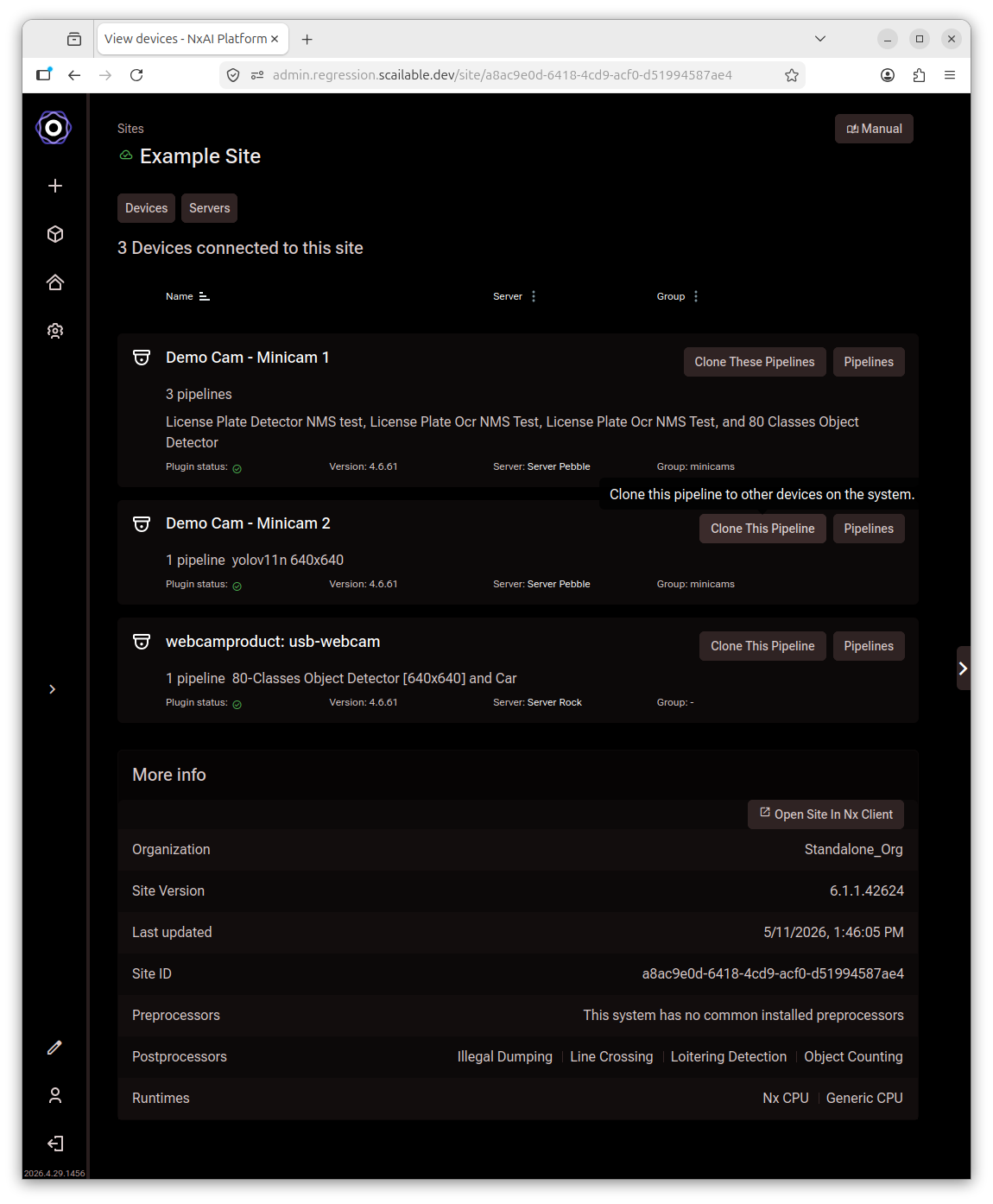
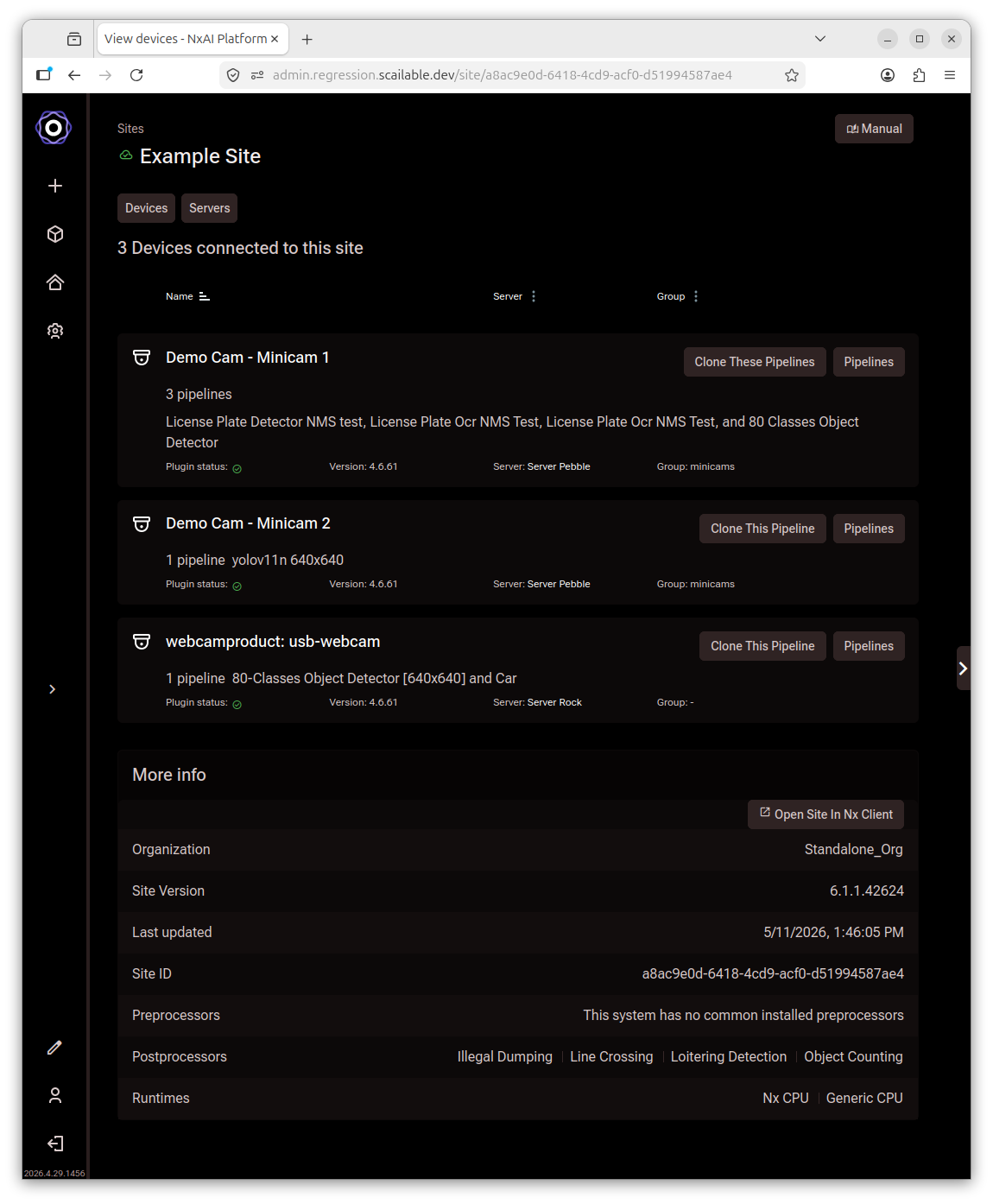
Start from the site's **Devices** page, which lists all devices and their currently assigned pipelines.

<figure><img src="/files/stBTQkE5U3qJci47z6fe" alt="Site devices page showing three cameras each with their assigned pipeline,
     Clone This Pipeline and Pipelines buttons, and a More info section below"><figcaption><p>Site devices page: each device shows its current pipeline and a Clone This Pipeline button.</p></figcaption></figure>

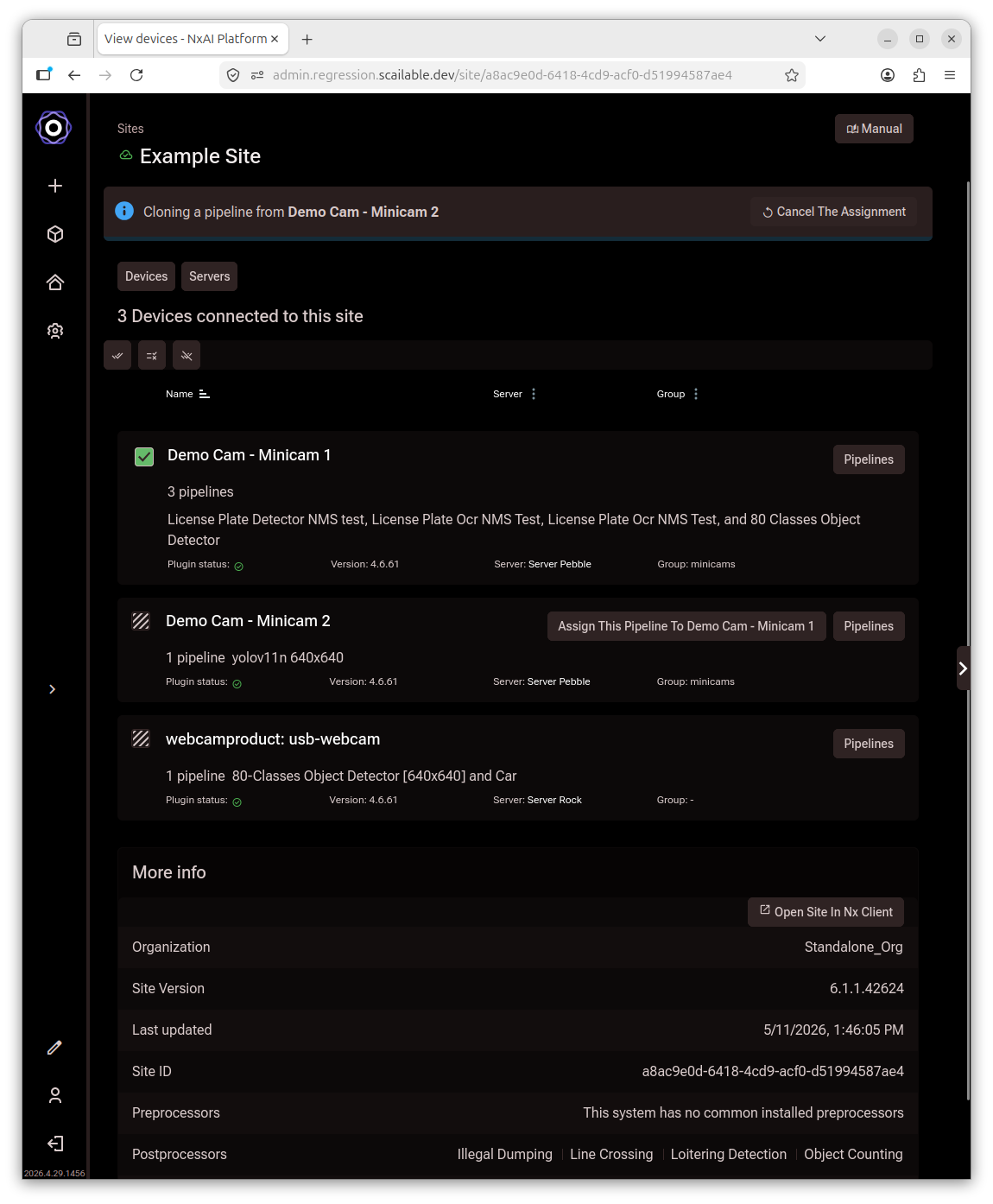
Hover over the device row whose pipeline you want to copy and click **Clone This Pipeline**. A banner at the top of the page confirms which pipeline is being cloned, and checkboxes appear next to each device that can receive it.

<figure><img src="/files/JS4G3kSGsDuWLeOKAVXV" alt="Site devices list with Clone This Pipeline button visible on hover next to
     a device row and a tooltip reading Clone this pipeline to other devices on the
     system"><figcaption><p>Hover over a device row to reveal the Clone This Pipeline button.</p></figcaption></figure>

Tick the checkboxes next to the devices you want to receive the pipeline. Devices that are offline or have the plugin disabled cannot be selected.

<figure><img src="/files/5LDJNFtdG7I6FNfLqBXK" alt="Site devices list with a Cloning a pipeline from Demo Cam - Minicam 2 banner
     at the top and a checkbox selected on the target device row"><figcaption><p>Select the target devices, then click Assign Pipeline.</p></figcaption></figure>

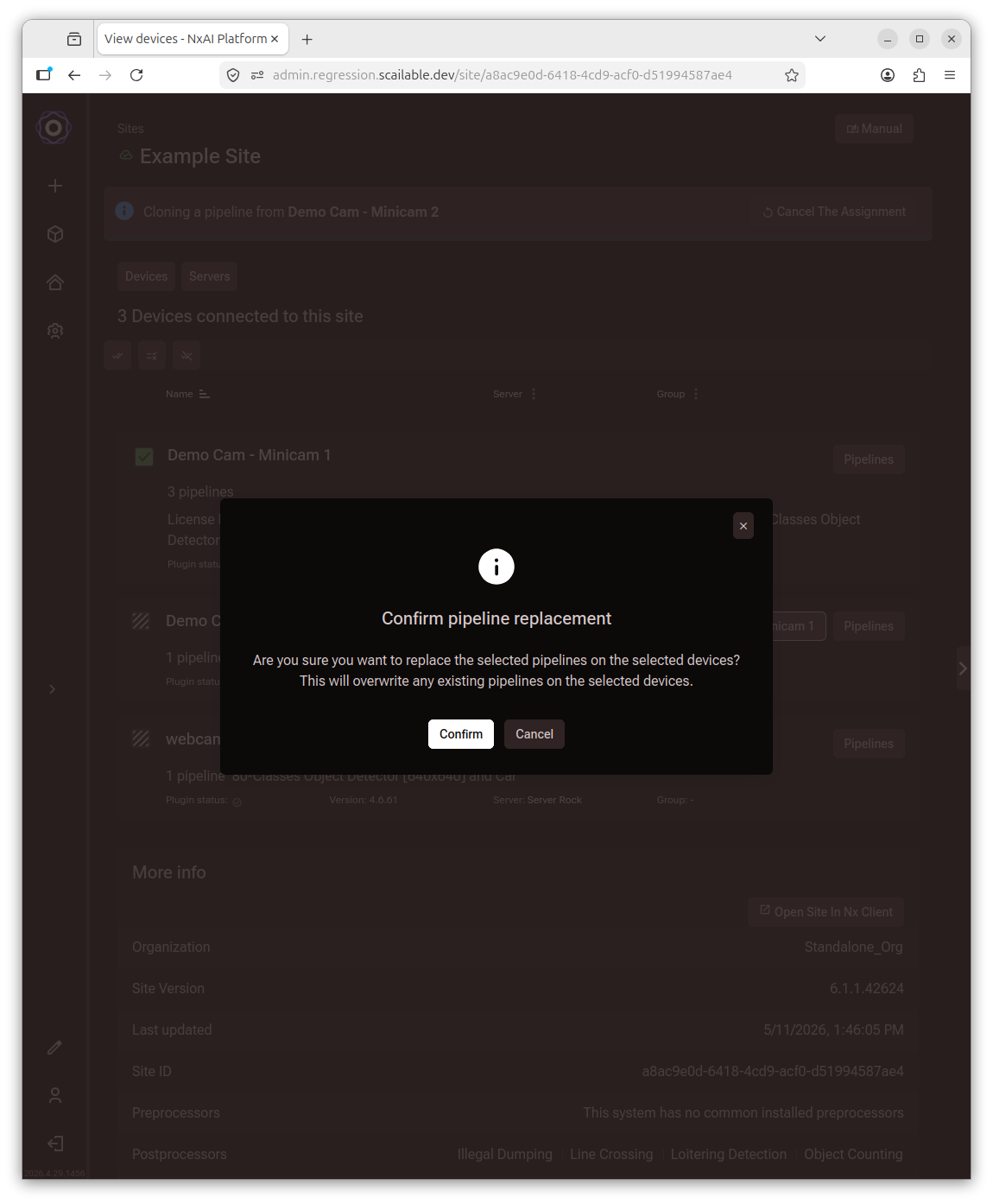
Click **Assign Pipeline**. A confirmation dialog warns that existing pipelines on the selected devices will be overwritten.
<figure><img src="/files/Hw1LWvM0jGDo6NSwlpzJ" alt="Confirm pipeline replacement dialog asking if you are sure you want to replace
     the selected pipelines, with Confirm and Cancel buttons"><figcaption><p>Confirm the replacement: existing pipelines on the selected devices will be overwritten.</p></figcaption></figure>

{% hint style="warning" %}
Cloning a pipeline to multiple devices will **remove all other pipelines** on the selected devices and replace them with the pipeline you selected.
{% endhint %}

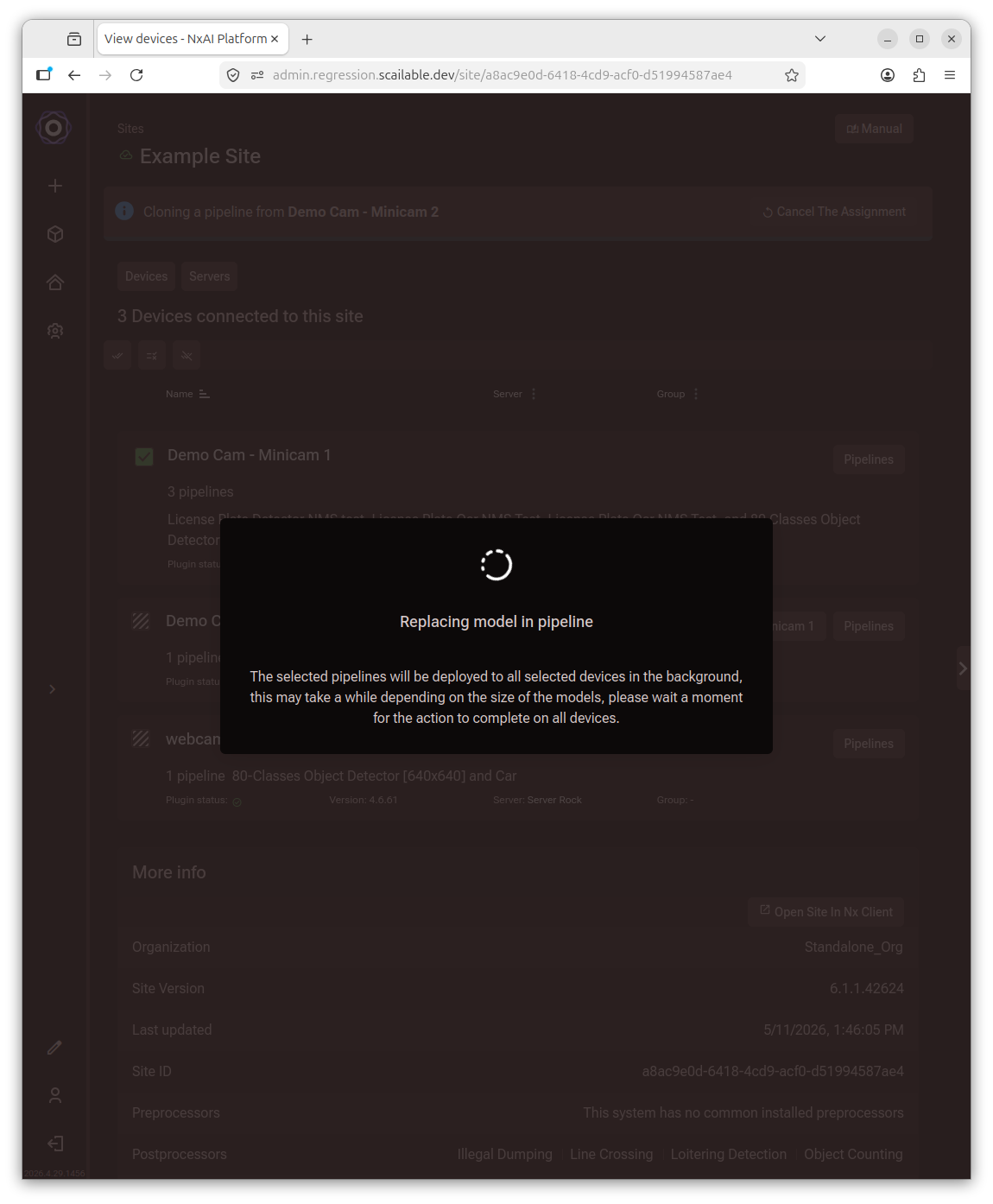
Click **Confirm** to proceed. The deployment runs in the background.

<figure><img src="/files/3FXSZHfRl0TWU7tHr1sk" alt="Replacing model in pipeline dialog with a spinner and a message that the
     selected pipelines will be deployed to all selected devices in the background"><figcaption><p>Pipeline deployment in progress: this runs in the background and may take a few seconds depending on model size.</p></figcaption></figure>

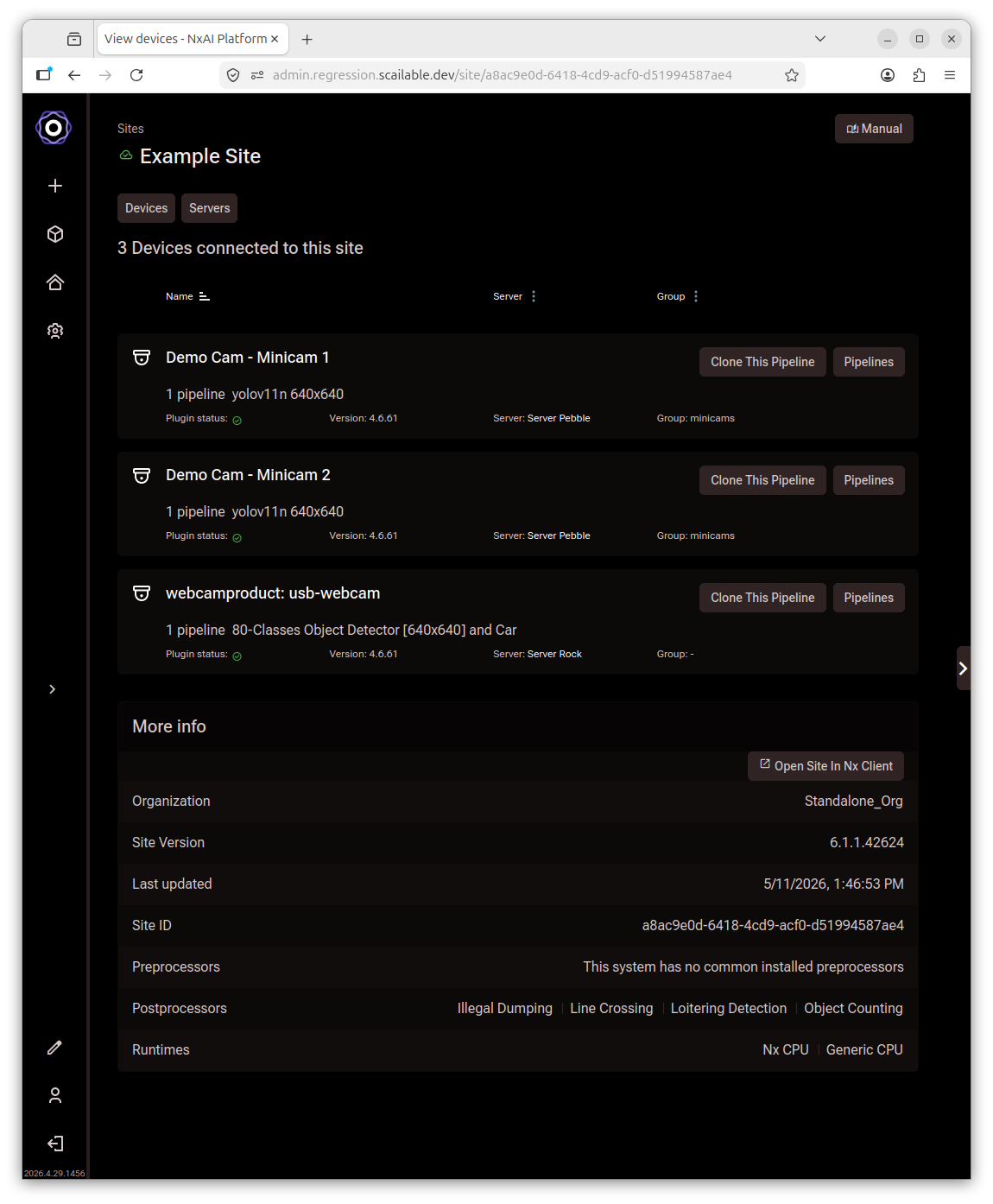
After deployment completes, all selected devices in the list show the cloned pipeline.

<figure><img src="/files/blGvozOjP1EzZWonhDuE" alt="Site devices list showing all three devices now have the same pipeline
     assigned and Clone This Pipeline buttons visible on each row"><figcaption><p>All selected devices now run the same pipeline.</p></figcaption></figure>

Open each device's detail page to verify the deployment or adjust settings for that device individually.