> For the complete documentation index, see [llms.txt](https://nx.docs.scailable.net/llms.txt). Markdown versions of documentation pages are available by appending `.md` to page URLs; this page is available as [Markdown](https://nx.docs.scailable.net/ai-manager-plugin/install-plugin.md).

# Starting the plugin

This page provides instructions on how to install the AI Manager Plugin

## Starting the plugin

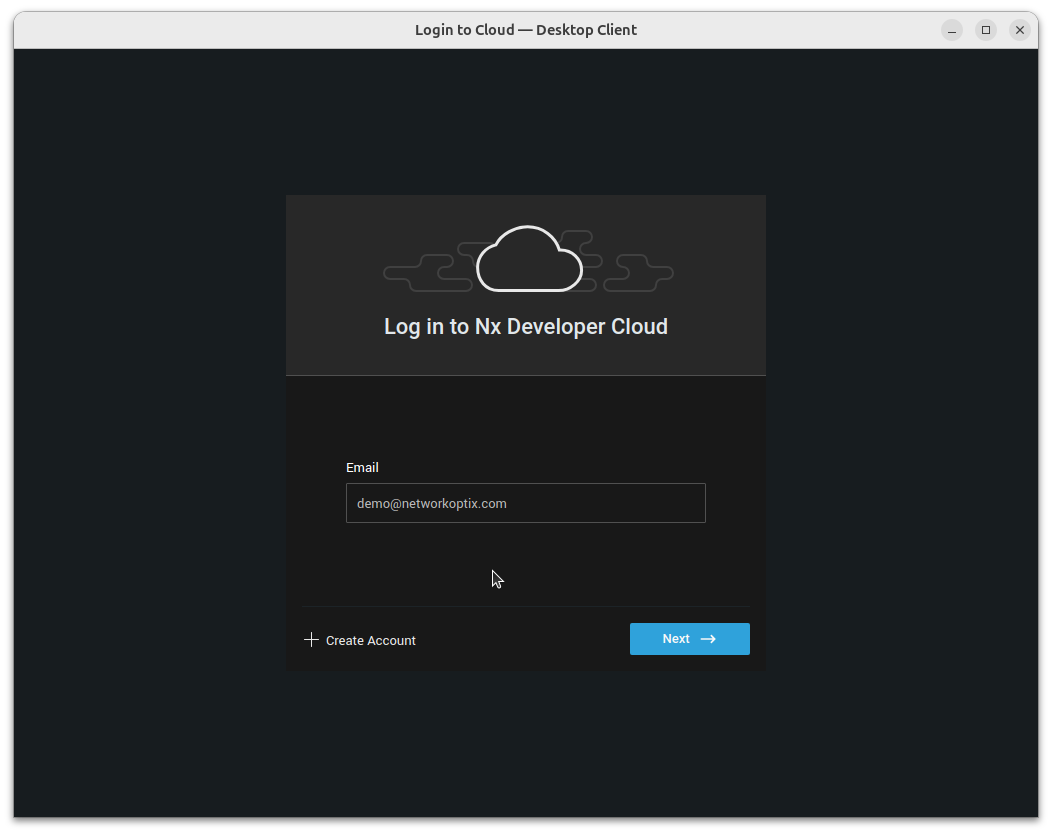
After successful installation of Nx Server and Nx Client, open the Nx Client. The welcome screen lets you log in via Nx Cloud or connect directly to a server:

<figure><img src="https://content.gitbook.com/content/rRwbQQvzbEN2nNWFwUuK/blobs/juV5vsfLcaQ9sePEkez5/nx-login-screen-email.png" alt="Log in to Nx Developer Cloud dialog showing email input field in the Desktop Client"><figcaption><p>Nx Client: log in to Nx Developer Cloud</p></figcaption></figure>

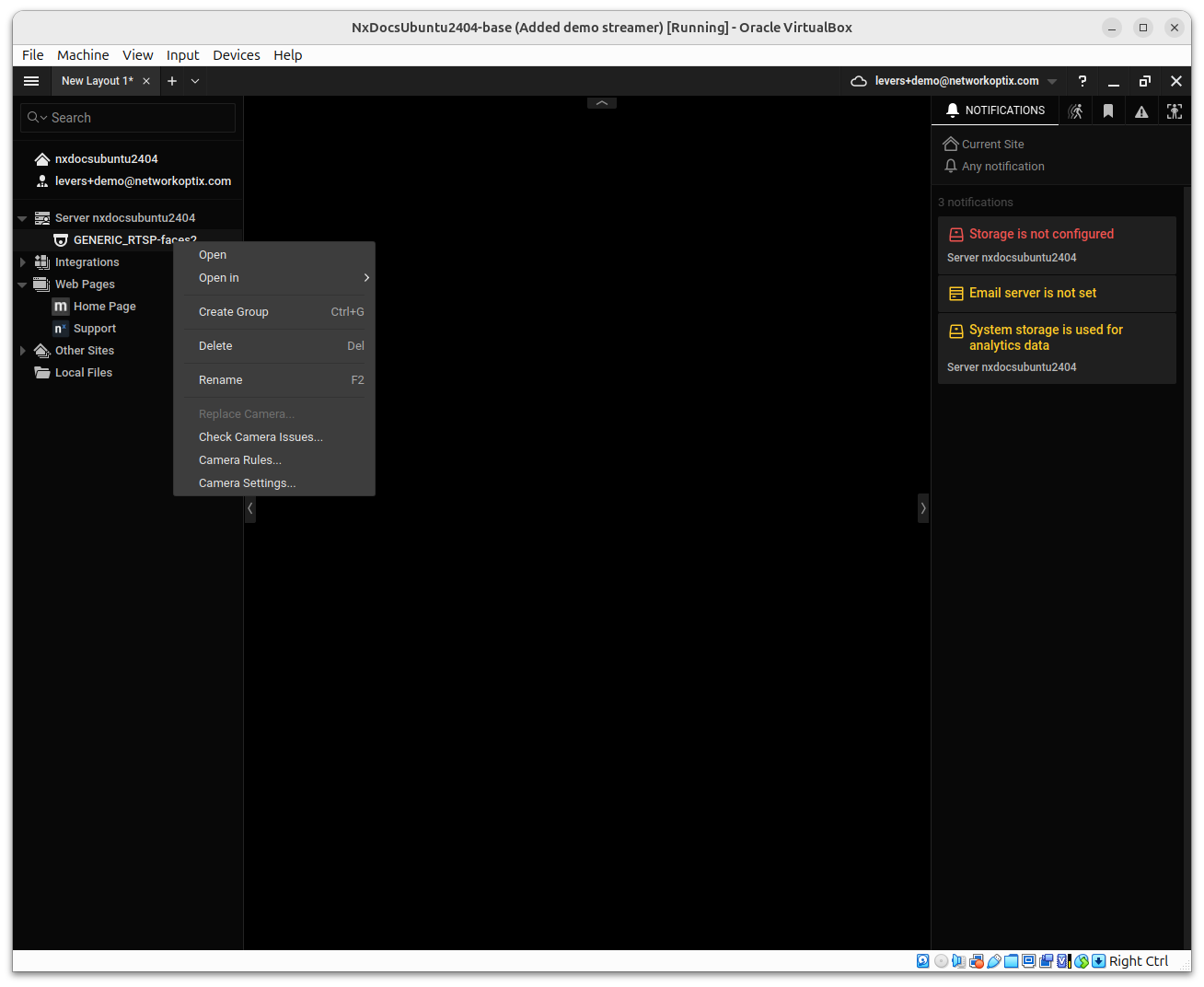
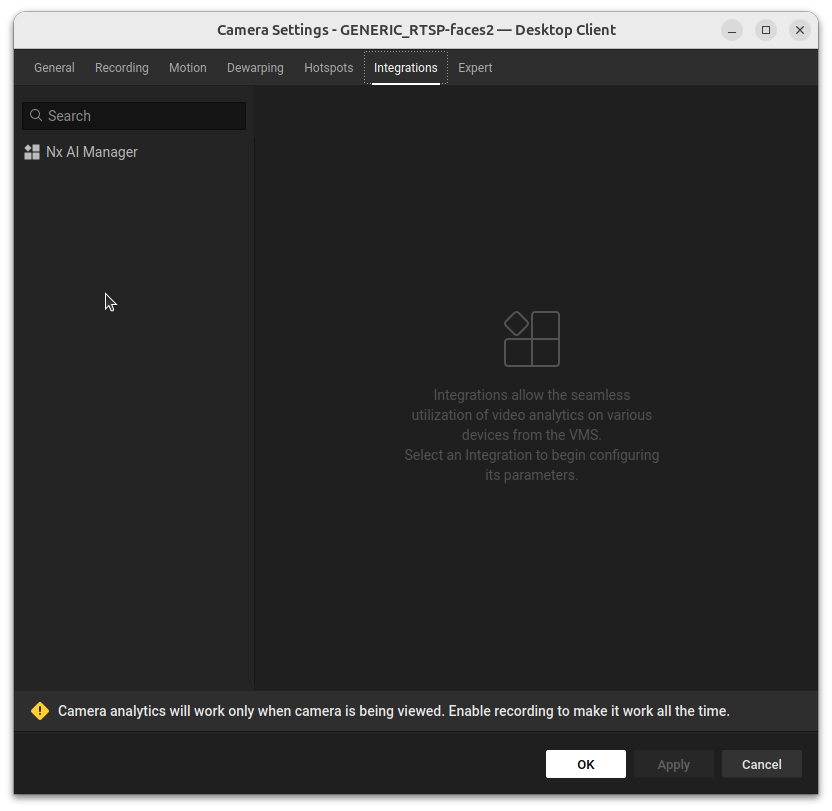
Once connected, an "Integrations" tab should be visible when opening a camera's settings via the context menu:

<figure><img src="https://content.gitbook.com/content/rRwbQQvzbEN2nNWFwUuK/blobs/5BpZeiEv3afAHj5aUAiQ/nx-client-camera-context-settings.png" alt="Right-click context menu on a camera item showing Camera Settings option"><figcaption><p>Right-click a camera and choose Camera Settings to open the settings dialog</p></figcaption></figure>

<figure><img src="https://content.gitbook.com/content/rRwbQQvzbEN2nNWFwUuK/blobs/95rYfZwPwGh7AhKBWX75/nx-camera-extensions.png" alt="Camera Settings dialog with the Integrations tab selected, showing AI Manager in the list"><figcaption><p>Camera Settings — Integrations tab</p></figcaption></figure>

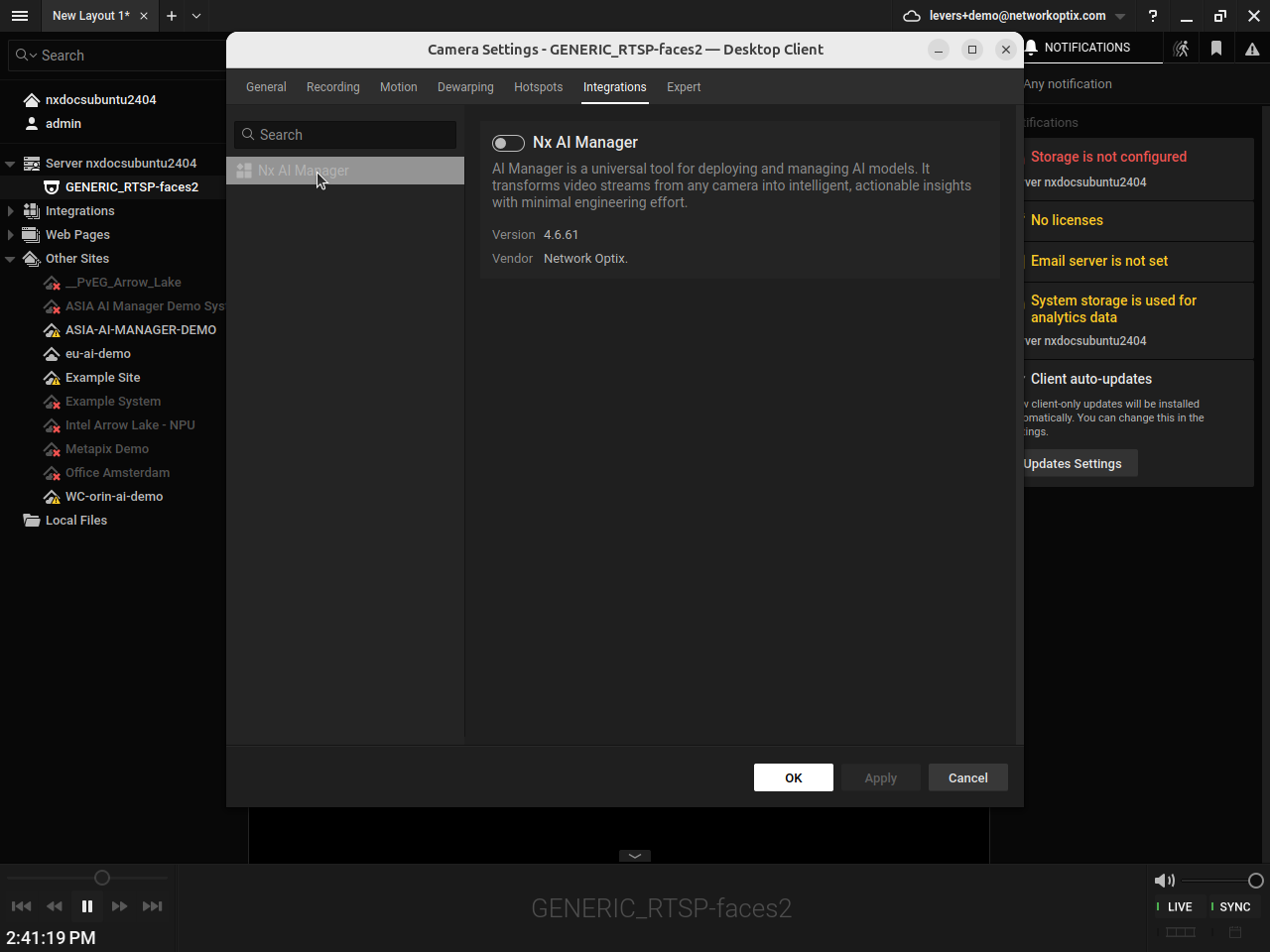
To start the plugin, enable it by toggling the switch next to the title, then click **Apply**. The plugin will initialize and detect available AI accelerators on the server.

<figure><img src="https://content.gitbook.com/content/rRwbQQvzbEN2nNWFwUuK/blobs/BmUo2Y2THsYXNCbkGPTA/plugin-disabled.png" alt="Camera Settings Integrations tab showing the AI Manager toggle in the off position"><figcaption><p>Plugin disabled — toggle the switch to enable it</p></figcaption></figure>

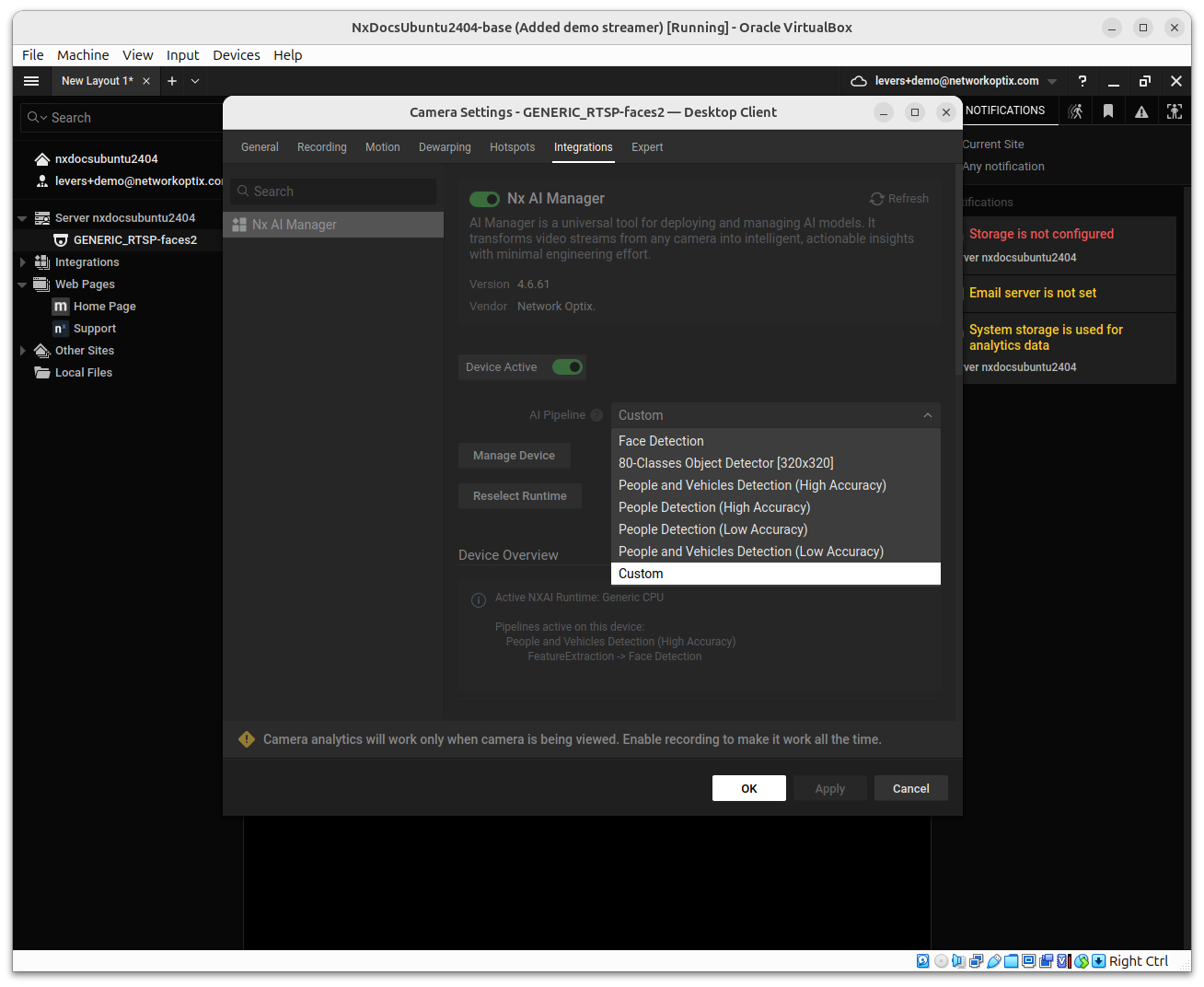
<figure><img src="https://content.gitbook.com/content/rRwbQQvzbEN2nNWFwUuK/blobs/RnE5OoAARMmSss6Xtidr/nx-ai-dropdown-pipeline-options.png" alt="Camera Settings Integrations tab showing the AI Manager active with the AI Pipeline dropdown open showing available pipelines"><figcaption><p>Plugin active — select a pipeline from the AI Pipeline dropdown</p></figcaption></figure>

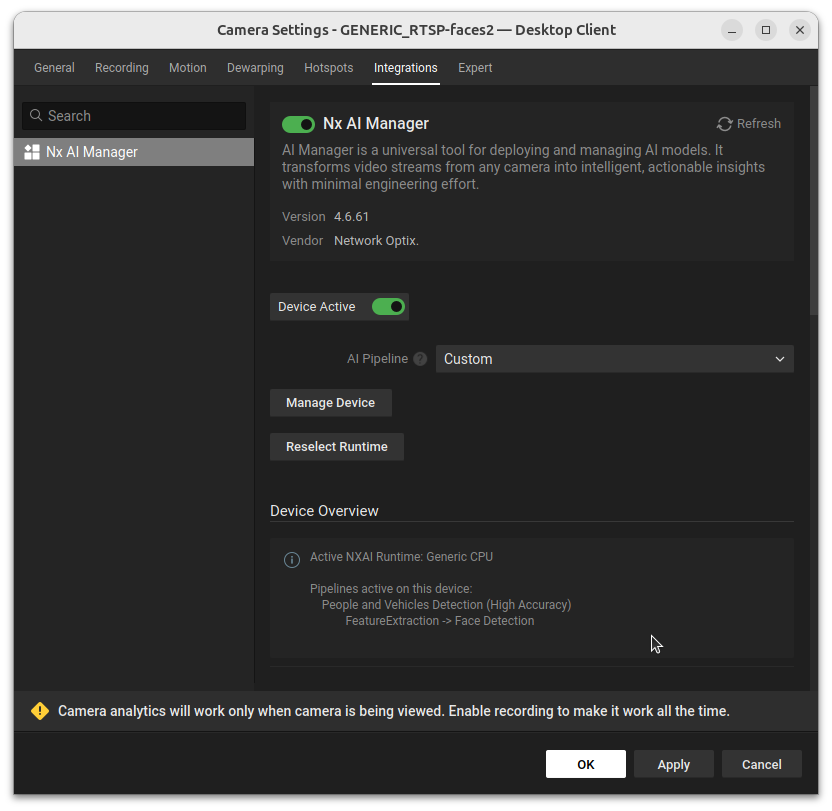
Once the plugin has started, the settings panel shows the active AI pipeline and model controls.

<figure><img src="https://content.gitbook.com/content/rRwbQQvzbEN2nNWFwUuK/blobs/rUhcxUpDhbV1g1ky2MO1/nx-ai-updated-pipeline.png" alt="Camera Settings Integrations tab showing the plugin active with AI Pipeline set, Device Active toggle on, and Device Overview listing active pipelines"><figcaption><p>Plugin active — AI pipeline running with model controls visible</p></figcaption></figure>

## Stopping the plugin

To stop the plugin, disable the **Device Active** toggle in the Integrations tab and click **Apply**. To fully disable the plugin, also toggle off the AI Manager switch.