For the complete documentation index, see llms.txt. This page is also available as Markdown.

Deployment and device management

How to use the platform for model deployment.

The AI Manager Cloud platform allows you to deploy model pipelines to target devices remotely. You can assign or replace a pipeline on a single device, or clone a pipeline to all devices in a site at once.

An Overview of Your Sites and Devices

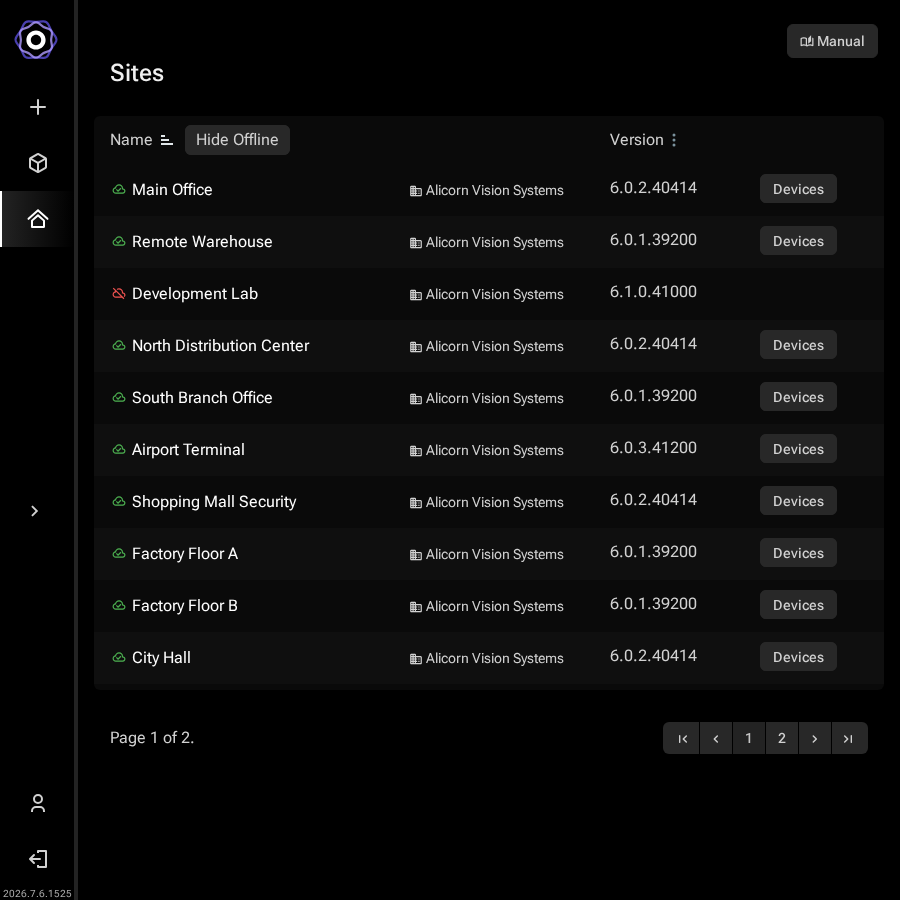
The Sites tab shows all sites registered to your cloud account, with online/offline status indicated by a green or red icon.

AI Manager Cloud sites listing page showing multiple sites with green online and red offline status indicators, version numbers, and a Hide Offline toggle
Sites listing: green icon means online and accessible; red means offline. Use the Hide Offline toggle to filter the list.
If a site is offline, the Devices button is disabled and no changes can be made until the site comes back online.

Overview of a Single Site

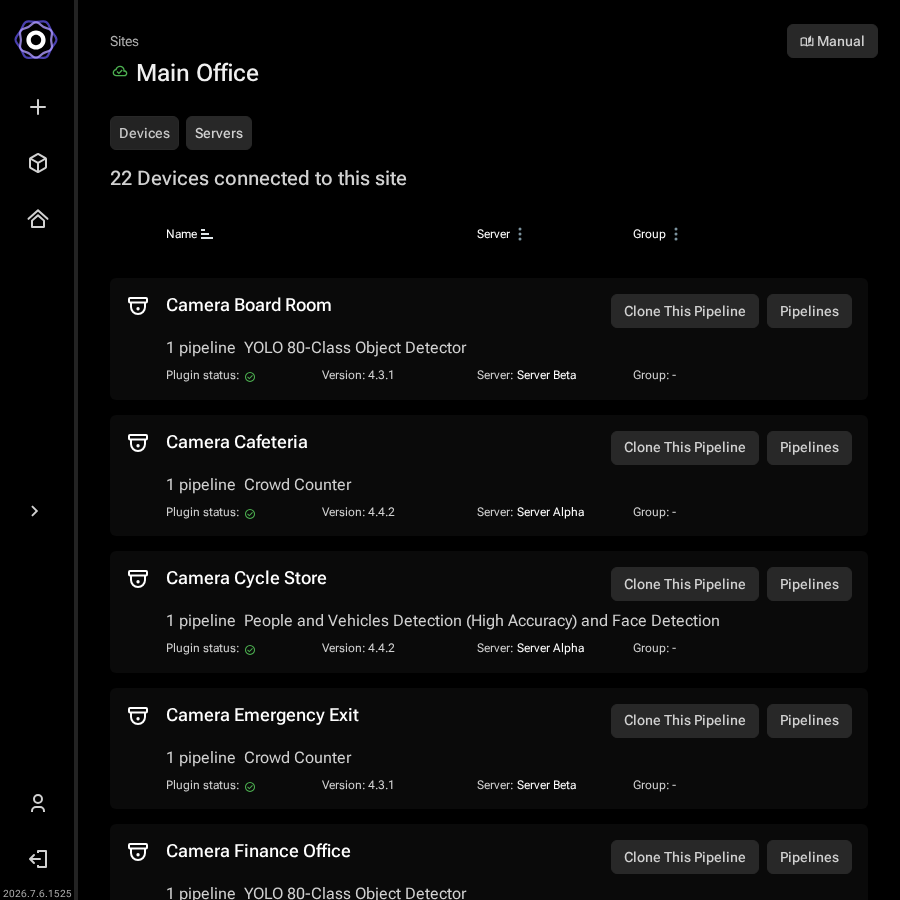
Clicking an online site opens the site's Devices page, which lists all devices and their currently assigned pipelines.

Site devices page showing three cameras each with their assigned pipeline, Clone This Pipeline and Pipelines buttons, and a More info section below
Site devices page: each device shows its current pipeline, a Clone This Pipeline button, and a Pipelines button.
Assign or Replace a Pipeline on a Single Device

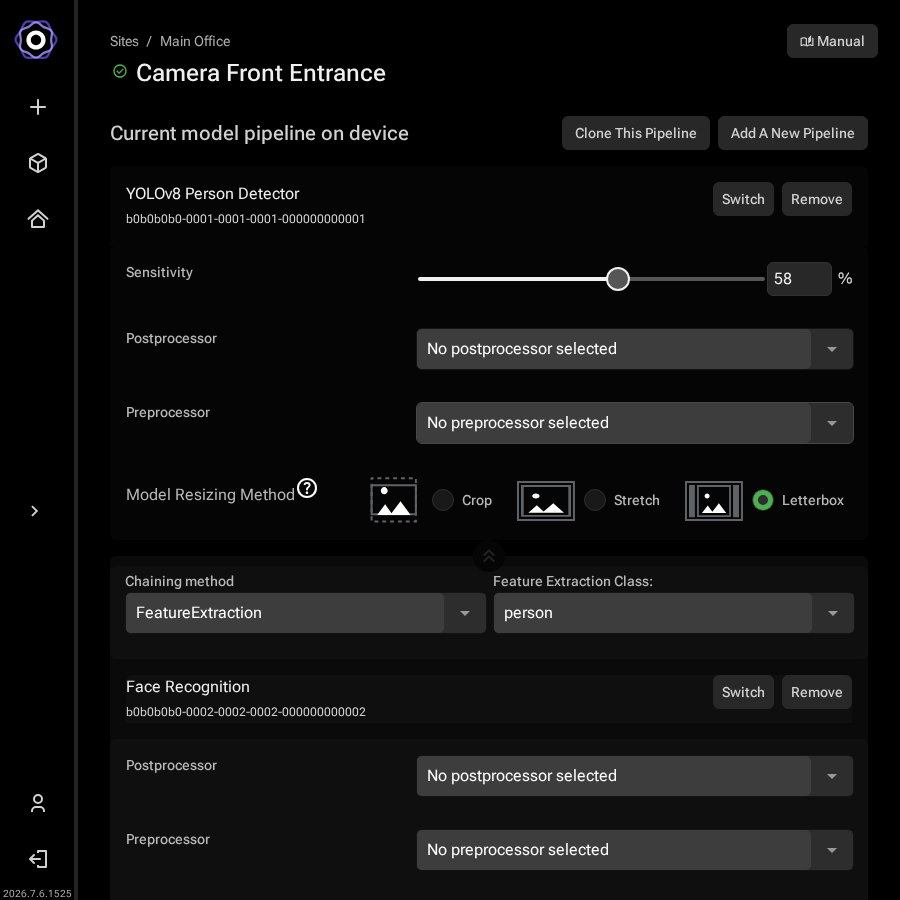
Click Pipelines next to a device to open the device detail page. From here you can add a new pipeline or replace an existing one.

Device detail page showing the current model pipeline with yolov11n, Clone This Pipeline, Add A New Pipeline, Switch, Remove, and Add Chained Model buttons, plus sensitivity, postprocessor, and model resizing method controls
Device detail page: view the current pipeline and use Add A New Pipeline or the Switch button to change the assigned model.
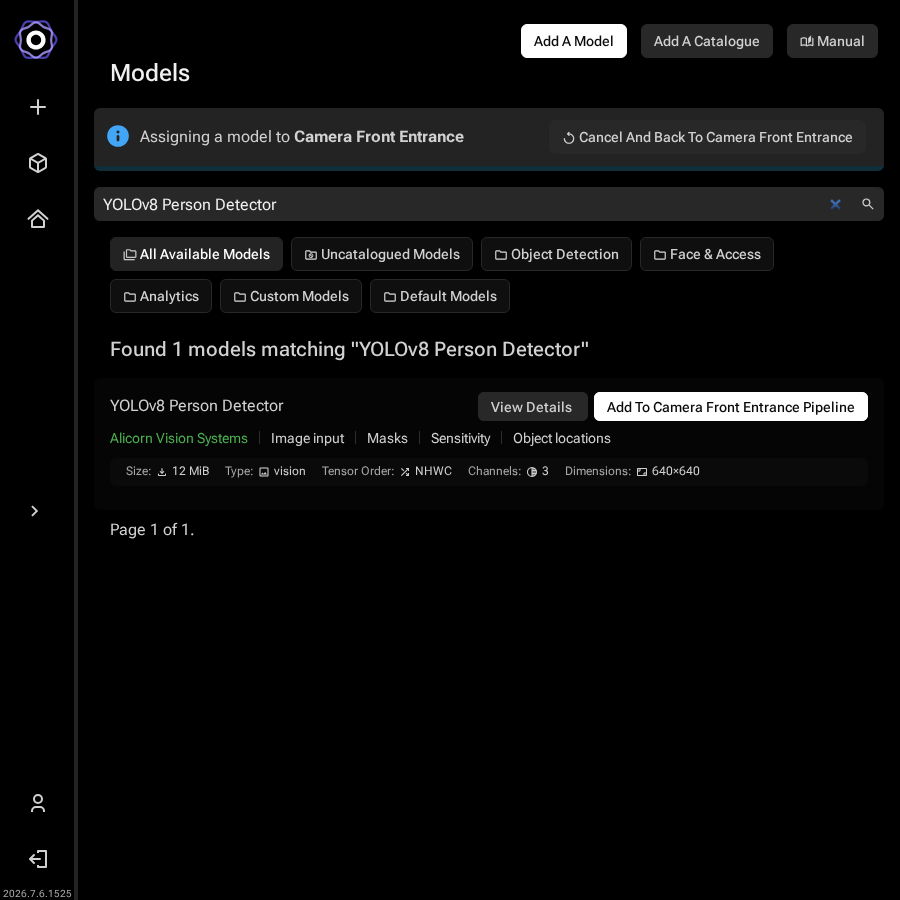
Click Add A New Pipeline (or the Switch button on an existing pipeline) to enter assignment mode. The model catalogue opens with an assignment banner at the top. Browse by catalogue tab, search for your model, then click the Add To Pipeline button next to it.

Model catalogue in assignment mode showing an Assigning a model to Demo Cam banner at the top, catalogue filter tabs, and Add To Pipeline buttons next to each model
Model catalogue in assignment mode: select a catalogue tab and click Add To Pipeline on the model you want to deploy.
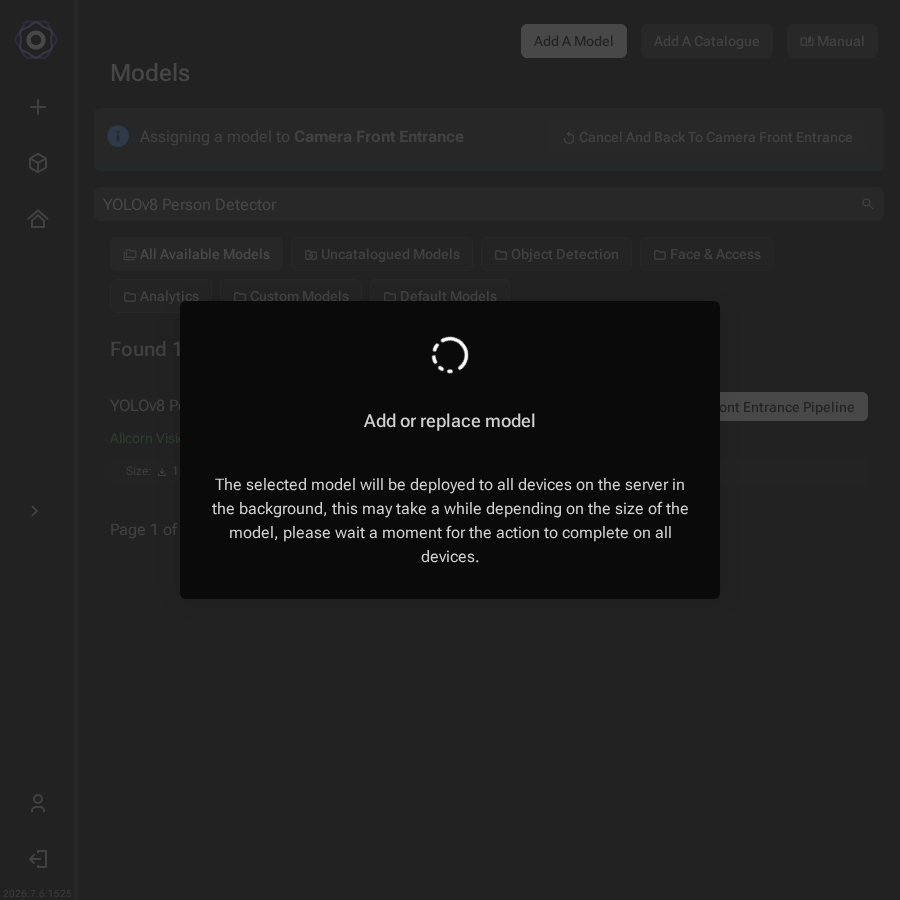
The model is deployed automatically. A progress dialog appears while the model downloads to the device's server.

Add or replace model dialog with a spinner and a message that the selected model will be deployed to all devices on the server in the background
Deployment in progress: this runs in the background and may take a few seconds depending on model size.

When deployment completes you are returned to the device detail page, which now shows the newly assigned pipeline alongside any existing ones.

Device detail page showing two model pipelines assigned, each with sensitivity and postprocessor controls
Device detail page after assignment: the new pipeline appears alongside any existing pipelines on the device.
Clone a Pipeline to Multiple Devices

To deploy the same pipeline to several devices at once, start from the site's Devices page.

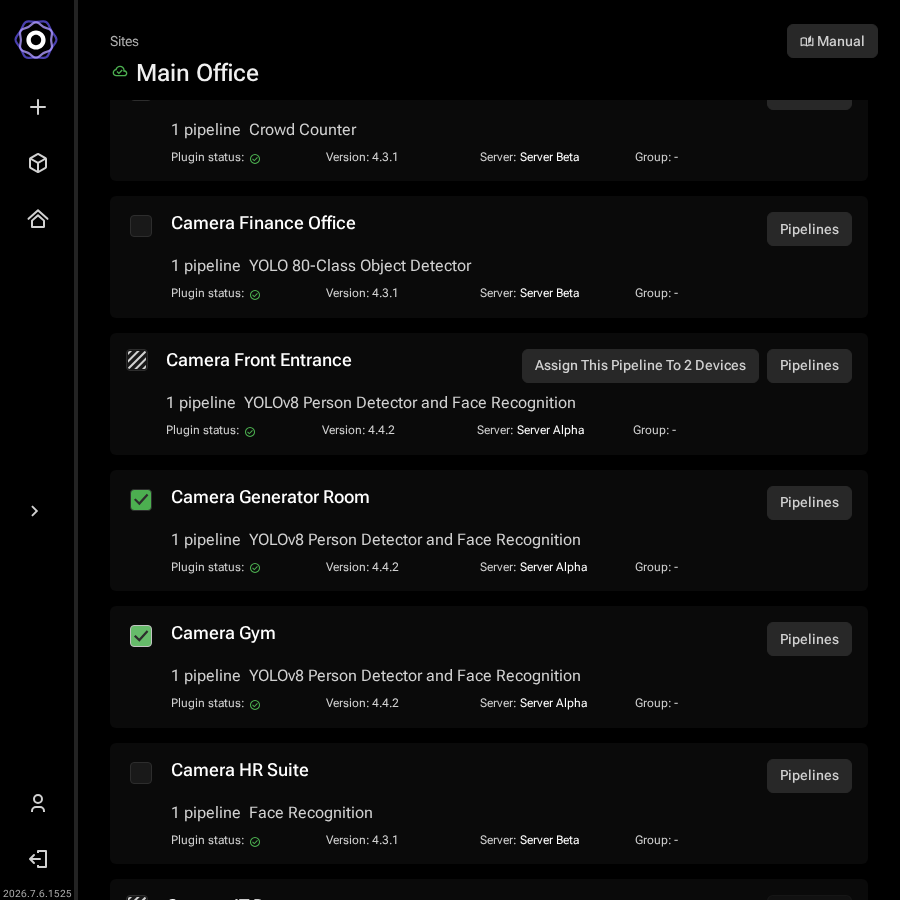
Hover over a device row and click Clone This Pipeline. A banner at the top of the page confirms which pipeline is being cloned.

Tick the checkboxes next to the devices you want to receive the pipeline. Devices that are offline or have the plugin disabled cannot be selected.

Site devices list with an Assign This Pipeline To 2 Devices button on the source device's row and two target devices checked below it
Select the target devices, then click Assign This Pipeline.
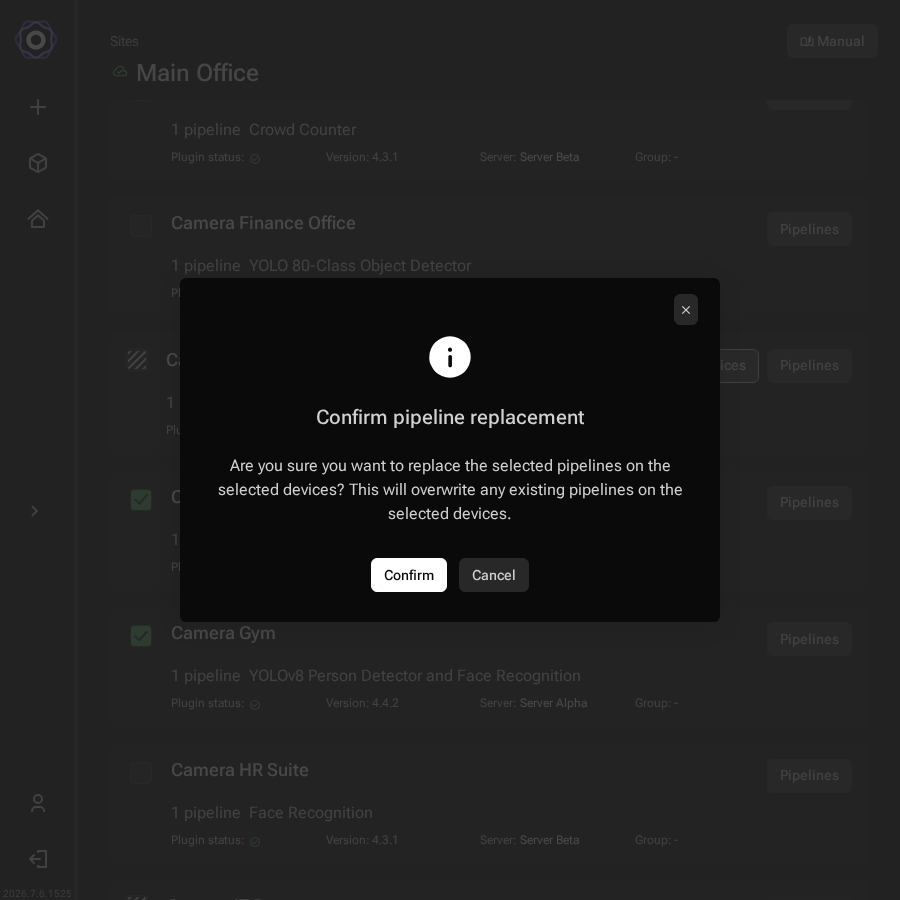
Click Assign This Pipeline when your selection is ready. The confirmation dialog warns that continuing overwrites existing pipelines on the selected devices.

Confirm pipeline replacement dialog asking if you are sure you want to replace the selected pipelines, with Confirm and Cancel buttons
Confirm the replacement: existing pipelines on the selected devices will be overwritten.
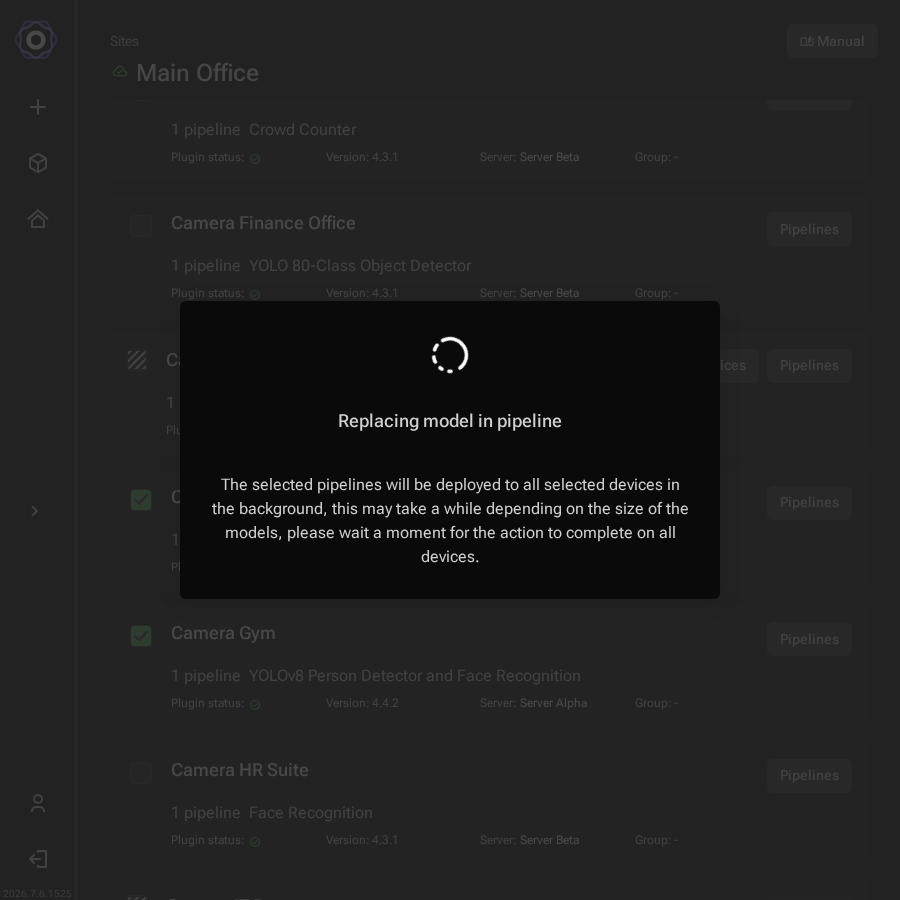
Click Confirm to proceed. The deployment runs in the background the same way as a single-device update.

Replacing model in pipeline dialog with a spinner and a message that the selected pipelines will be deployed to all selected devices in the background
Pipeline deployment in progress: this runs in the background and may take a few seconds depending on model size.
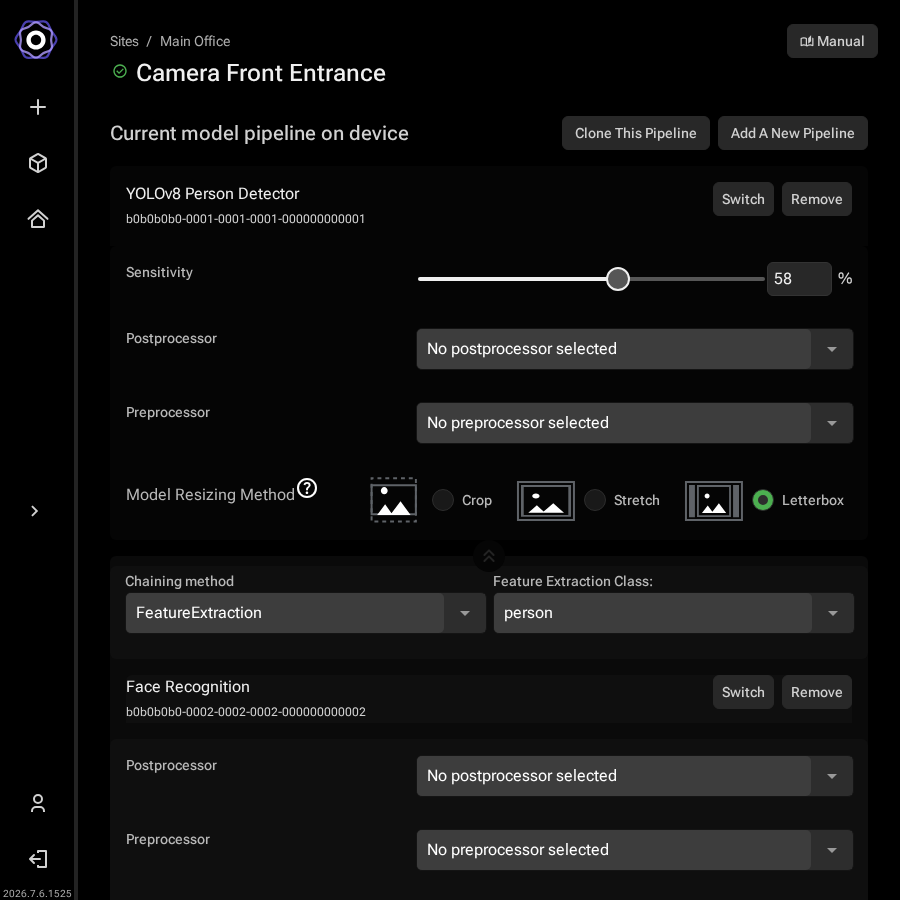
Once deployment finishes, each selected device shows the new pipeline.

Device detail page showing the cloned pipeline now active
The pipeline is now active on the selected devices.

Last updated