For the complete documentation index, see llms.txt. This page is also available as Markdown.

Use your model

Assign an uploaded model to a device and verify it is running.

After uploading a model to the AI Manager Cloud, it becomes available to assign to any device in your account. Follow these steps to assign it and verify deployment.

Step 1: Find the Model in the Catalogue

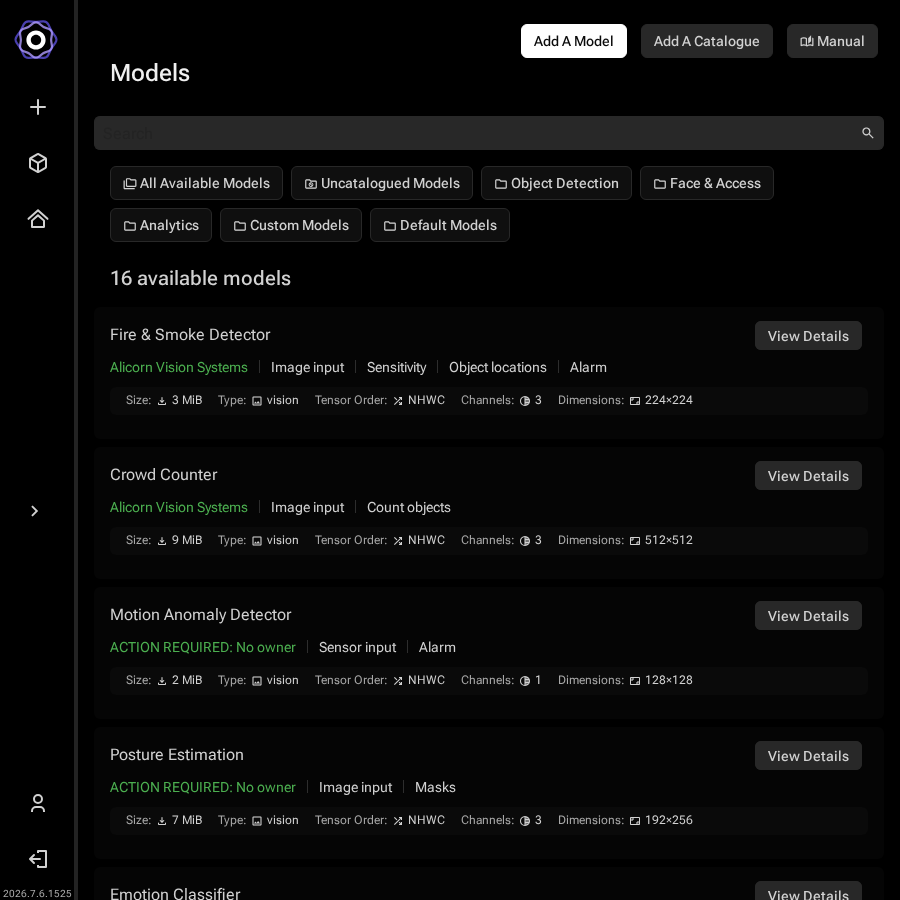
From the sidebar, open the Models page. Your uploaded model appears in the list alongside the pre-built catalogue models.

The AI Manager Cloud model catalogue listing page showing available models including custom uploaded ones
Models page: your uploaded model appears here once conversion is complete
Step 2: Assign the Model to a Device

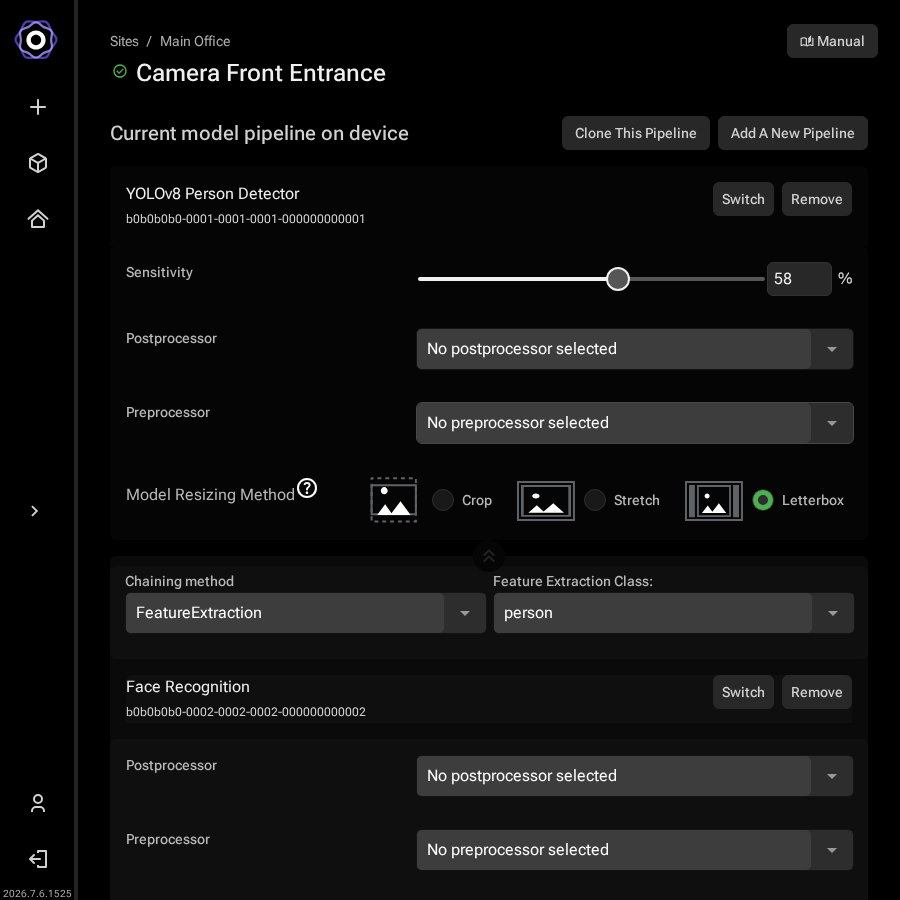
Navigate to Sites, select an online site, then open the Devices tab and click a device. On the device detail page, click Add a New Pipeline (or the replace button on an existing pipeline) to open the model catalogue in assignment mode.

Device detail page showing the current model pipeline with Clone This Pipeline, Add A
     New Pipeline, Switch, Remove, and Add Chained Model buttons
Device detail page: click Add A New Pipeline or Switch to assign or replace a model.
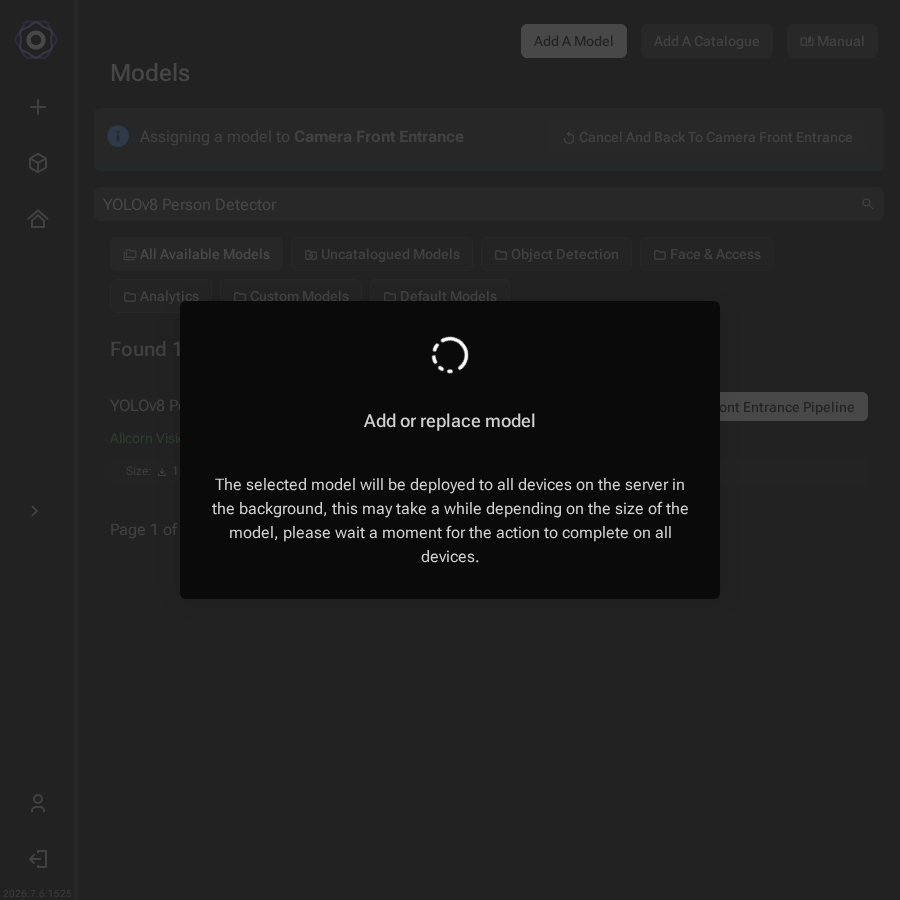
Find your model and click Add to Pipeline. The model is deployed to the server hosting that device in the background.

Add or replace model dialog with a spinner and a message that the selected model will
     be deployed to all devices on the server in the background
Deployment in progress: this runs in the background and may take a few seconds depending on model size.
Clone a Pipeline to Multiple Devices

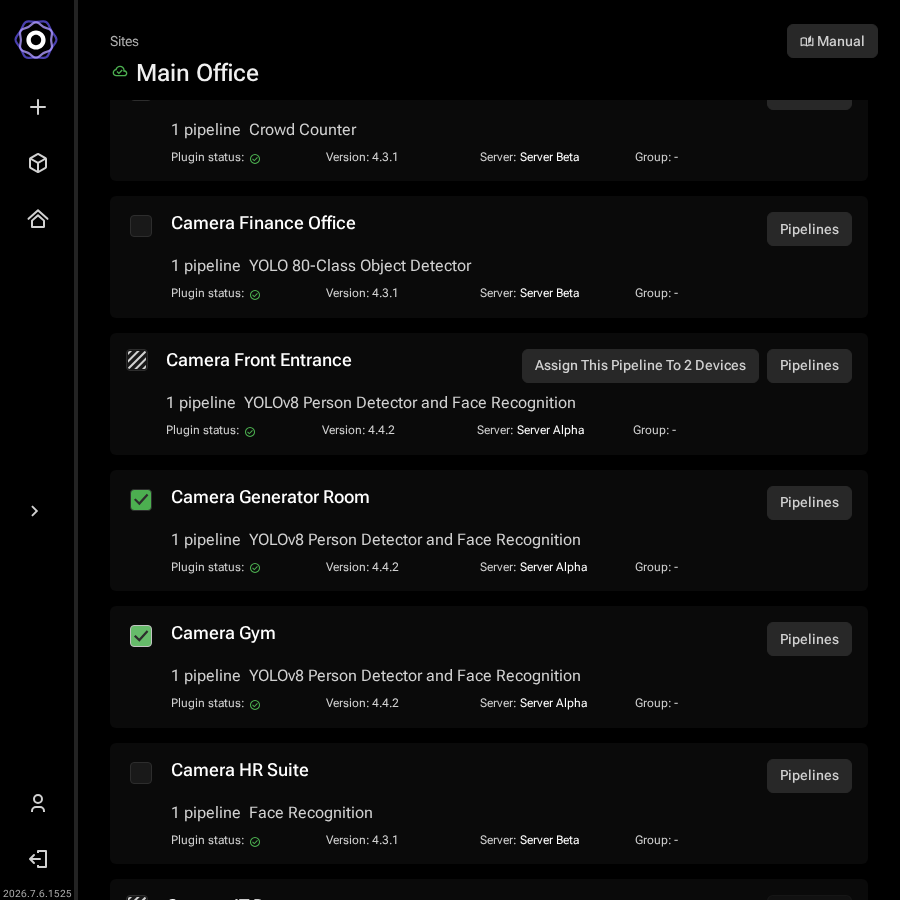
Once one device has a pipeline configured, you can copy it to other devices on the same site without opening each device individually. From the site Devices list, hover over a device row to reveal the Clone This Pipeline button.

Click Clone This Pipeline. A banner at the top of the page confirms which pipeline is being cloned. Tick the checkboxes next to the devices you want to receive the pipeline.

Site devices list with an Assign This Pipeline To 2 Devices button on the source
     device's row and two target devices checked below it
Select the target devices, then click Assign This Pipeline to continue.
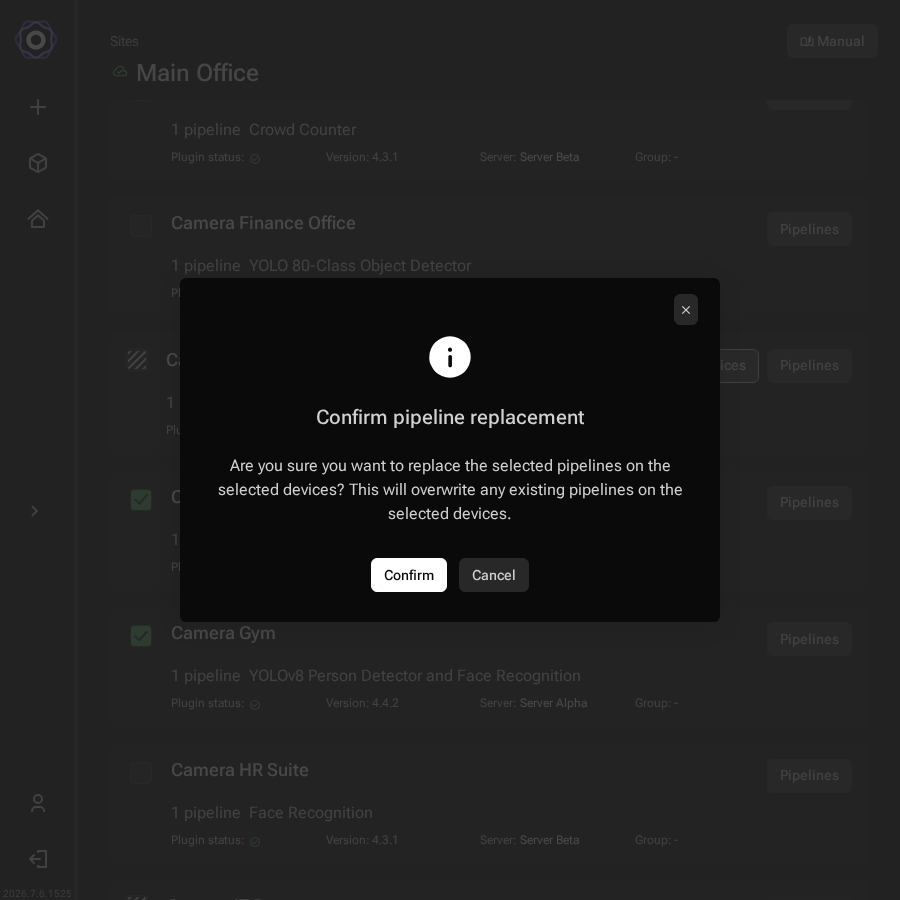
A confirmation dialog warns that existing pipelines on the selected devices will be overwritten. Click Confirm to proceed.

Confirm pipeline replacement dialog asking if you are sure you want to replace the
     selected pipelines, with Confirm and Cancel buttons
Confirm the replacement: this overwrites any existing pipeline on the selected devices.
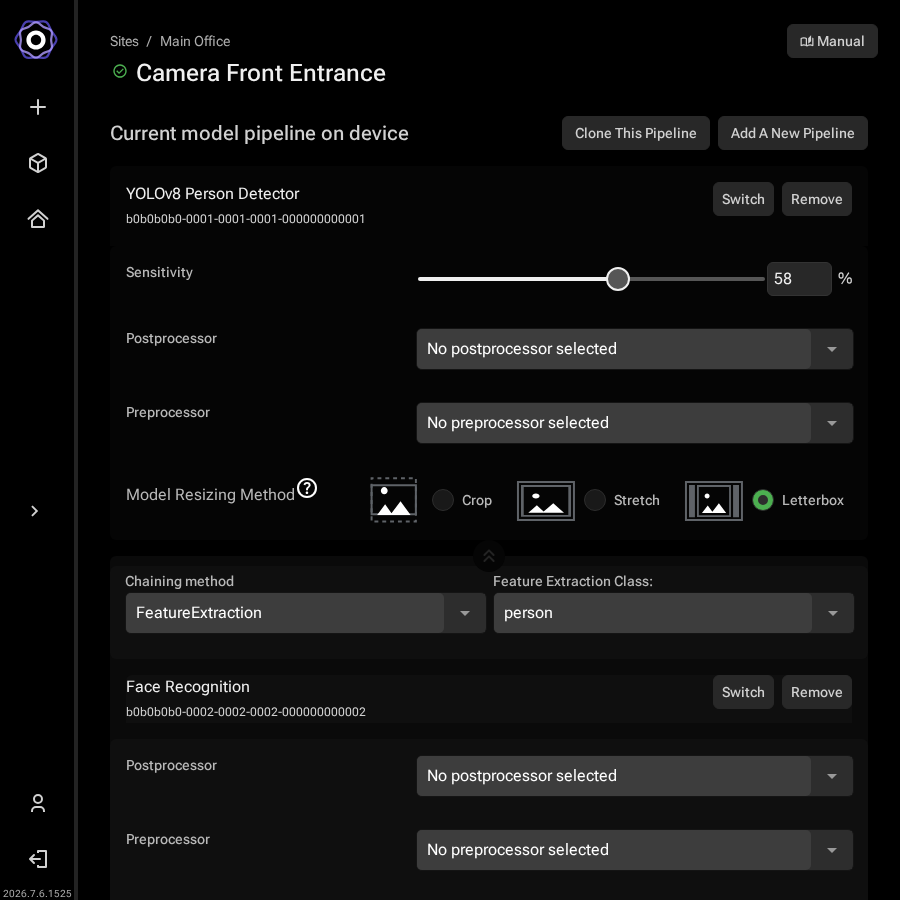
After confirming, the pipeline is deployed to all selected devices. The source device's page confirms the pipeline that was cloned.

Device detail page confirming the pipeline that was cloned to the selected devices
The pipeline is now cloned to the selected devices.
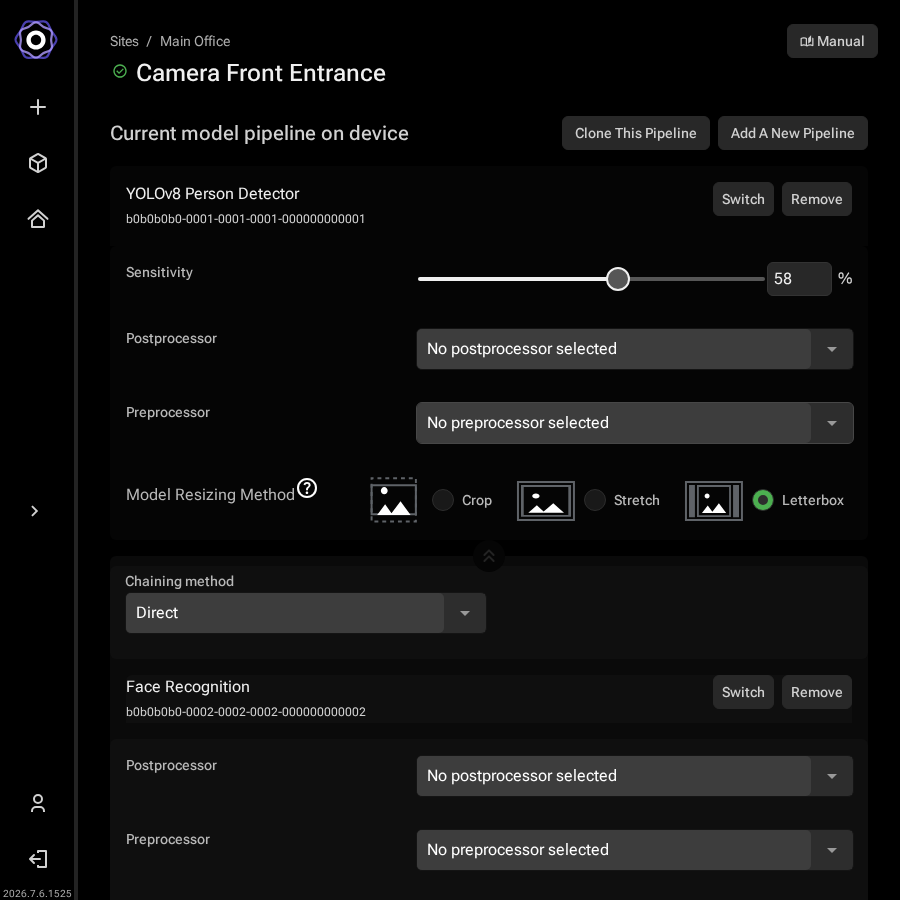
Chain Multiple Models

A pipeline can run more than one model in sequence. For example, a detector can find people in the frame, and a second model can then classify or recognize each detected person.

Device detail page showing a pipeline with a root model and a chained model, with a
     chaining method dropdown set to Feature Extraction
A pipeline with a chained model: the second model processes the output of the first.

See Model pipelines on multiple devices for details on chaining methods and cloning a multi-model pipeline to other devices.

Step 3: Verify Deployment

After assignment, the device detail page shows the active pipeline.

If nothing appears, check the Troubleshooting section.

Last updated