> For the complete documentation index, see [llms.txt](https://nx.docs.scailable.net/llms.txt). Markdown versions of documentation pages are available by appending `.md` to page URLs; this page is available as [Markdown](https://nx.docs.scailable.net/ai-manager-v6.1.4/ai-manager-plugin/configure-the-plugin/model-pipeline-configuration.md).

# Model pipeline selection and configuration

The device detail page is the central place to manage the model pipelines that the device should run. Pipelines are chains of one or more models that can run with the given video input from the device. The plugin usually configures a default pipeline after it is enabled for the device.

## Custom pipeline

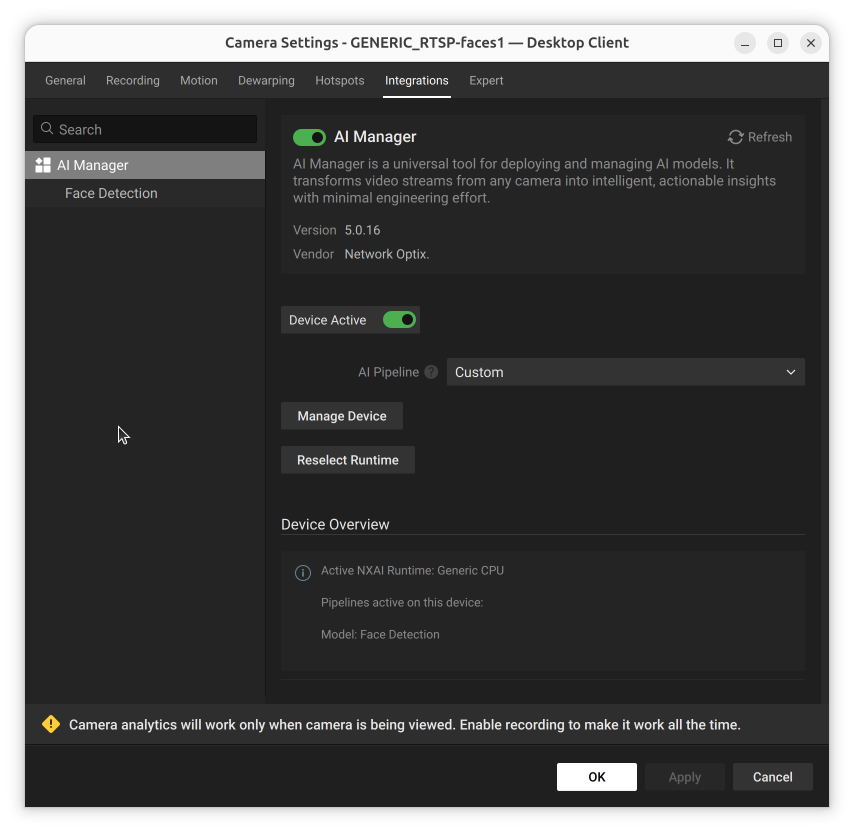
When using a custom pipeline managed via the AI Manager Cloud, a **Manage Device** button is shown instead. Clicking it opens the AI Manager device panel to manage the model pipeline.

<figure><img src="/files/JT7W9mEdwy9nsL4sAtoP" alt="Plugin settings showing AI Pipeline set to Custom with Manage Device and Reselect Runtime buttons, and Device Overview showing the active pipeline summary"><figcaption><p>Manage Device button: available when using a custom cloud pipeline</p></figcaption></figure>

## Add a New Pipeline

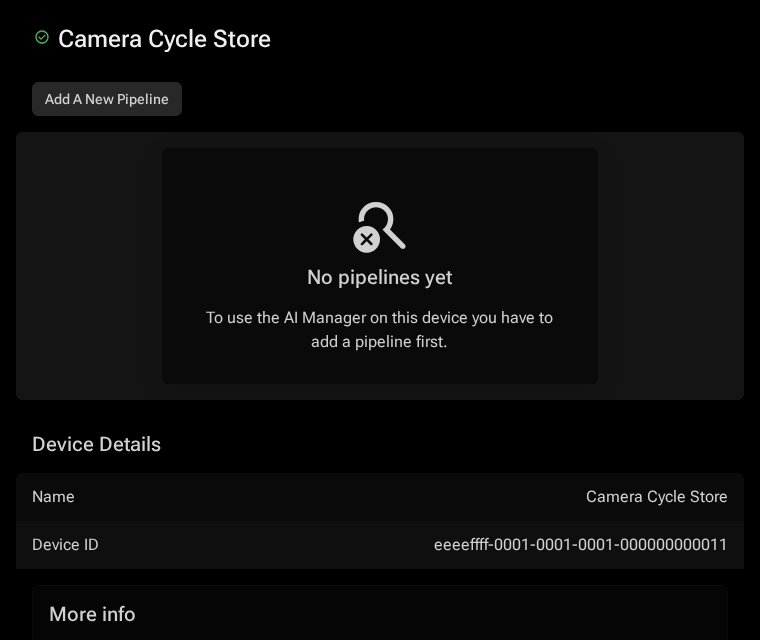
Add a new pipeline by clicking the "Add A New Pipeline". When no pipelines are set, the only available option is to add a new pipeline:

<figure><img src="/files/Vhh2mKbSpq27oAjWXmbm" alt="AI Manager device panel showing no pipelines configured, with an Add A New Pipeline button"><figcaption><p>A device detail page without any pipelines</p></figcaption></figure>

Clicking the "Add A New Pipeline" button redirects you to the model catalogue.

## Selecting a Model

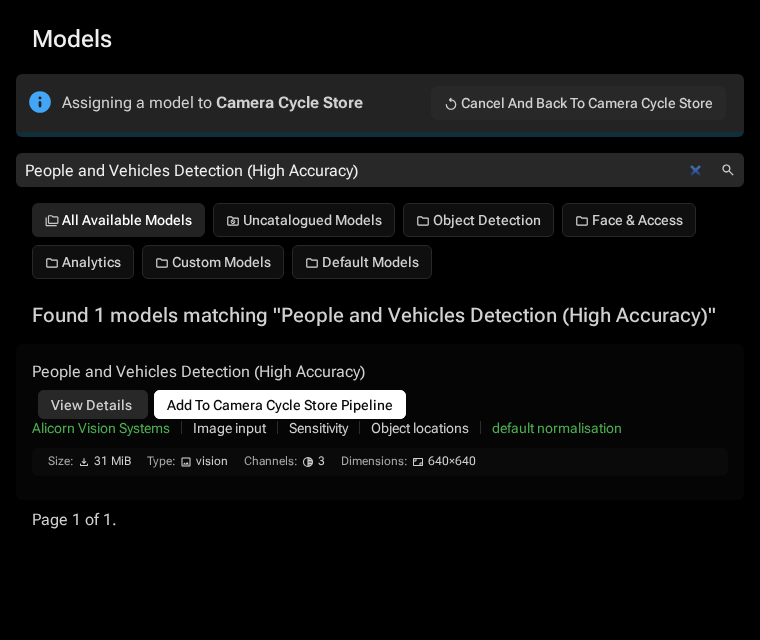
In the model catalogue, select a model to use in the new (or current) pipeline.

The top of the page will show a message that you are "Assigning a model to...".

If you have uploaded custom models, these will also be available in the catalogue.

<figure><img src="/files/RqJI7vUc8Gl9TfxbXJok" alt="Models catalogue showing available AI models with View Details and Add To Pipeline buttons, with an Assigning a model to device banner at the top"><figcaption><p>The model catalogue - select a model to add to the pipeline</p></figcaption></figure>

{% hint style="warning" %}
The model visibility is context sensitive. When you are browsing models you can see all models that are available to all organizations that you are a member of. If you are assigning a model to a device, only the models that are available for the organization that the device belongs to are visible.
{% endhint %}

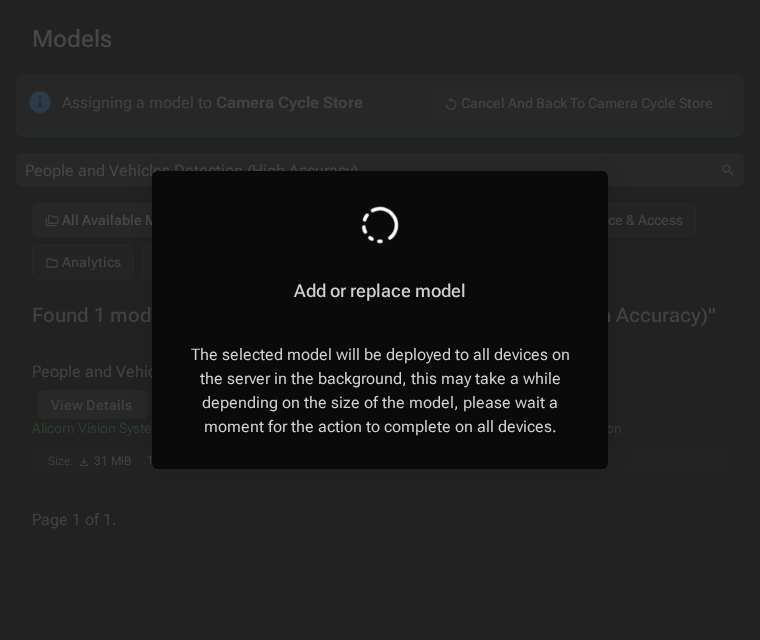
Selecting a model assigns and downloads it to the server for the current device.

<figure><img src="/files/OXTHQvpbfi26QyAhMfP6" alt="Add or replace model dialog showing the model deployment is in progress with a spinner"><figcaption><p>The selected model is being deployed to the server</p></figcaption></figure>

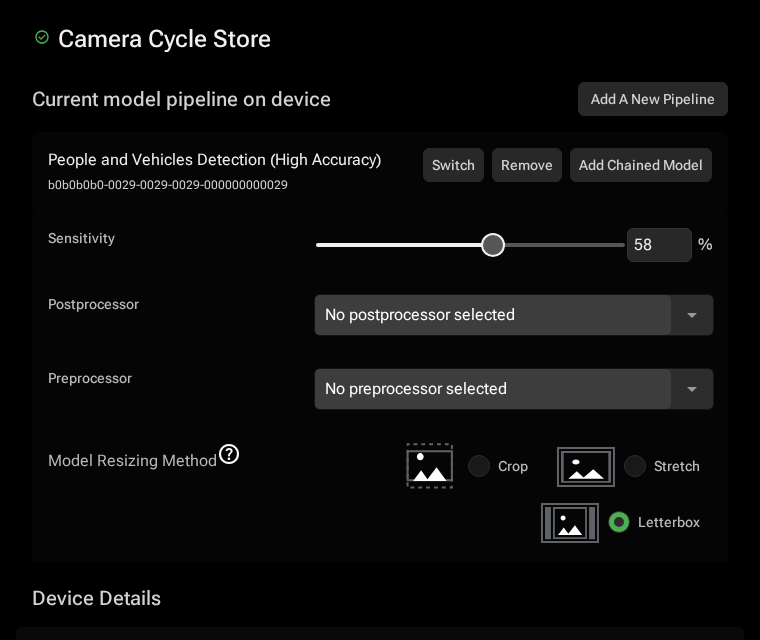
The device details page reopens, showing the newly assigned model.

<figure><img src="/files/Hu76aZ5dvO0eb6VNAeR9" alt="AI Manager device panel showing a single pipeline with People and Vehicles Detection model, sensitivity slider, postprocessor, and model resizing method options"><figcaption><p>The device detail page with a single pipeline containing one model</p></figcaption></figure>

## Add a Chained Model

Chained models are models that use the input of a parent model instead of processing the video from the device directly.

Click **Add Chained Model** next to the parent model name to add a chained model. The model catalogue opens for selecting the chained model.

<figure><img src="/files/Hu76aZ5dvO0eb6VNAeR9" alt="AI Manager device panel showing the Add Chained Model button highlighted with a tooltip"><figcaption><p>Model pipeline - click Add Chained Model to chain a model</p></figcaption></figure>

The way a chained model will use the input can be chosen by setting a chaining method, currently there are three modes and not all of them may be available at the same time:

* Direct - the chained model gets the output from the parent model as input
* Conditional - the chained model will only run if a field with a given name outputs "`true`". This is only available if the model itself returns a boolean value.
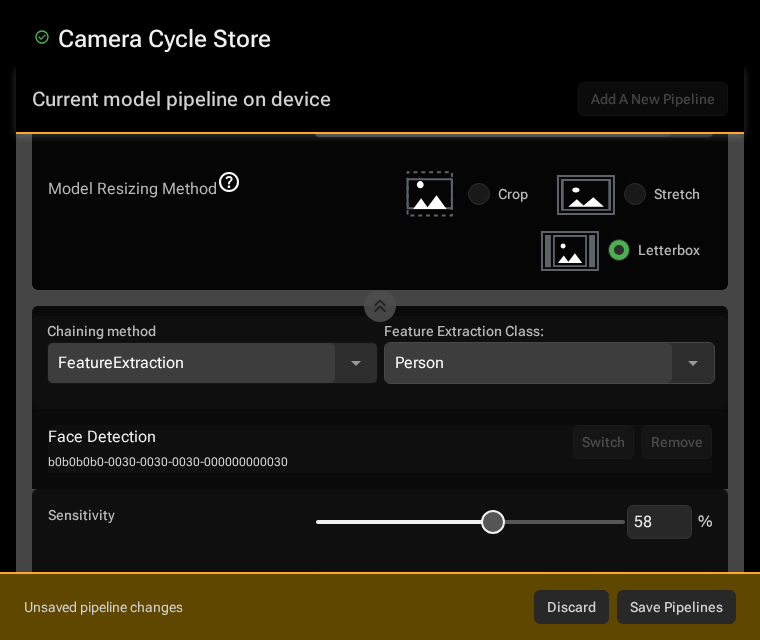
* Feature extraction - the chained model will get the contents of the bounding boxes that have a certain label. This is only available if the model returns one or more named classes.

<figure><img src="/files/BYzLqAuItTjMGOR7YK2z" alt="Pipeline chaining method dropdown showing Direct and FeatureExtraction options with Feature Extraction Class set to Person"><figcaption><p>A model pipeline with chaining options and feature extraction class selection</p></figcaption></figure>

Choose the appropriate method. After entering new data, the pipeline form indicates that settings need to be saved.

<figure><img src="/files/BYzLqAuItTjMGOR7YK2z" alt="Device pipeline editor showing Cancel Changes and Save Pipelines buttons highlighted indicating unsaved changes"><figcaption><p>A model pipeline with changes that need to be saved</p></figcaption></figure>

Clicking **Save Pipelines** applies the settings to the device. Unsaved changes linger for an hour unless saved or canceled.

## Change a Model in a Pipeline

Click **Switch** next to the model title to replace a parent or chained model. This opens the normal model selection process for choosing a replacement.

The rest of the settings in the model pipeline are not affected, unless they are directly related to the model.

## Remove a Chained Model from a Pipeline

Click **Remove** next to a **chained** model to remove it from the pipeline immediately.

This action cannot be undone. To restore the setup, select the same model again and reconfigure the same chaining options and pre- and post-processing.

## Remove a Pipeline

Click **Remove** next to a **parent** model in a pipeline to remove the full pipeline, including all associated settings and chained models.

This action cannot be undone. To restore the settings, rebuild the same model pipeline completely.