Exclusive Masks
Limit inference to outside a drawn polygon.
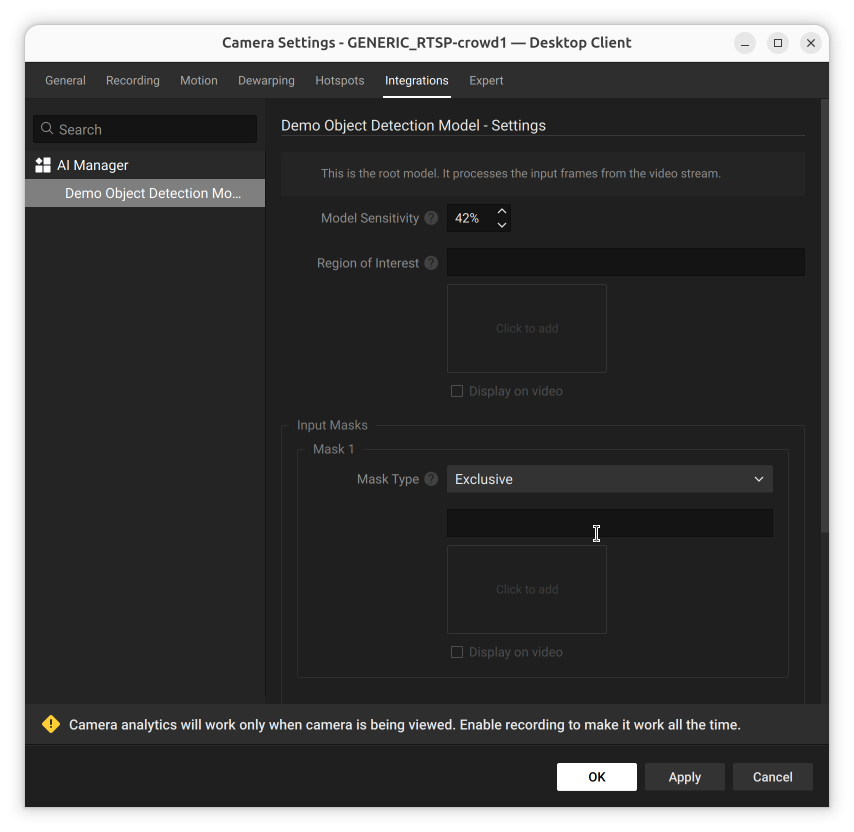
Exclusive input masks ignore objects that are fully inside the drawn mask area. Create these masks on the video frame inside the AI Manager's Model Settings, in the Input Masks section.
Select Exclusive from the Mask Type dropdown:

Choosing Exclusive leaves the shape field empty until you draw a mask:

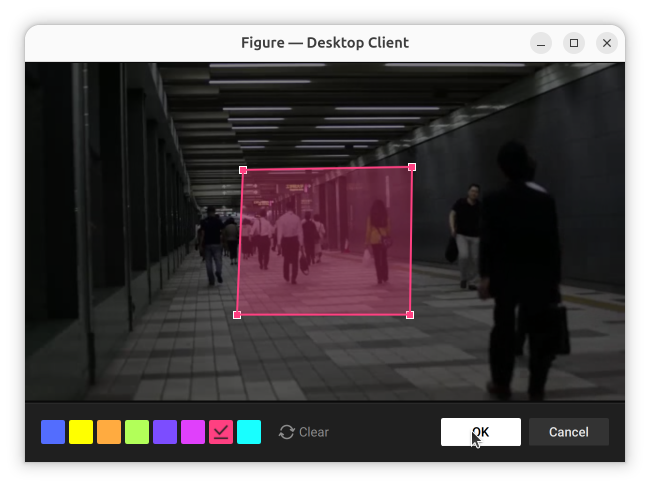
Click inside the mask's shape field to open the figure editor and draw the mask over the frame:

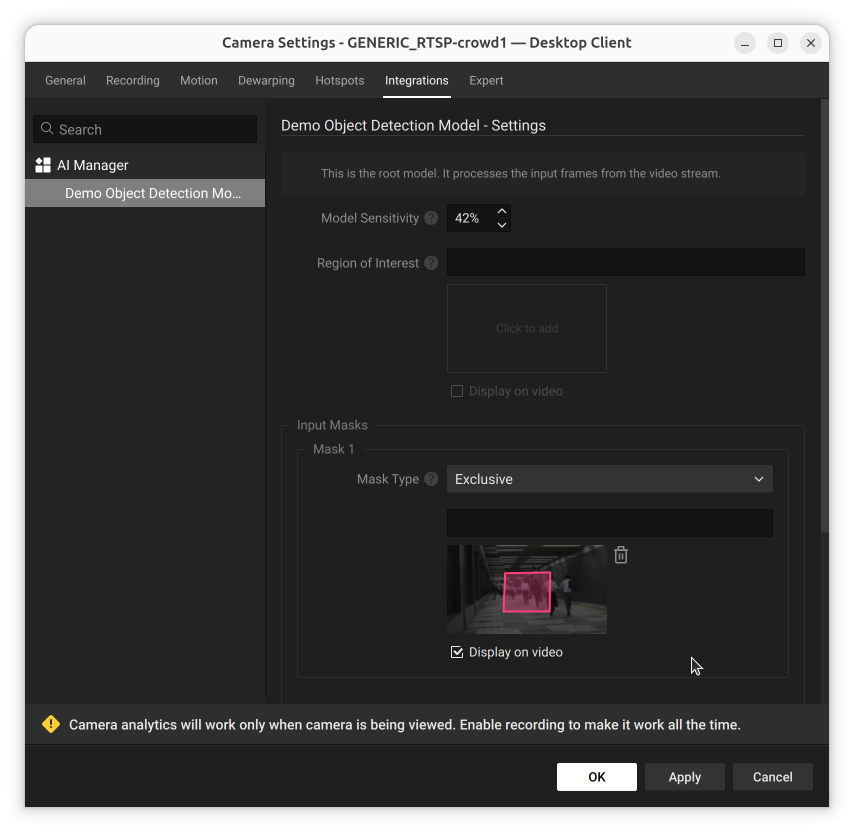
Click OK to save the shape. A thumbnail preview appears in the mask's shape field, with a Display on video checkbox to show the mask as an overlay in Live View. Add more masks with the Add button.

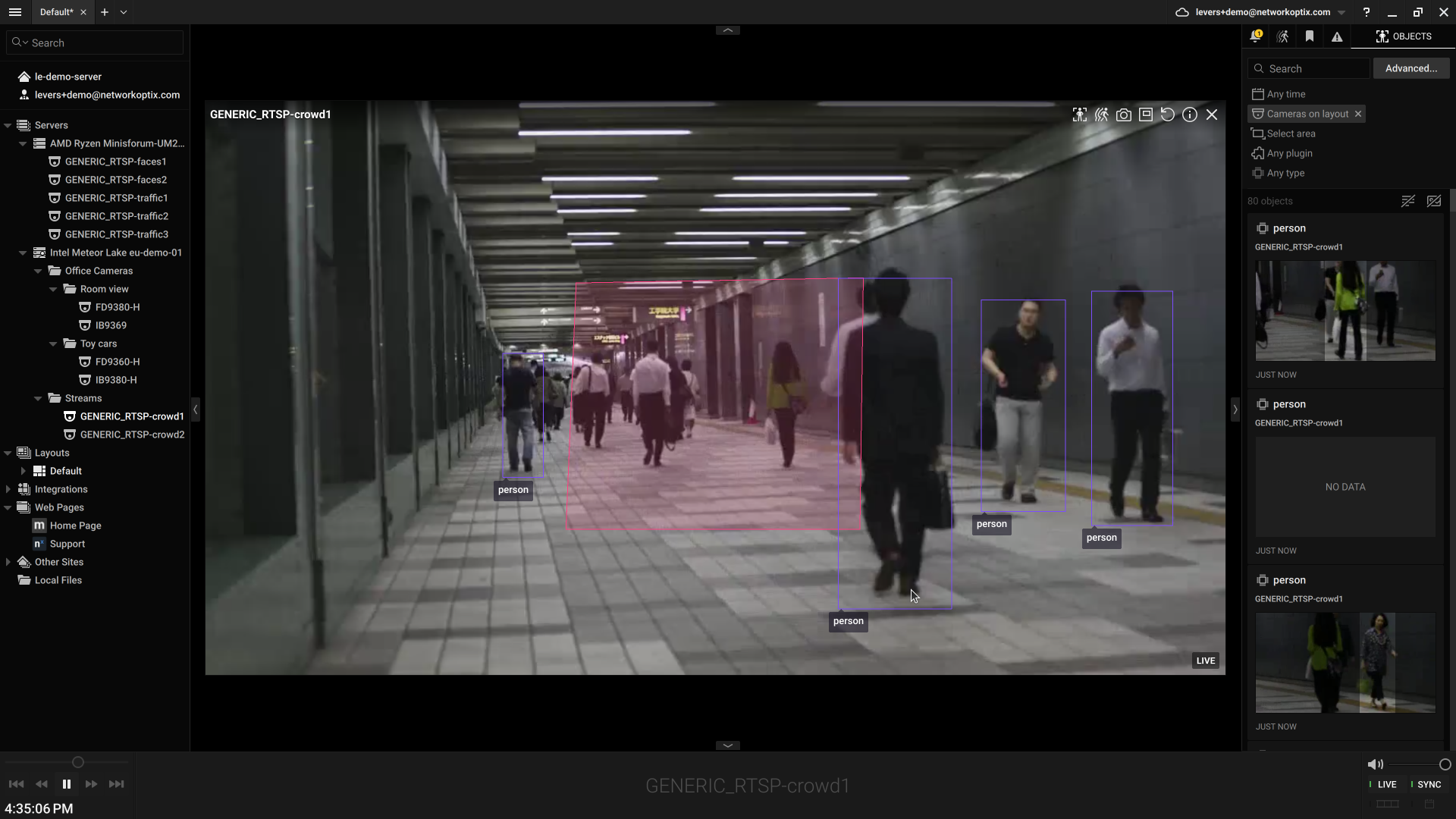
Confirm it in Live View: detections inside the mask area are ignored, detections elsewhere are still returned.

In practice, results overlap the polygon borders slightly because the anchor location for a detected object is the middle of the bottom of the detection box.
Using an input mask and a region of interest at the same time is not supported.
Click Apply for changes to take effect.
Last updated