> For the complete documentation index, see [llms.txt](https://nx.docs.scailable.net/llms.txt). Markdown versions of documentation pages are available by appending `.md` to page URLs; this page is available as [Markdown](https://nx.docs.scailable.net/ai-manager-v6.1.4/ai-manager-plugin/configure-the-plugin/plugin-settings/input-masks-and-roi/region-of-interest.md).

# Region of Interest

Limit inference to a rectangular region of the video frame.

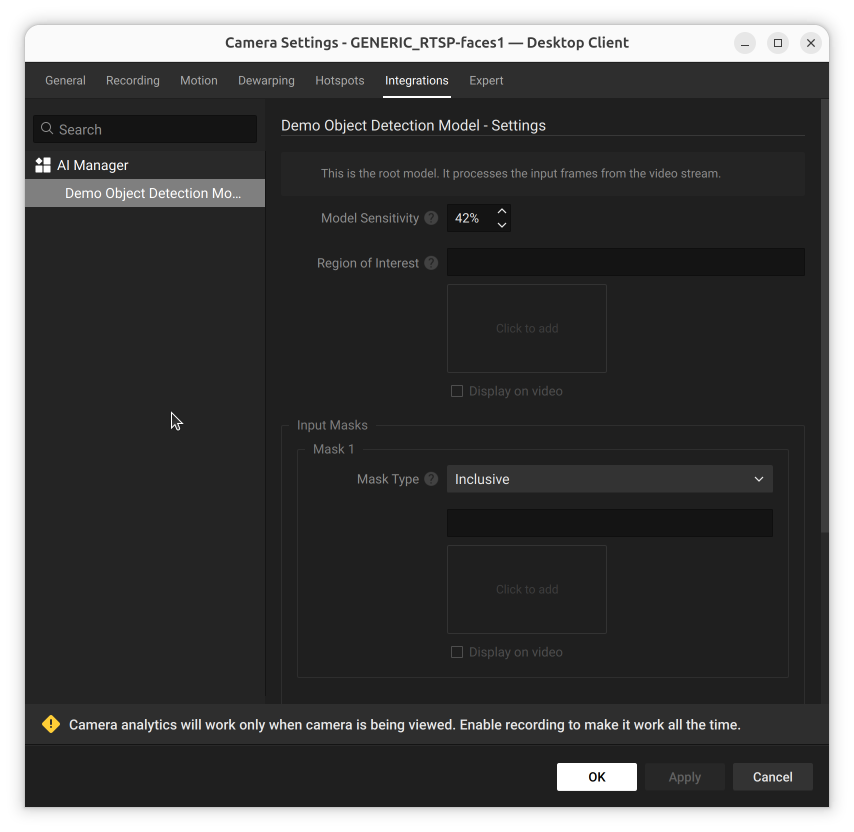
The Region of Interest (ROI) defines a rectangular region of the image sent to the AI Manager; the model does not see the parts outside the region. It appears in the model's own **Model Settings** section, below the Model Sensitivity field:

<figure><img src="https://2982163321-files.gitbook.io/~/files/v0/b/gitbook-x-prod.appspot.com/o/spaces%2FKGfC0TFSmuMDjbpLErO3%2Fuploads%2Fgit-blob-96ff9da1d25f56330d6850b6183a19b94835b002%2Fclient-ai-manager-model-settings-sensitivity.png?alt=media" alt="Model Settings panel for the root model showing the Model Sensitivity percentage field and empty Region of Interest and Input Mask controls"><figcaption><p>The Model Settings panel without a region of interest</p></figcaption></figure>

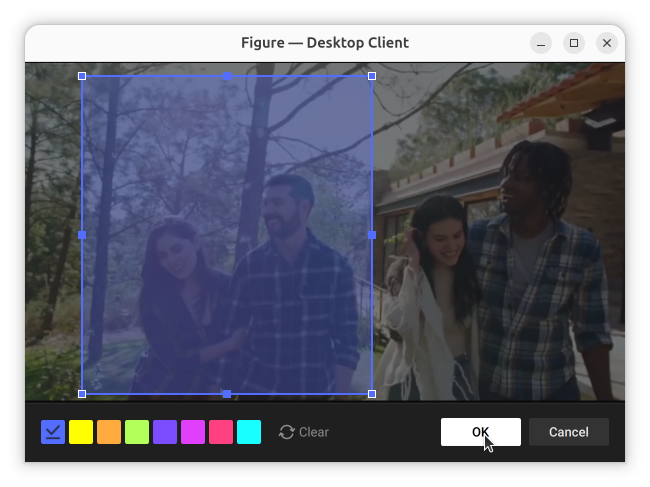
Click inside the Region of Interest field to open the figure editor, then drag out a rectangle over the part of the frame that should be sent to the model:

<figure><img src="https://2982163321-files.gitbook.io/~/files/v0/b/gitbook-x-prod.appspot.com/o/spaces%2FKGfC0TFSmuMDjbpLErO3%2Fuploads%2Fgit-blob-e24dcb81ea77dabf13595ee24ce0e9086d2c6343%2Fclient-region-of-interest-figure-editor-drawn.png?alt=media" alt="Figure editor dialog with a blue rectangle drawn over part of the camera image, resize handles visible, and the cursor over OK"><figcaption><p>Editing a region of interest</p></figcaption></figure>

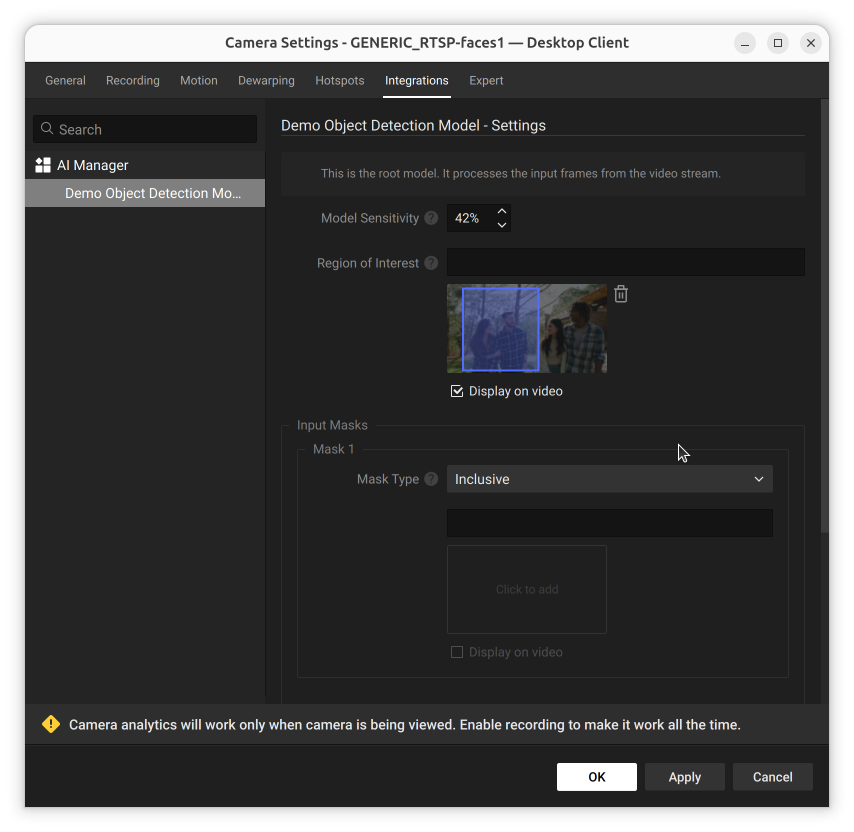
Click **OK** to save the shape. A thumbnail preview appears in the Region of Interest field, with a **Display on video** checkbox to show the region as an overlay in Live View:

<figure><img src="https://2982163321-files.gitbook.io/~/files/v0/b/gitbook-x-prod.appspot.com/o/spaces%2FKGfC0TFSmuMDjbpLErO3%2Fuploads%2Fgit-blob-31aac81a7bfae2f6e18dc5aa8331fb2d13f62469%2Fclient-ai-manager-model-settings-roi-preview.png?alt=media" alt="Model Settings panel showing a Region of Interest thumbnail preview with a blue rectangle drawn over part of the camera image and Display on video checked"><figcaption><p>The Model Settings panel with a region of interest</p></figcaption></figure>

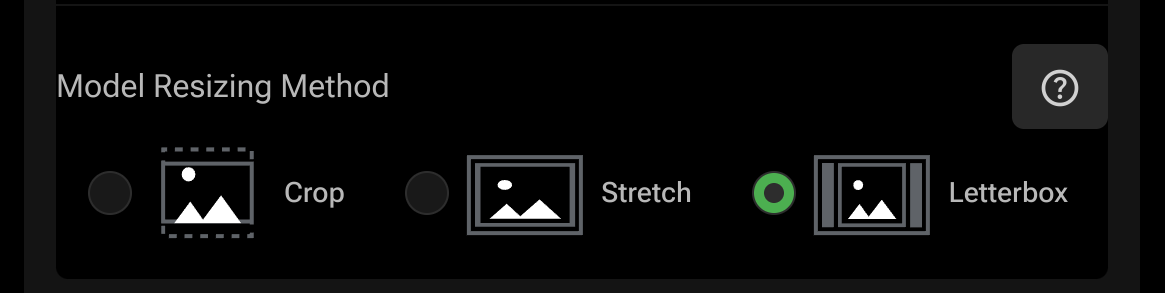
Using a region of interest also means the image sent to the model must be a rectangle; set the model resizing method to letterbox for the model to work correctly.

<figure><img src="https://2982163321-files.gitbook.io/~/files/v0/b/gitbook-x-prod.appspot.com/o/spaces%2FKGfC0TFSmuMDjbpLErO3%2Fuploads%2Fgit-blob-2ad16e1215ae2f1a8e518f2de703624251f80d6f%2Fplugin-model-resizing-method.png?alt=media" alt="Model resizing method setting in the plugin configuration"><figcaption><p>Set the model resizing method to letterbox when using ROI</p></figcaption></figure>

See [Resize Method](/ai-manager-v6.1.4/ai-manager-plugin/configure-the-plugin/model-settings/resize-method.md) for the other resizing options.

{% hint style="warning" %}
Using an input mask and a region of interest at the same time is not supported.
{% endhint %}

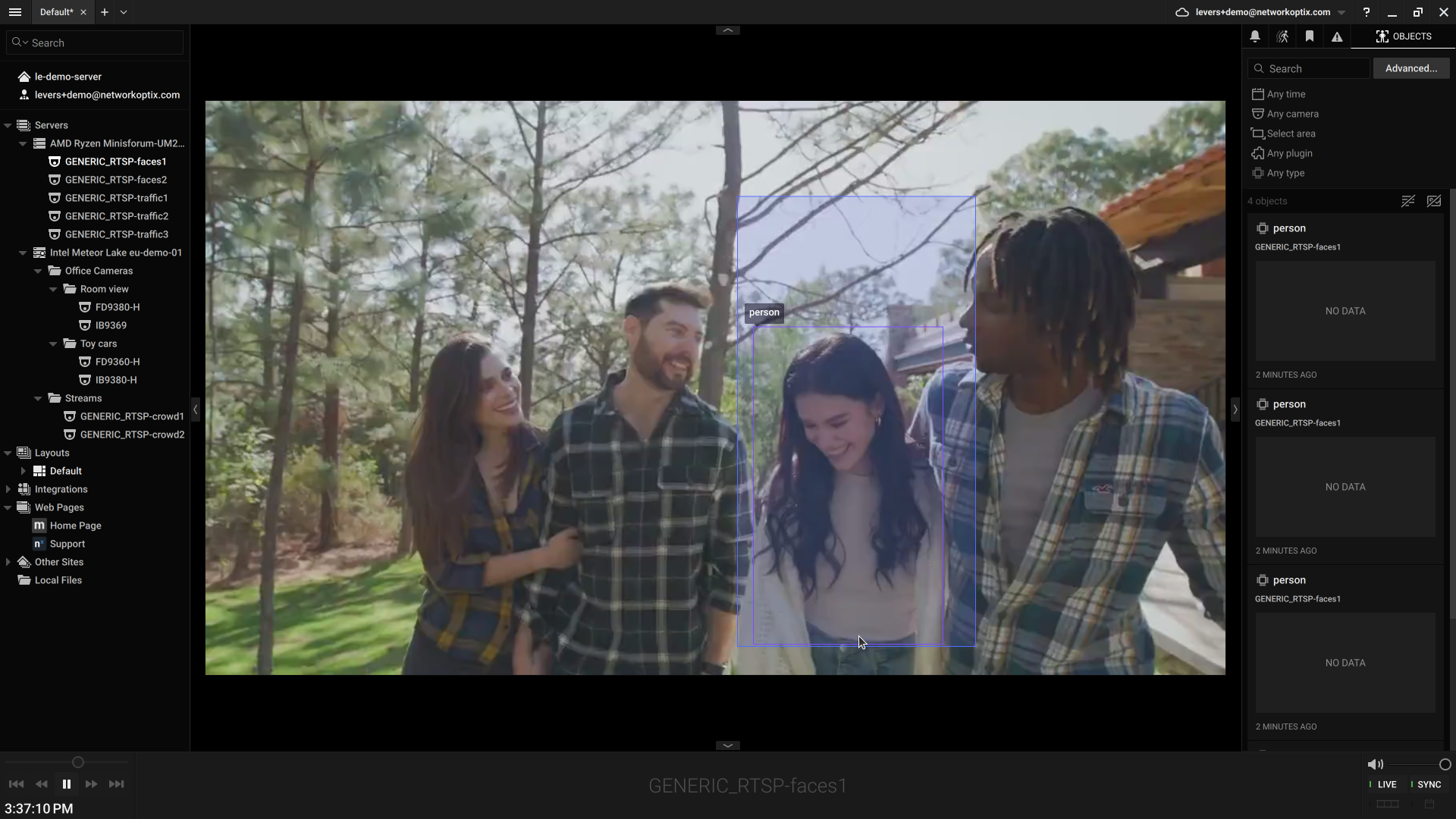
Confirm it in Live View: only the region inside the rectangle is processed, dimming the rest of the frame.

<figure><img src="https://2982163321-files.gitbook.io/~/files/v0/b/gitbook-x-prod.appspot.com/o/spaces%2FKGfC0TFSmuMDjbpLErO3%2Fuploads%2Fgit-blob-d0451fb334a8d9426c5c75ac5f9723a12b07d24d%2Fclient-live-view-region-of-interest-overlay.png?alt=media" alt="Live View showing a blue Region of Interest rectangle over part of the frame, with only the person inside the rectangle detected and labeled"><figcaption><p>ROI overlay in Live View</p></figcaption></figure>

Click **Apply** for changes to take effect.