# Use your model

After the model is uploaded the model is ready to be used on your devices. To use a model on your device follow the steps below.

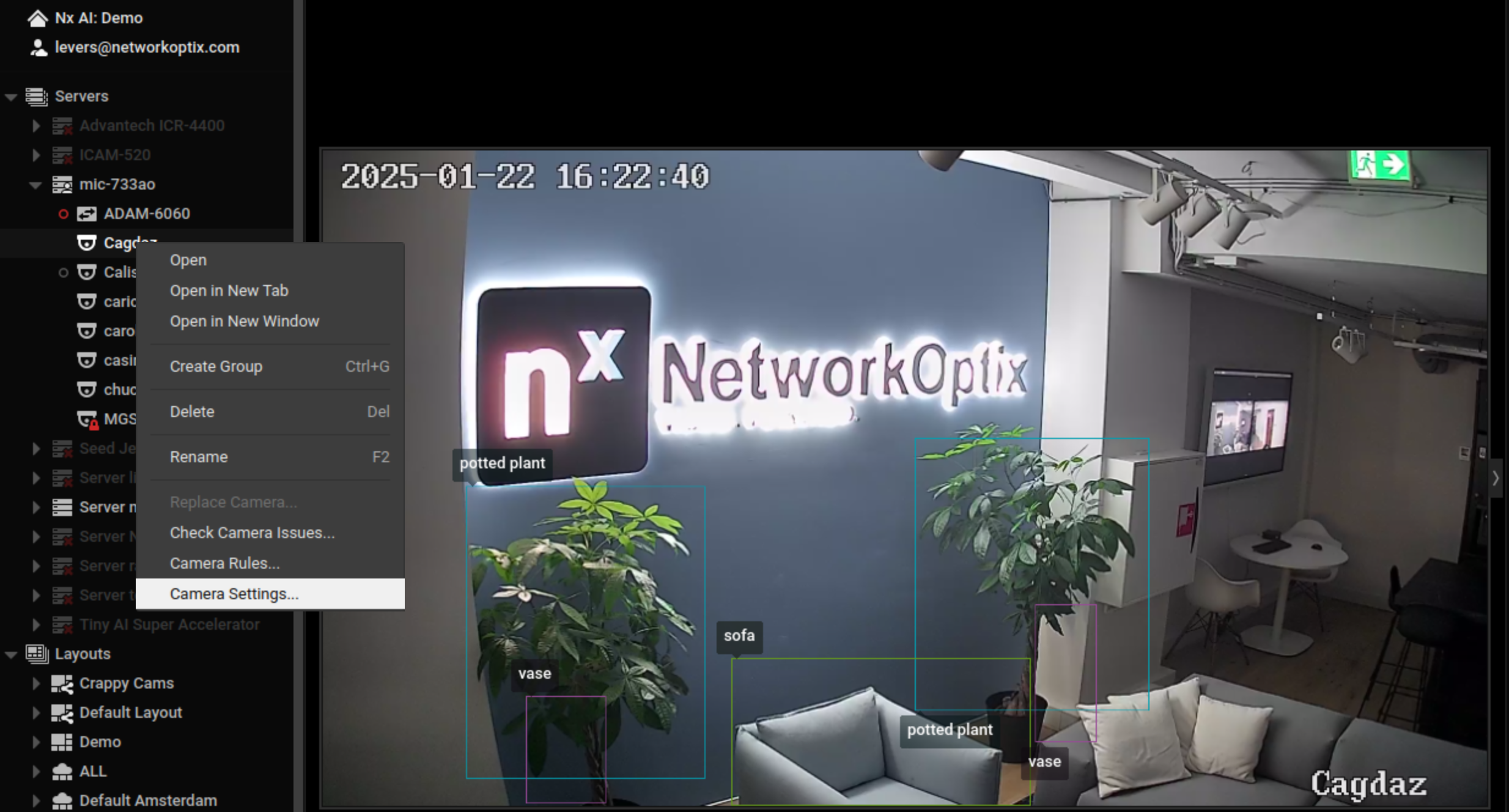
* Open the device settings in the NX Meta Client by right clicking on a device label and selecting the last option.

<figure><img src="https://content.gitbook.com/content/MCzrCuuH2Gkf3NayKWJr/blobs/vHyuTzQNO3IwPQeFjdro/1%20device%20settings.png" alt=""><figcaption></figcaption></figure>

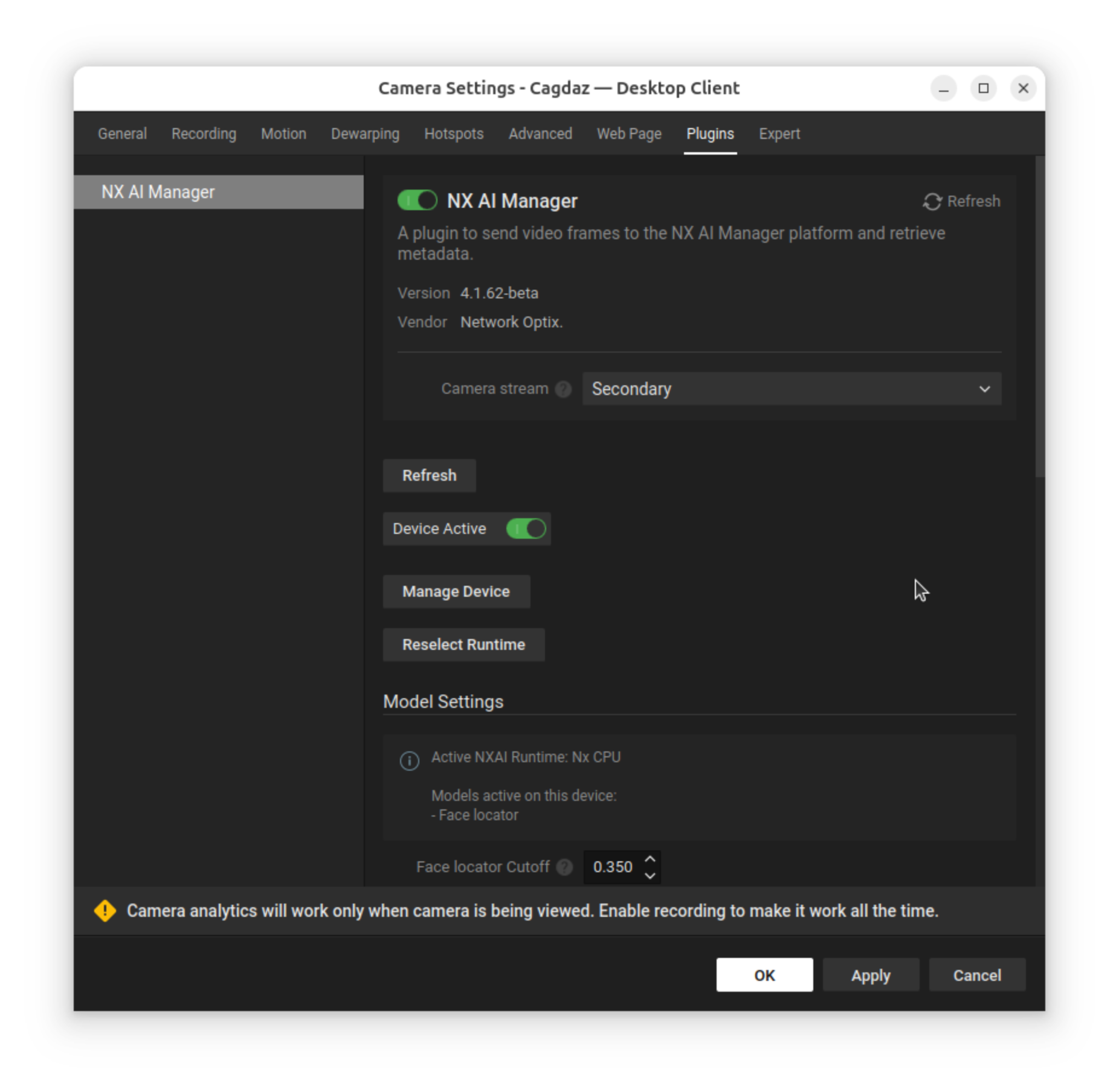
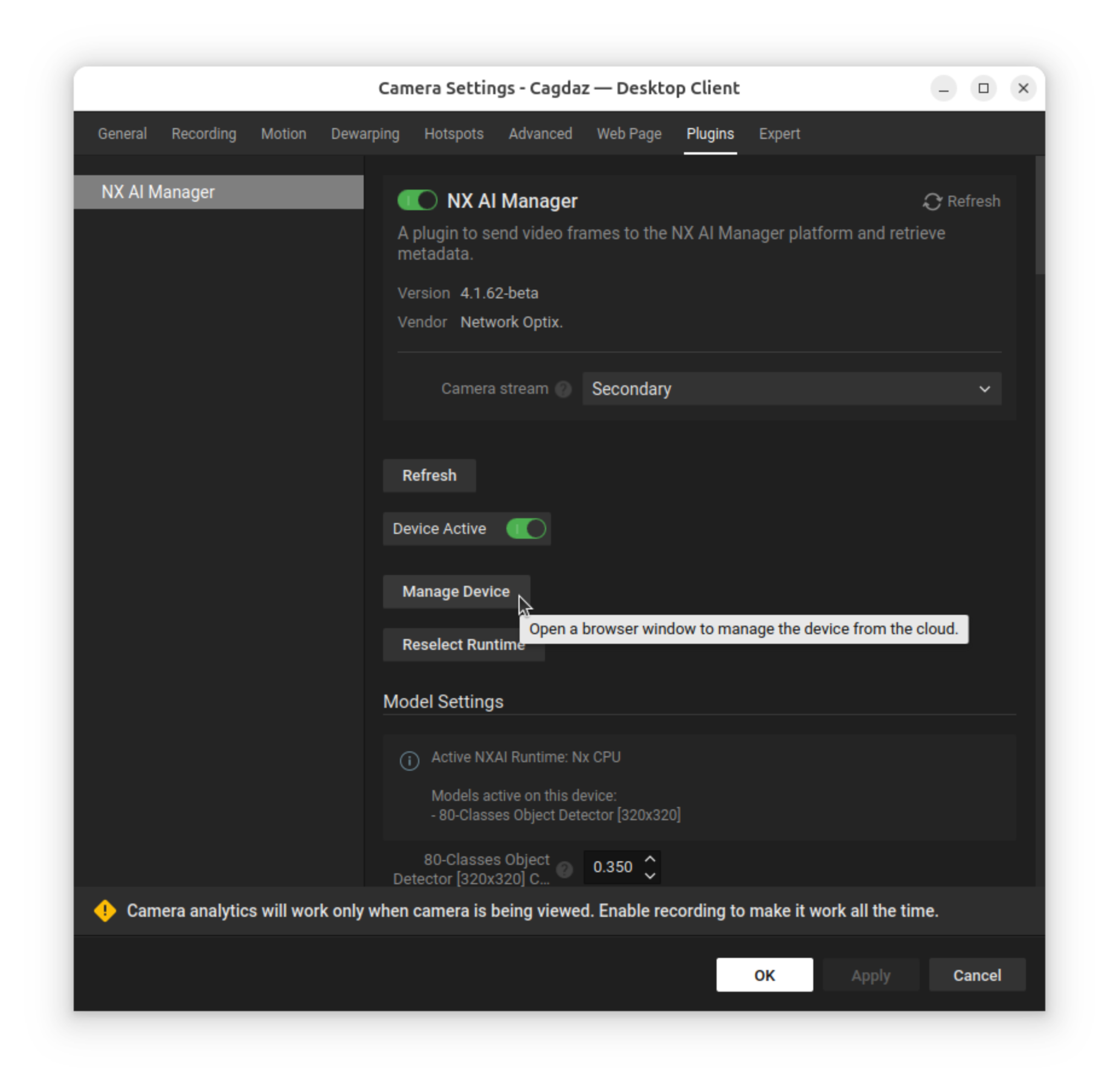
* Navigate to the plugin tab with the NX AI Manager plugin.
* Activate the plugin and then the device if necessary.
* You may need to click apply and refresh the tab.
* By default a model will be active.

<figure><img src="https://content.gitbook.com/content/MCzrCuuH2Gkf3NayKWJr/blobs/blxPdxB8PUG9dmD5VFIm/2%20device%20plugin%20settings.png" alt=""><figcaption></figcaption></figure>

* A popup window with the NX AI Manager Client will open on the device details page.
* On this page you can switch the model by clicking the switch model button <img src="https://content.gitbook.com/content/MCzrCuuH2Gkf3NayKWJr/blobs/5SqZqqUKJeGC4Am83HeI/image.png" alt="" data-size="line">.

<figure><img src="https://1802643978-files.gitbook.io/~/files/v0/b/gitbook-x-prod.appspot.com/o/spaces%2FMCzrCuuH2Gkf3NayKWJr%2Fuploads%2FNEZoBSPOFu8U0uYA0iNc%2FScreenshot%20From%202025-01-24%2014-39-12.png?alt=media&#x26;token=5e82e4f1-b3e5-47a2-945f-6972a6077318" alt=""><figcaption></figcaption></figure>

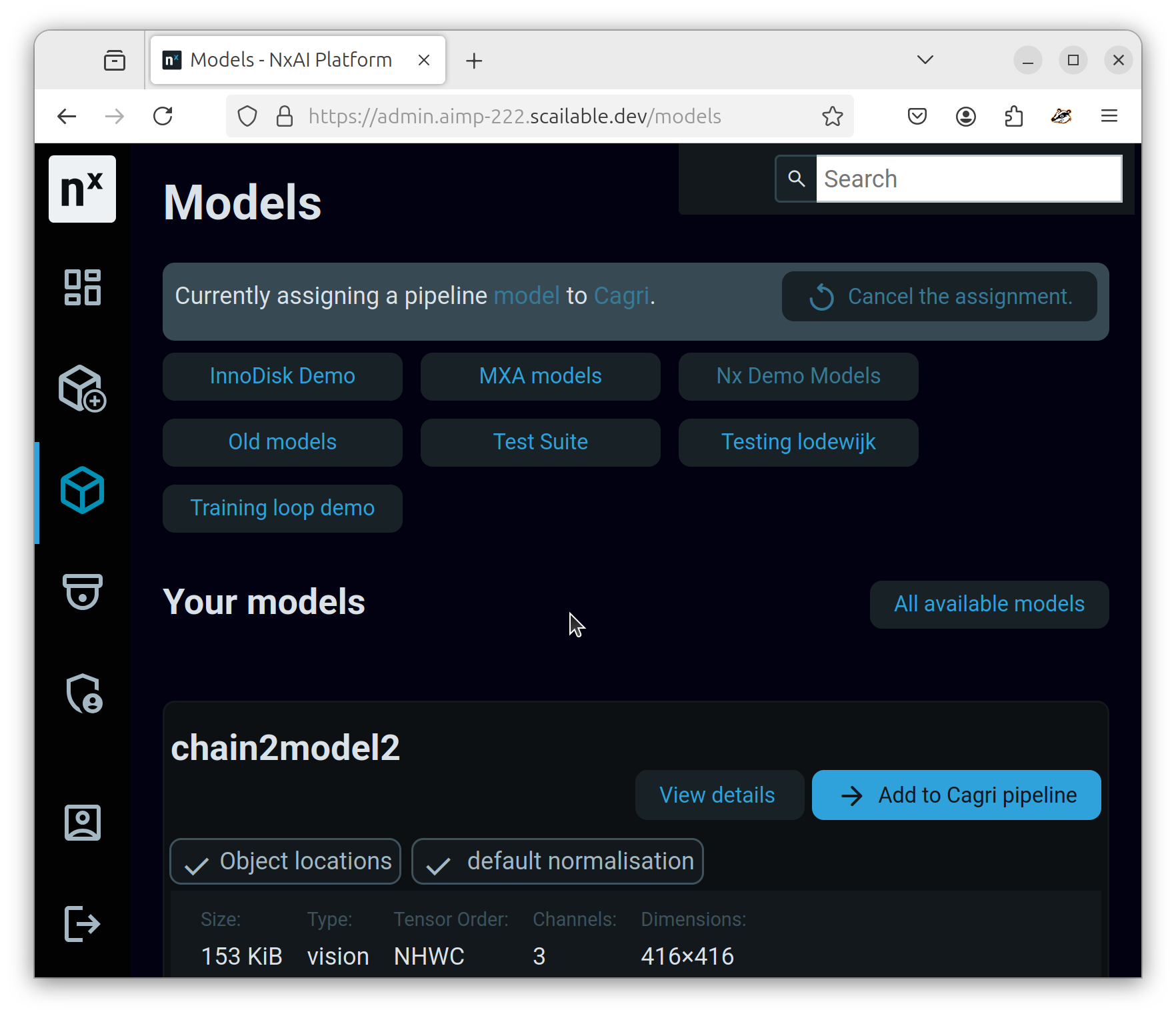
* You can then browse through the model library and select the uploaded model. (In this example a face locator model is used).

<figure><img src="https://1802643978-files.gitbook.io/~/files/v0/b/gitbook-x-prod.appspot.com/o/spaces%2FMCzrCuuH2Gkf3NayKWJr%2Fuploads%2FynUweK38LpYBX1oAGVsq%2FScreenshot%20From%202025-01-24%2014-58-34.png?alt=media&#x26;token=6b7453b6-5588-4cc8-90f6-bb592419b2b5" alt=""><figcaption></figcaption></figure>

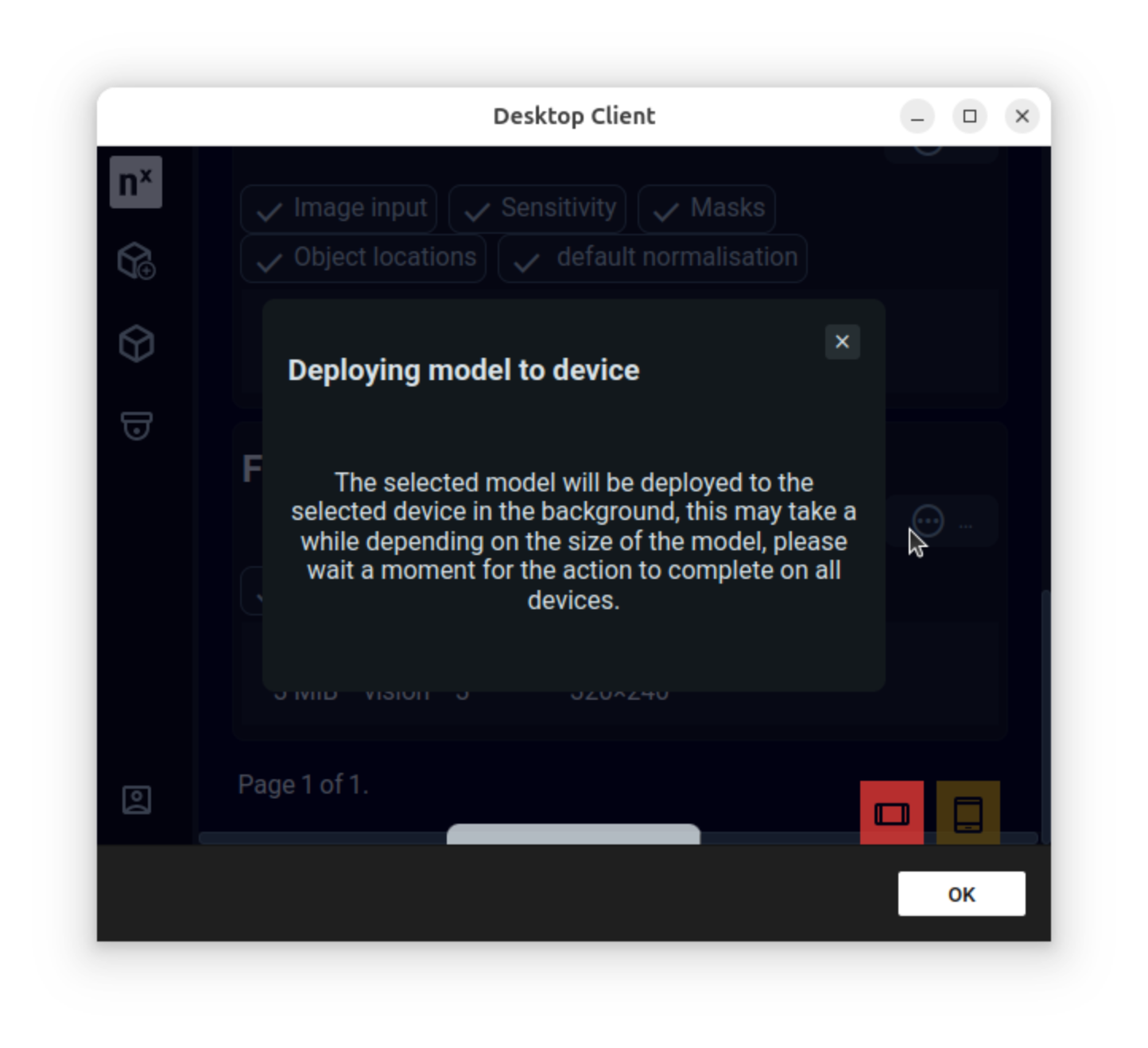
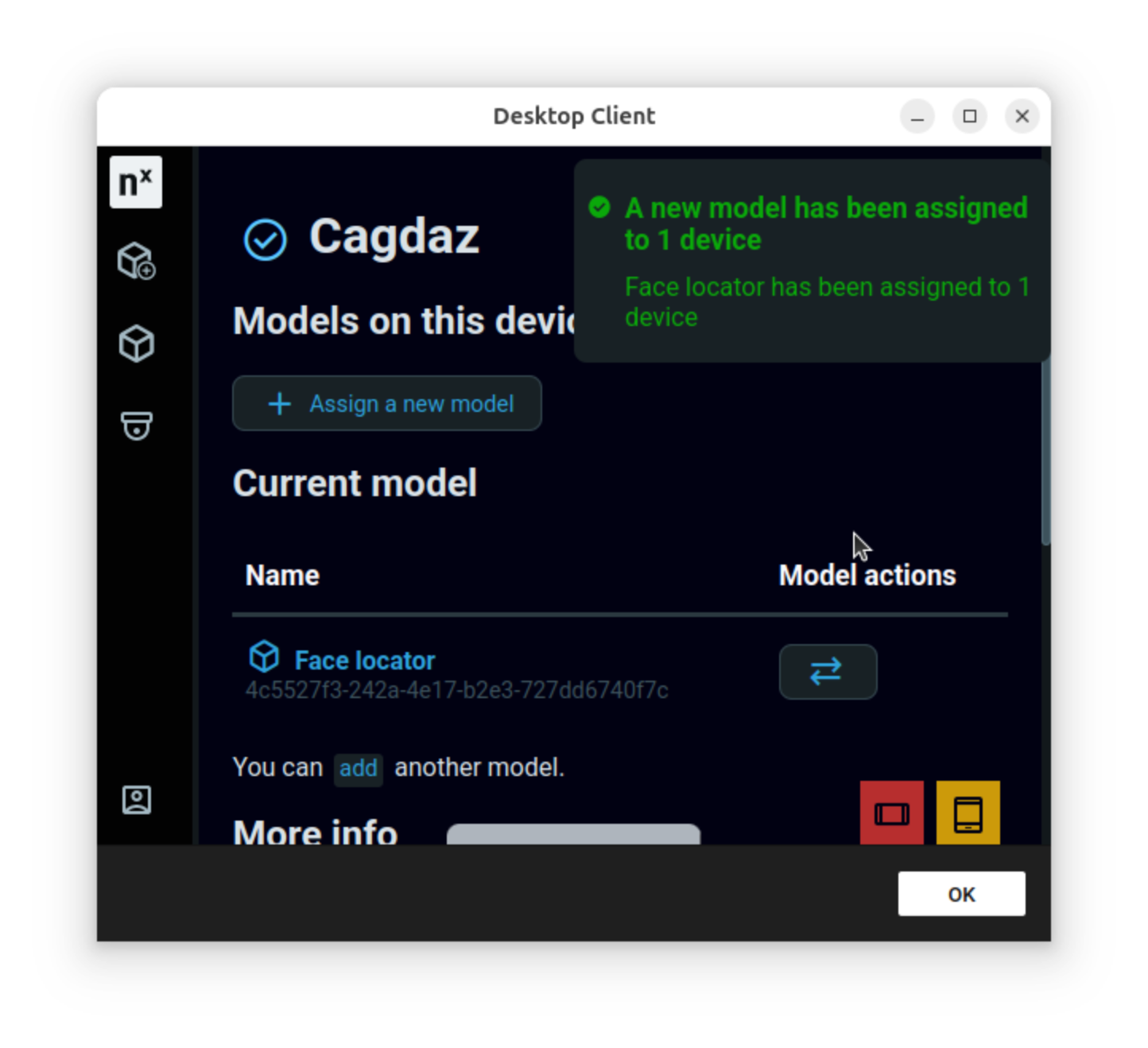
* The model will then be assigned and automatically downloaded to the server with the device.

<div><figure><img src="https://content.gitbook.com/content/MCzrCuuH2Gkf3NayKWJr/blobs/dTI0GR3qHSAaTlj2piFt/5%20model%20selection.png" alt="" width="375"><figcaption></figcaption></figure> <figure><img src="https://content.gitbook.com/content/MCzrCuuH2Gkf3NayKWJr/blobs/XyLeWYXBhJ7KYBwBzsf3/6%20model%20selection%20complete.png" alt="" width="375"><figcaption></figcaption></figure></div>

* After which the model is also visible on the plugin tab in the NX Meta Application (you might need to click refresh again for the updates to become visible).
<figure><img src="https://content.gitbook.com/content/MCzrCuuH2Gkf3NayKWJr/blobs/IkffVE4Gg49hJ8MC9mB8/7%20model%20on%20device.png" alt=""><figcaption></figcaption></figure>