> For the complete documentation index, see [llms.txt](https://nx.docs.scailable.net/llms.txt). Markdown versions of documentation pages are available by appending `.md` to page URLs; this page is available as [Markdown](https://nx.docs.scailable.net/nx-ai-manager-v4.x/support-and-troubleshooting/troubleshooting/system-checks.md).
# System checks
Things to check on the system if everything is running correctly, and how to check it.
### Is Nx Meta version 6.0 or later installed
You need Nx Meta 6.0 or later for the Nx AI Manager plugin. Follow the instructions to see [1. Install Network Optix](/nx-ai-manager-v4.x/nx-ai-manager/1.-install-network-optix.md). You need both the client and server programs, but the server can be installed on another machine than the client. Typically the **server** is a computer connected to some **cameras** over the network, and the **client** can be installed on your **local workstation** or **laptop**.
### Is the storage full
Can you store data or is the system low on resources. If the system has no space left the Nx AI Manager will not work correctly.
### Is the camera working
Do you see images in the camera preview window? If not, check the camera control app that came with the camera if that does show images.
* If the camera is not working there, you need to fix the camera input first before trying any next steps.
* If the camera is working but not visible in Nx Meta, please try to fix the camera display in Nx Meta first before trying any next steps.
### Are the necessary drivers installed
#### NVIDIA Orin accelerated
If you're running on NVIDIA Orin - is a current version of NVIDIA Jetpack installed?
#### Hailo Accelerated Devices
In order for the runtime using Hailo accelerators to work, the correct Hailo Runtime (**hailort)** needs to be installed. Currently, the Nx AI Runtime supports Hailo driver version **4.17.0**. Ensure that the correct runtime is installed.
### Is the system registered to a cloud user
If the plugin is detected and you are greeted with this message:
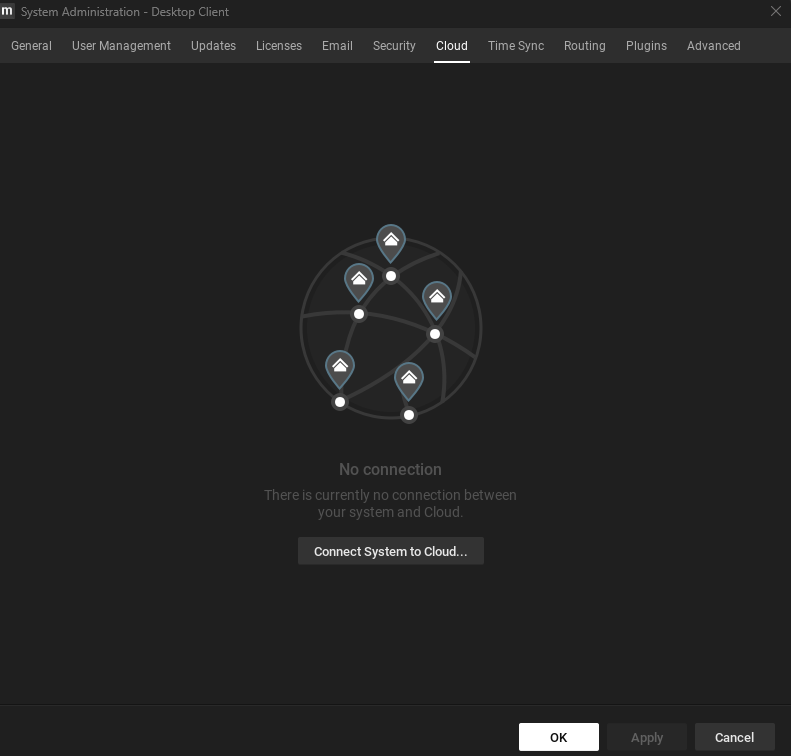
It is most likely that your system is not connected to a cloud account. If you do not have an Nx Cloud account yet, follow the steps at [1. Install Network Optix](/nx-ai-manager-v4.x/nx-ai-manager/1.-install-network-optix.md) . The plugin requires a system to be connected to the cloud account to work.To add your system to your cloud account, right click on your system in the left-hand pane and select the Cloud tab: